Gfx launcher/Desktop On Demand including IDEs
Objectives
You will learn:
What is Gfx launcher and On-Demand portal and when to use them
Which interface to use on each resource and how to start them
How to set the job parameters for your application - How to start IDEs from inside Gfx launcher and OpenOnDemand
What is Gfx launcher / Desktop On Demand? Is it right for my job?
On Cosmos (LUNARC), Kebnekaise (HPC2N), Alvis (C3SE), and Dardel (PDC), some applications are available through one of a couple of On Demand services. On Demand applications provide an interactive environment to schedule jobs on compute nodes using a graphic user interface (GUI) instead of the typical batch submission script. How you reach this interface is dependent on the system you use and their choice of On Demand client.
Cosmos and Dardel use the On-Demand Desktop developed at LUNARC, which is accessible via Thinlinc.
Kebnekaise and Alvis uses Open OnDemand[#f1]_ via a dedicated web portal, https://portal.hpc2n.umu.se and for alvis, https://alvis.c3se.chalmers.se/
Desktop On-Demand [1] is most appropriate for interactive work requiring small-to-medium amounts of computing resources. Non-interactive jobs and jobs that take more than a day or so should generally be submitted as batch jobs. If you have a longer job that requires an interactive interface to submit, make sure you keep track of the wall time limits for your facility. Some of the Desktop On Demand’s only allow at most 12 hours of allocation at a time.
On-Demand applications are not accessible via SSH; you must use either Thinlinc (Cosmos and Dardel) or the dedicated web portal (Kebnekaise and Alvis).
Important
“On-Demand App Availability for this Course”
Jupyter (Lab and/or Notebook) is available as an On-Demand application at all 4 facilities covered on this page. For Cosmos specifically, it can also load custom conda environments (but NOT pip environments).
On Alvis, Cosmos and Kebnekaise, VSCode can also be run via On-Demand.
Spyder can be run via On-Demand on Cosmos only. It also supports custom conda environments.
On Cosmos, there are also interactive On-Demand command lines (for CPUs and GPUs) under Applications - General that can be used to start Jupyter or Spyder with a custom pip-based environment.
Warning
Dardel also has On-Demand applications located in the equivalent place on its remote desktop, but only 30 ThinLinc licenses are available for the whole facility. Talks are ongoing about whether and by how much to increase the number of licenses, but until the changes are implemented, we advise using SSH with -X forwarding instead. In our experience, ThinLinc access to Dardel is not reliably available, and even when connection succeeds, queue times for On-Demand applications can be very long.
Starting the On-Demand Interface
For most programs, the start-up process is roughly the same:
Log into COSMOS (or Dardel) via your usual Thinlinc client or browser interface to start an HPC Desktop session.
Click
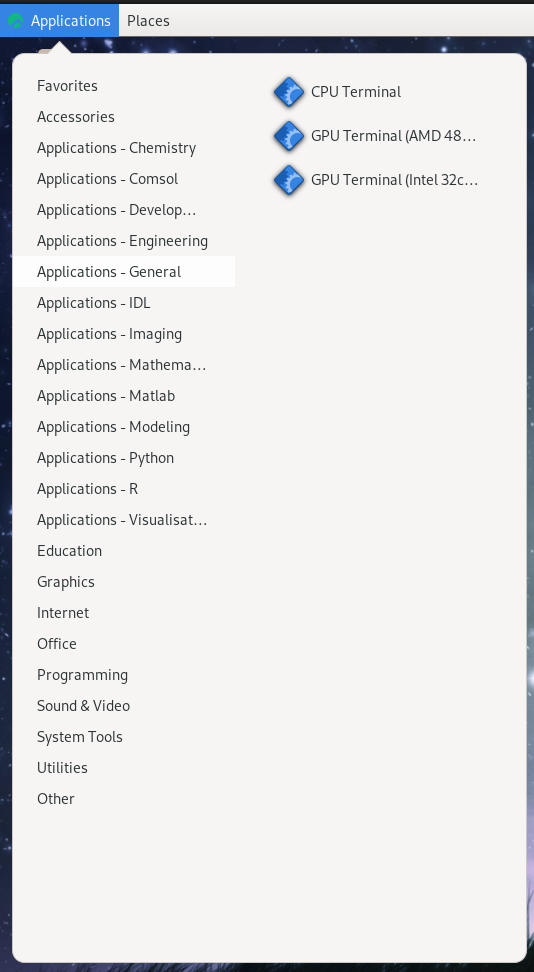
Applicationsin the top left corner, hover over the items prefixed withApplications -until you find your desired application (on Dardel, On-Demand applications are prefixed withPDC-), and click it. The top-level Applications menu on Cosmos looks like this:
Warning
If you start a terminal session or another application from Favorites, System Tools, or other menu headings not prefixed with Applications - or PDC-, and launch an interactive program from that, it will run on a login node. Do not run intensive programs this way!
Note
What if On-Demand Applications are missing from the menu?
On rare occasions, a user may find that the Applications menu is missing all Applications - <App_group> options. This usually indicates that your .bashrc file is either missing or has had problematic changes made to it, especially if LMOD commands like ml spider <package> are also not recognized. If you are a new user on your very first session on COSMOS, the problem should resolve itself if you start a new ThinLinc session with “End existing session” selected. If you are not a new user and module commands are recognized, running gfxmenu --force in a terminal session may resolve the issue; otherwise, you will probably have to submit a support ticket.
To start an Open OnDemand session on Kebnekaise,
Open https://portal.hpc2n.umu.se in your browser. The page looks like this:
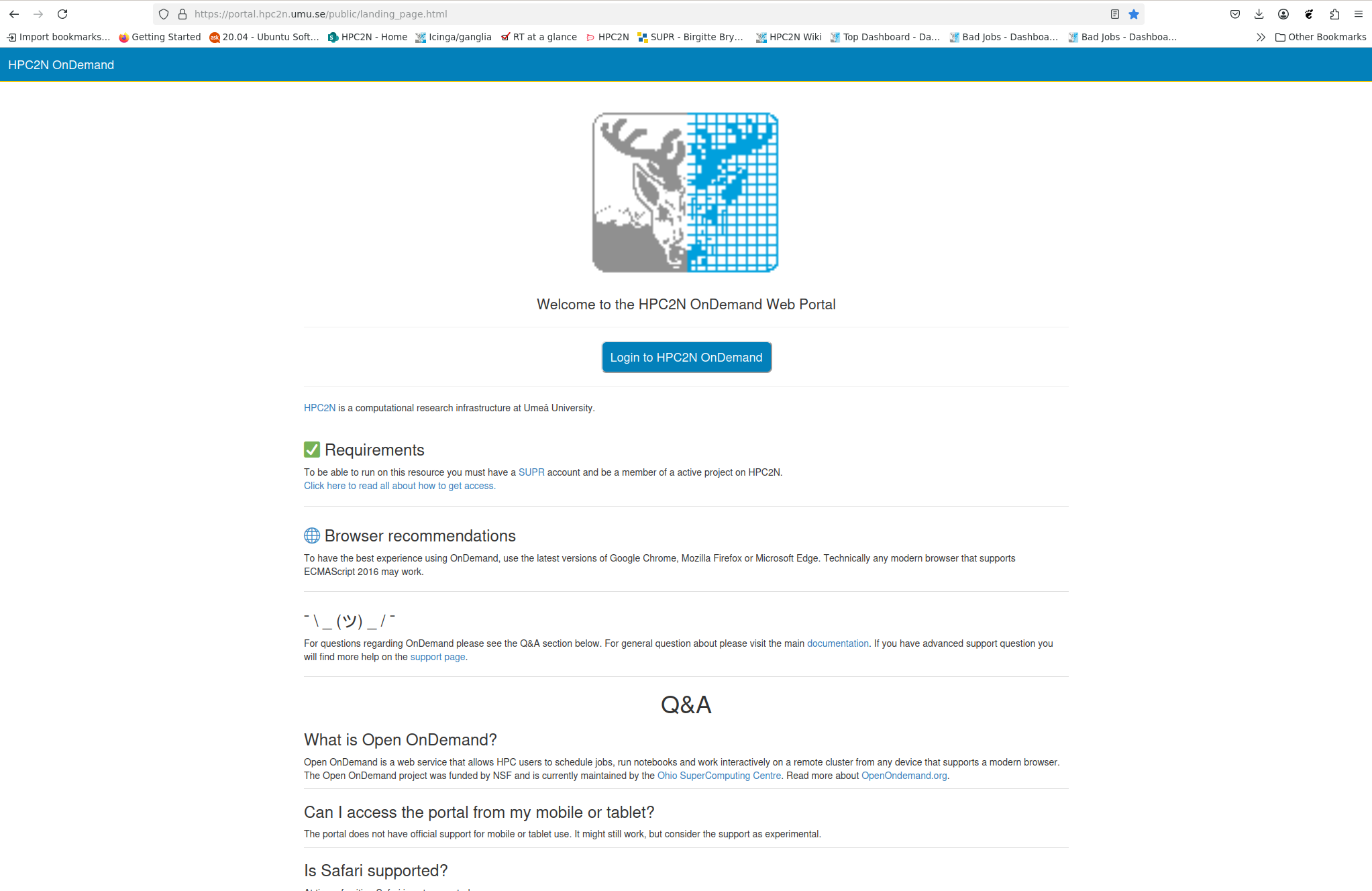
Click the blue button labeled “Login to HPC2N OnDemand”.
A login window should open with boxes for your login credentials. Enter your HPC2N username and password, then click “Sign In”.
You will now be on the HPC2N Open OnDemand dashboard. The top of it looks like this:
Find the
Interactive Appstab in the menu bar along the top and click it to open a drop-down menu of available apps. The menu currently looks like this:
Warning
Unlike on Cosmos and Dardel, On-Demand applications on Kebnekaise are not reachable through Thinlinc, regardless of whether you use the desktop client or a browser! If you find similar-looking applications in the Thinlinc interface, be aware that they all run on login nodes!
To start an Open OnDemand session on Alvis,
Open https://alvis.c3se.chalmers.se/ in your browser. The page looks like this:
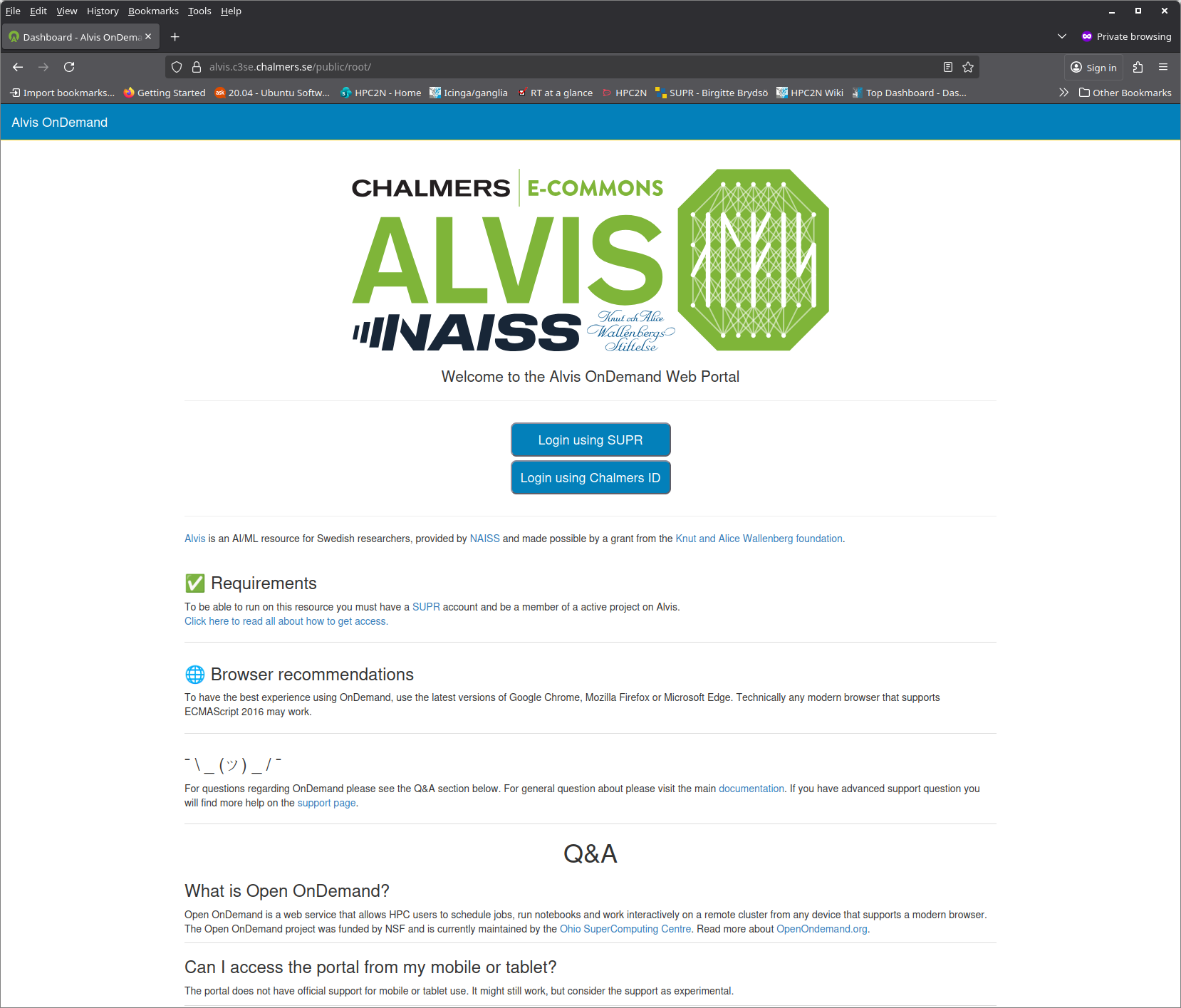
Click the blue button labeled “Login using SUPR”.
A login window should open to let you authenticate with your SUPR credentials. Fill them in if you are not logged in. Click “Sign In”.
You will now be on the C3SE Open OnDemand dashboard. The top of it looks like this:
Find the
Interactive Appstab in the menu bar along the top and click it to open a drop-down menu of available apps. The menu currently looks like this:
Warning
Unlike on Cosmos and Dardel, On-Demand applications on Alvis are not reachable through Thinlinc, regardless of whether you use the desktop client or a browser! If you find similar-looking applications in the Thinlinc interface, be aware that they all run on login nodes!
Setting Job Parameters
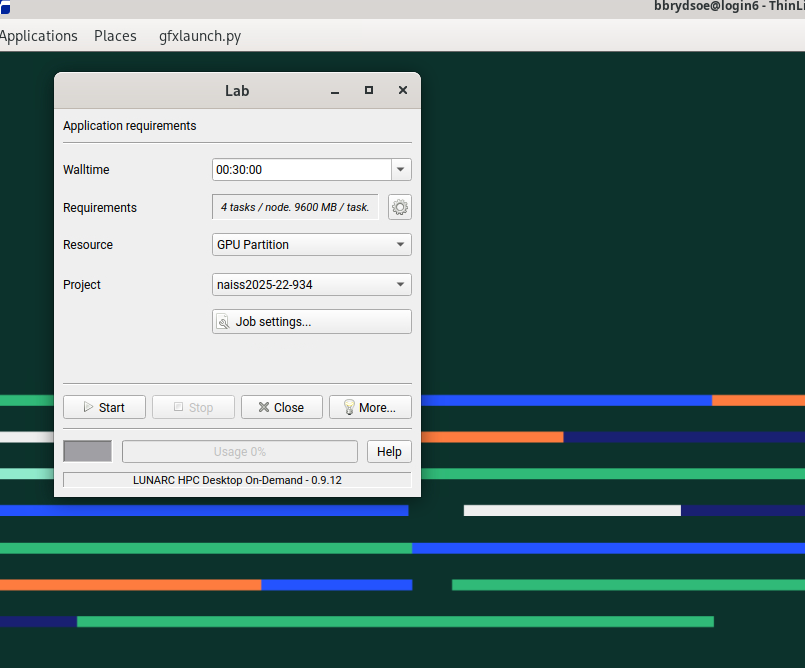
Upon clicking your chosen application, a pop-up interface called the GfxLauncher will appear and let you set the following options:
Wall time - how long your interactive session will remain open. When it ends, the whole window closes immediately and any unsaved work is lost. You can select the time from a drop-down menu, or type in the time manually. On Cosmos, CPU-only applications (indicated with “(CPU)” in the name) can run for up to 168 hours (7 days), but the rest are limited to 48 hours. Default is 30 minutes.
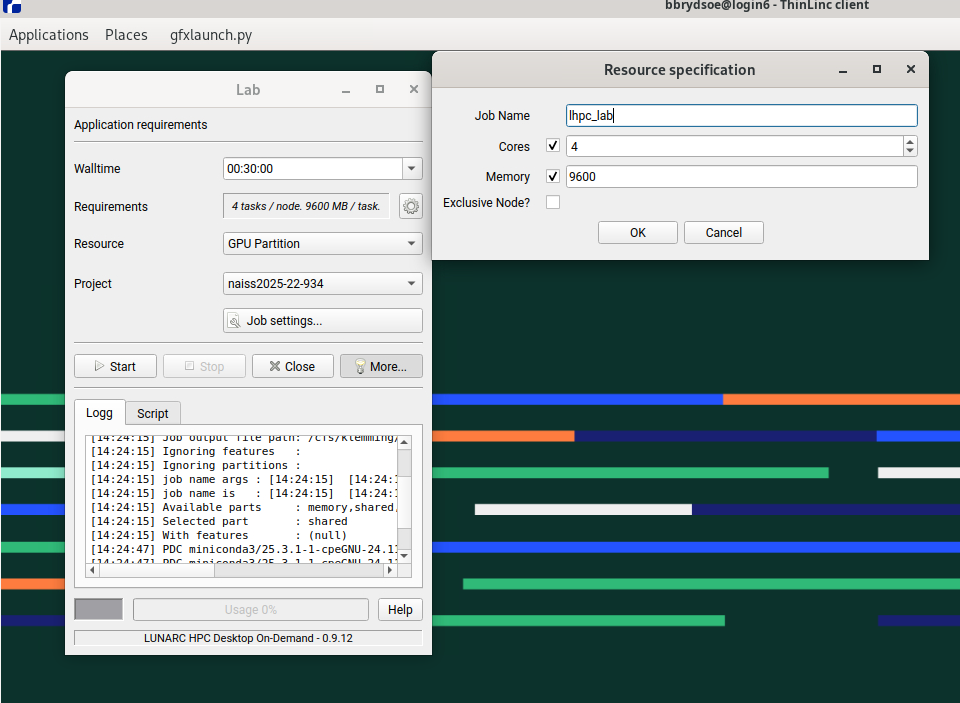
Requirements - how many tasks per node you need. The default is usually 1 or 4 tasks per node. There is also a gear icon to the right of this box that can pull up a second menu (see figure below) where you can set
the name of your job,
the number of tasks per node,
the amount of memory per CPU core, and/or
whether or not to use a full node.
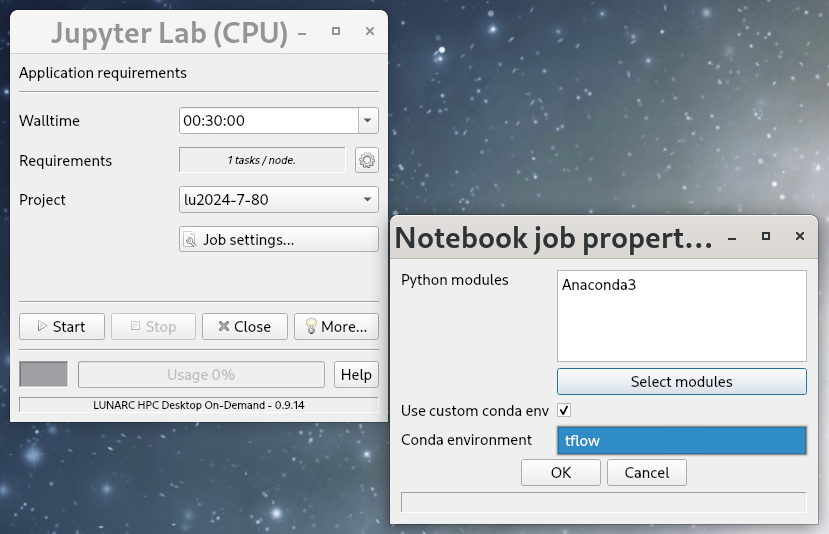
The GfxLauncher GUI (here used to launch Jupyter Lab). The box on the left is the basic menu and the box on the right is what pops up when the gear/cog icon next to Requirements is clicked.
Resource - which kind of node you want in terms of the architecture (AMD or Intel) and number of cores in the CPU (or GPU). Options and defaults vary by program, and the option to change this is not always available.
Project - choose from a drop-down menu the project with which your work is associated. This is mainly to keep your usage in line with your allocations and permissions, and to send any applicable invoices to the correct PI.
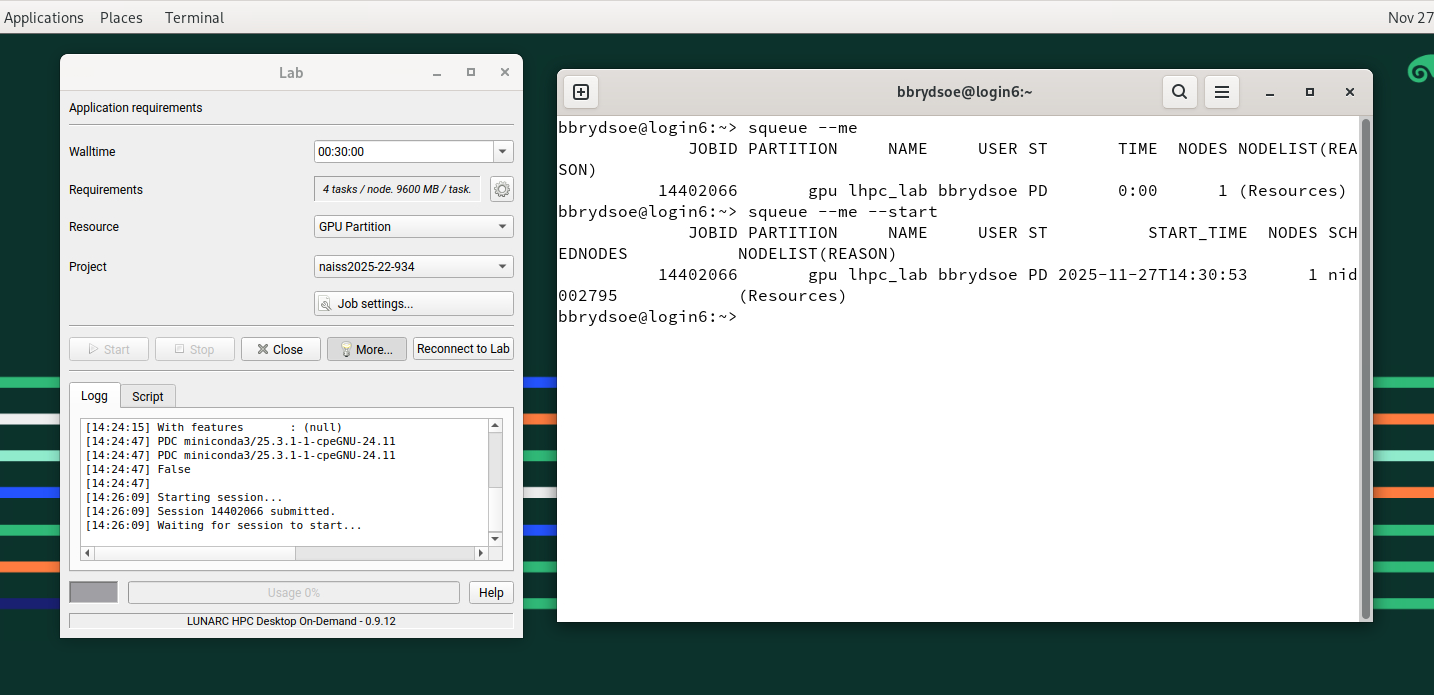
When you’re happy with your settings, click “Start”. The GfxLauncher menu will stay open in the background so that you can monitor your wall time usage with the Usage bar. Leave this window open—your application depends on it!
Warning
Closing the GfxLauncher popup after your application starts will kill the application immediately!
If you want, you can also look at the associated SLURM scripts by clicking the “More” button at the bottom of the GfxLauncher menu and clicking the “Script” tab (example below), or view the logs under the “Logg” tab.
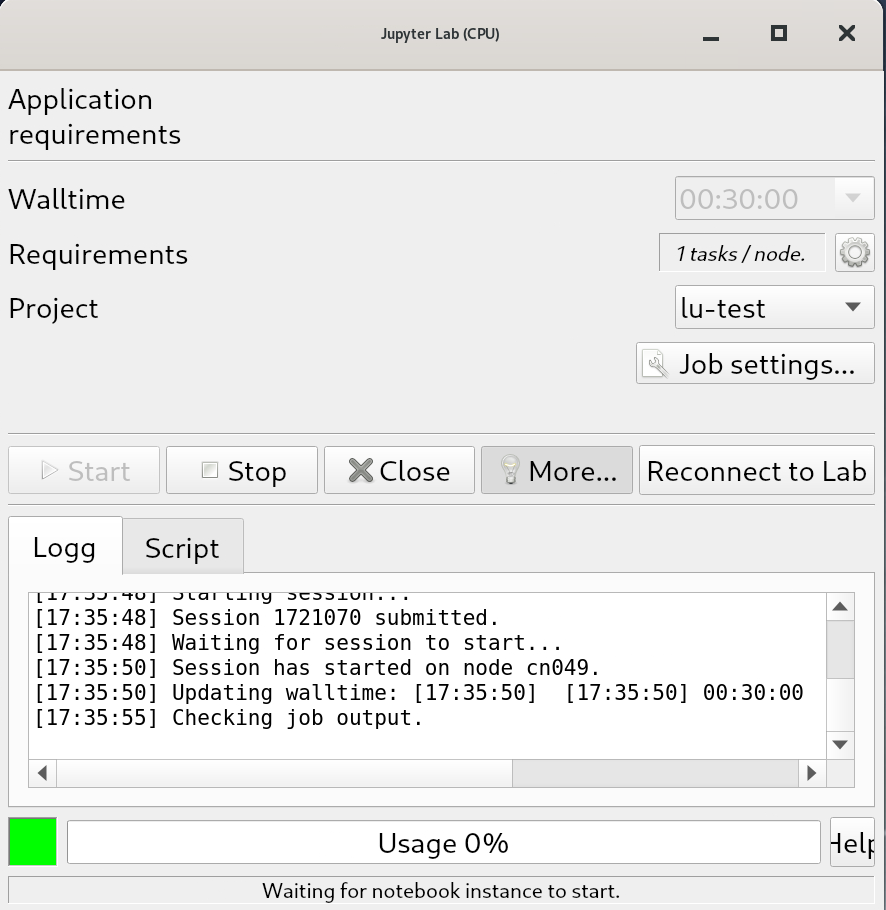
If an app fails to start, the first step of troubleshooting will always be to check the “Logg” tab.
Tip
Terminals on Compute nodes. If you don’t see the program you want to run interactively listed under any other Applications sub-menus, or if the usual menu item fails to launch the application, you may still be able to launch it via one of the terminals under Applications - General, or the GPU Accelerated Terminal under Applications - Visualization.
The CPU terminal allows for a wall time of up to 168 hours (7 days), while the two GPU terminals can only run for 48 hours (2 days) at most. For more on the specifications of the different nodes these terminals can run on, see LUNARC’s webpage on COSMOS.
If you finish before your wall time is up and close the app, the app should stop in the GfxLauncher window within a couple of minutes, but you can always force it to stop by clicking the “Stop” button. This may be necessary for Jupyter Lab.
If you go to “Interactive apps” and select Jupyter Notebook, or any of the other options, a page will open that looks like this:
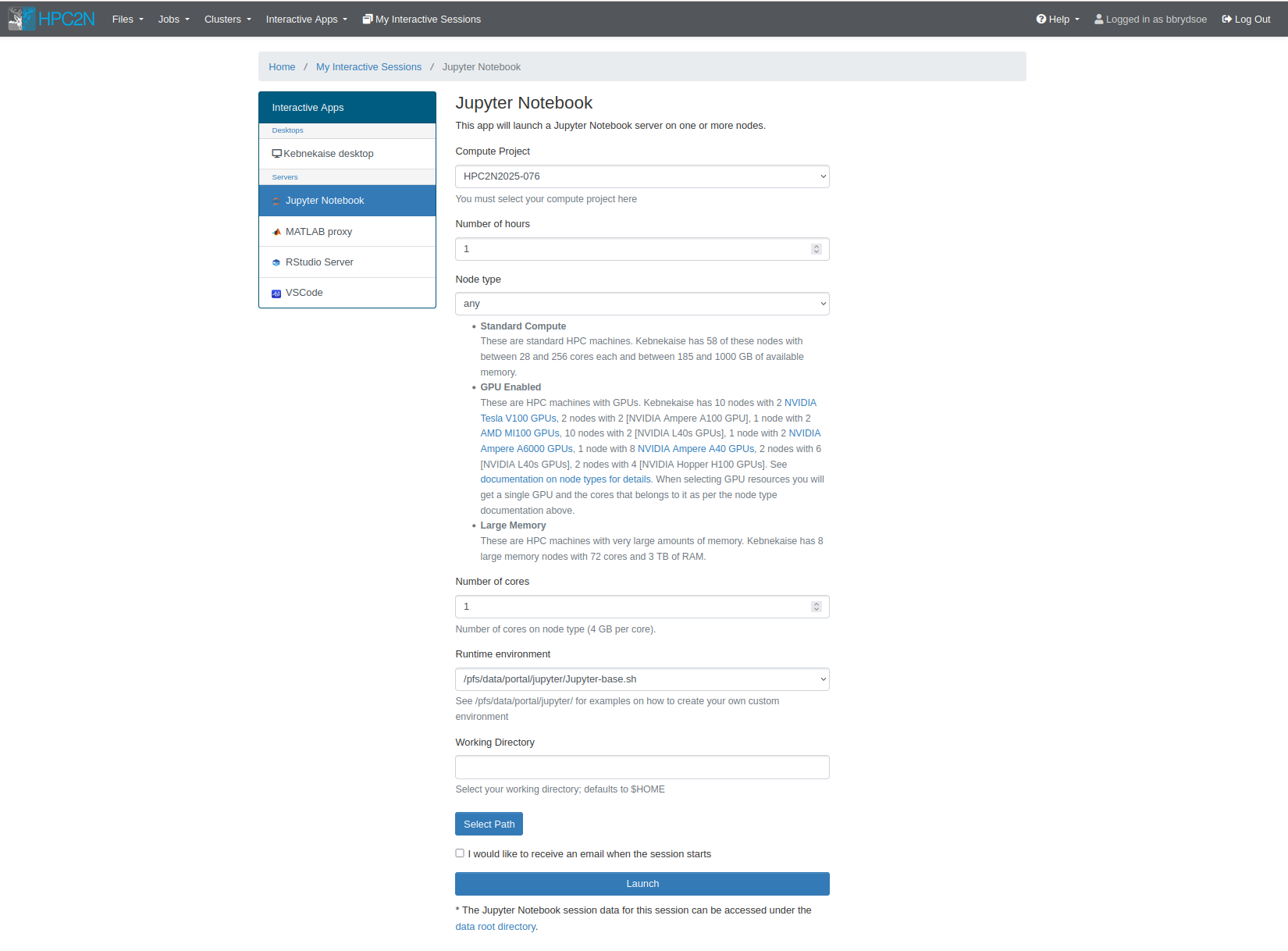
Most of the options you have to set will be the same whether you choose Jupyter Notebook, VSCode, or even the Kebnekaise desktop. The parameters required for all apps include:
Compute Project - Dropdown menu where you can choose (one of) your compute projects to launch with.
Number of Hours - Wall time. The maximum is 12 hours, but you should avoid using more than you need to conserve your allocation and minimize queuing time.
Node type - Choose from options described below the dropdown menu. If you pick “any GPU”, leave “Number of Cores” empty.
Number of Cores - Choose any number up to 28. Each core has 4GB of memory. This is only a valid field if you pick “any” or “Large memory” for the “Node type” selection.
Working directory - Default is
$HOME. You can either type a full path manually or click “Select Path” to open a file browser if you are unsure of the full path.“I would like to receive an email when my job starts” - Check box if you agree.
For some apps, like Jupyter Notebook, you will also see an option to choose a Runtime environment. Choices include “System provided”, “Project provided”, or “User provided”. If you or your project do not have a custom environment, then use “System provided”.
Once you enter your desired parameters, click Launch. If the parameters are all valid, the page will reload and looks something like this for as long as your job is in the queue:
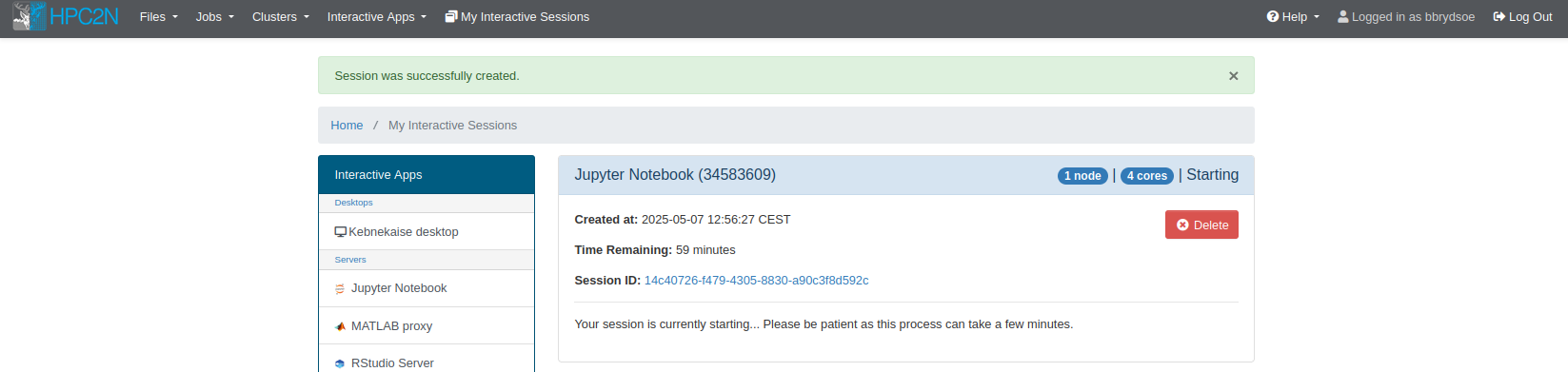
When the job starts, the title bar of the box containing your job will turn from blue to green, the status message will change from “Queued” to “Running”, and the number of nodes and cores with appear in the title bar. You can have more than one OnDemand job running or queued. Running jobs will look like these:
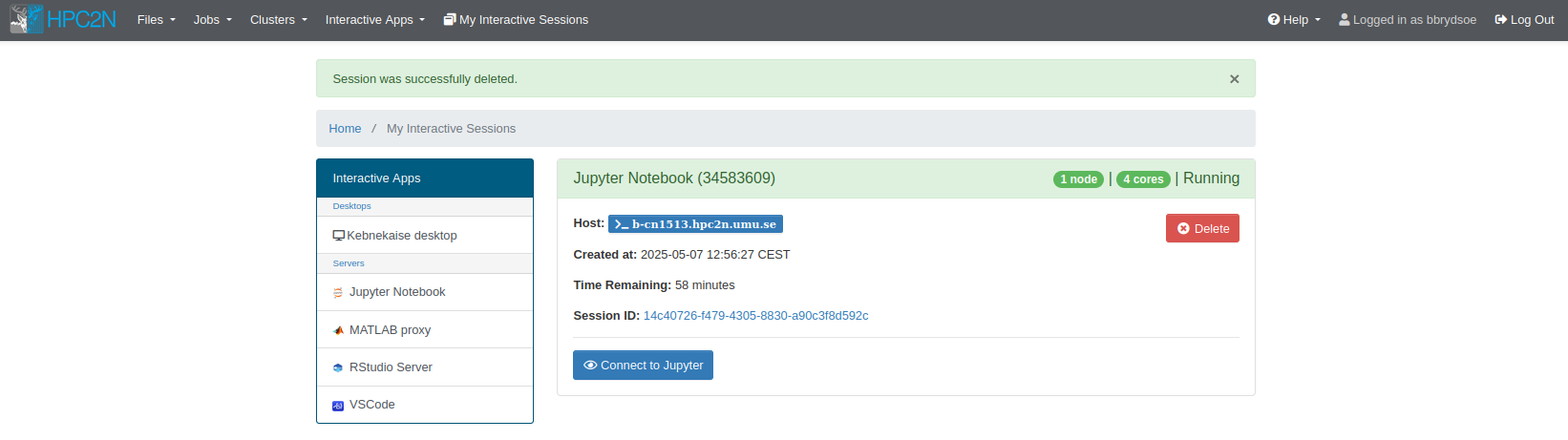
For all apps, the equivalent of a start button will be a bright blue rectangle near the bottom of the job box, usually with “Connect to” and the app name on it. When you click this button, your app should launch in a new window.
Important
Closing the GUI window for your app before time runs out (e.g. the browser for Jupyter Notebook) does not stop your job or release the resources associated with it! If you want to stop your job and avoid spending any more of your resource budget on it, you must click the red “Delete” button near the top right of your interactive job listing. Otherwise, you can reopen any closed app as long as time remains in the job allocated for it.
If you go to “Interactive Apps” and select Jupyter, or any of the other options, a page will open that looks like this:
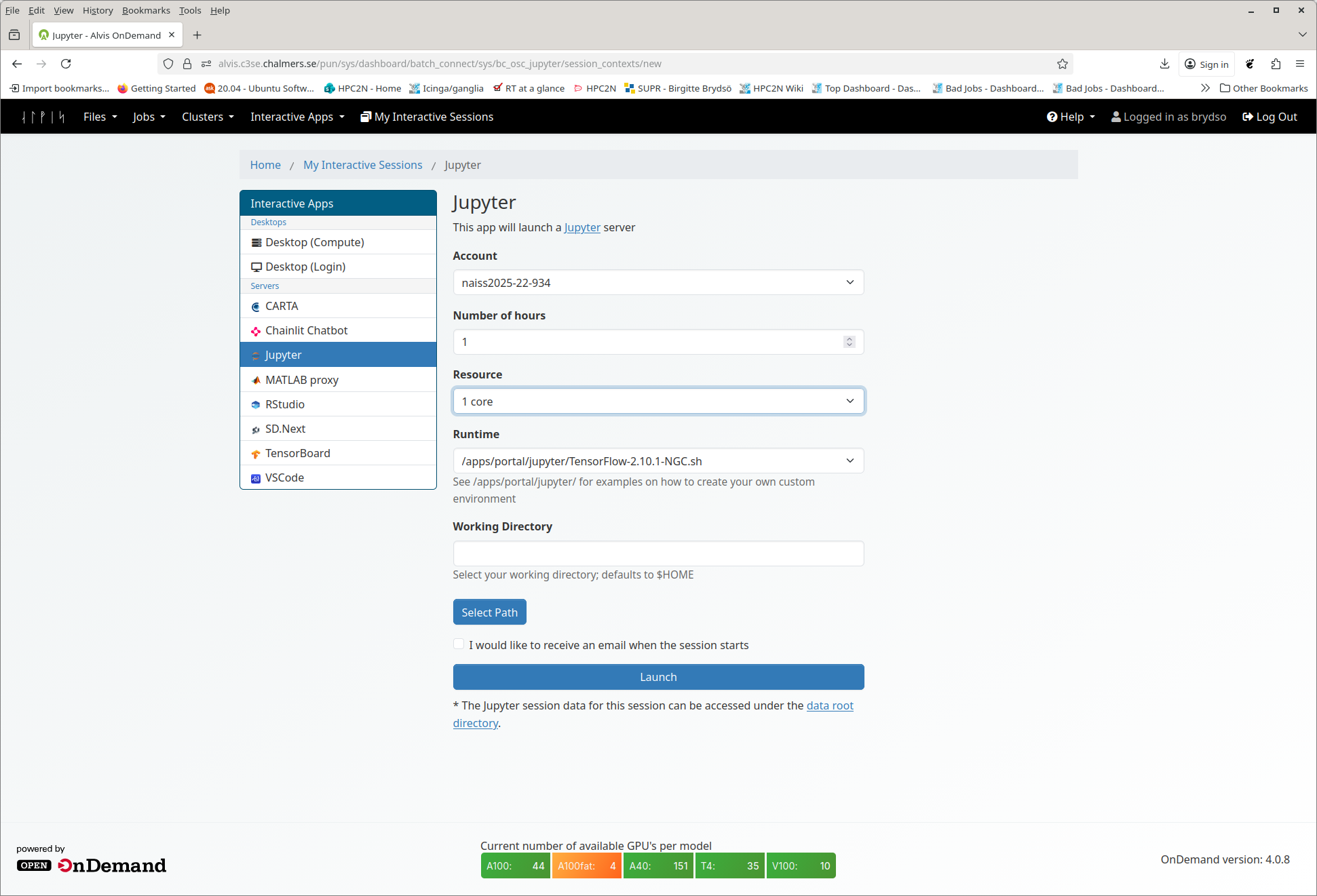
Most of the options you have to set will be the same whether you choose Jupyter Notebook, VSCode, or even the Desktop. The parameters required for all apps include:
Account - Dropdown menu where you can choose (one of) your compute project accounts to launch with.
Number of Hours - Wall time. You should avoid using too much, to conserve your allocation and minimize queuing time.
Resource - Choose from options described below the dropdown menu. CPUs: 1, 2, 4. GPUs: here you pick
<type>:<number>, where<type>is the type of GPU and number is 1-4. pty.Runtime - for when you are creating your own Jupyter runtime environment. See
/apps/portal/jupyter/for examples.Working directory - Default is
$HOME. You can either type a full path manually or click “Select Path” to open a file browser if you are unsure of the full path.“I would like to receive an email when my job starts” - Check box if you agree.
For some apps, like Jupyter Notebook, you will also see an option to choose a Runtime environment. Choices include “System provided”, “Project provided”, or “User provided”. If you or your project do not have a custom environment, then use “System provided”.
Once you enter your desired parameters, click Launch. If the parameters are all valid, the page will reload and looks something like this for as long as your job is in the queue:
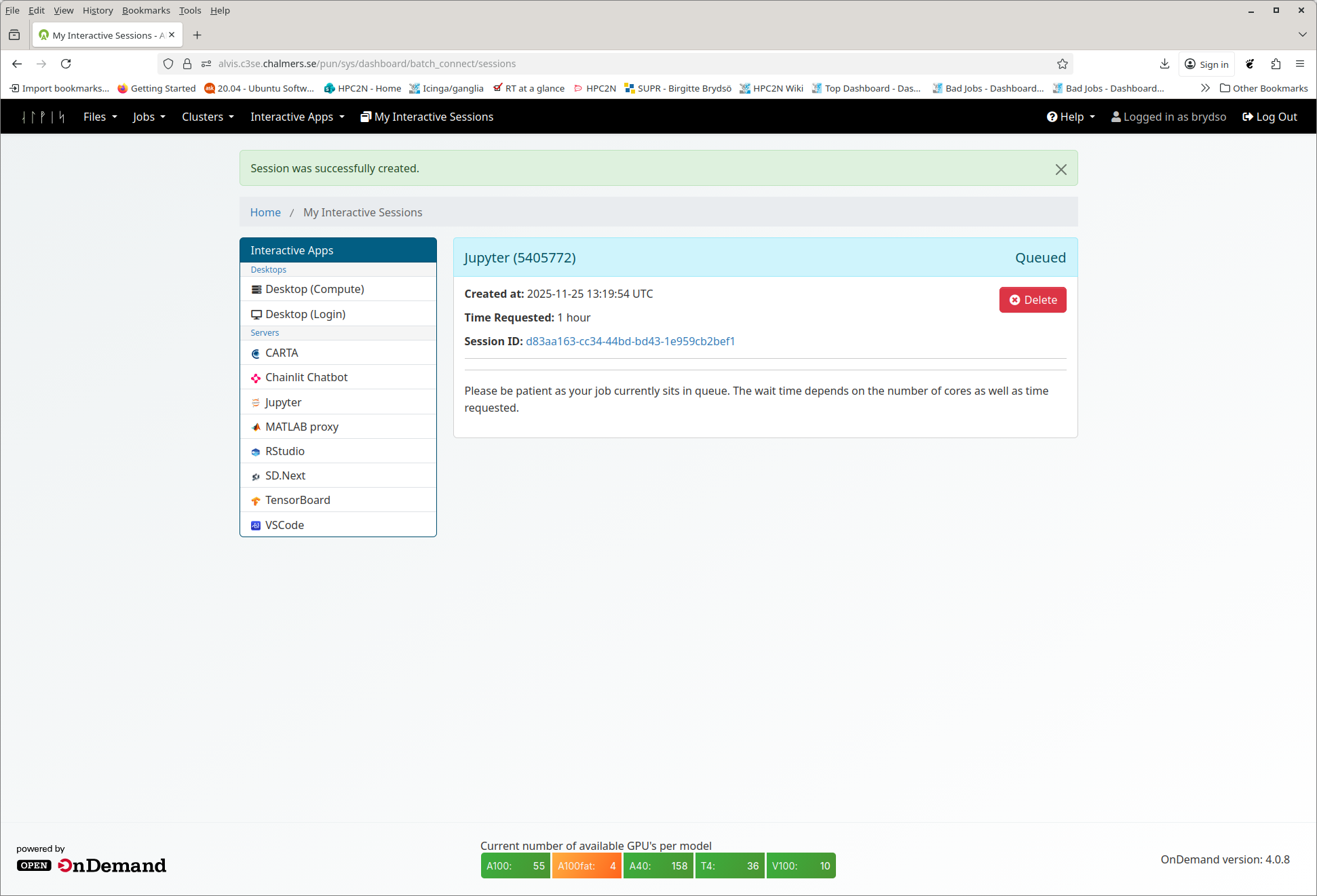
When the job starts, the title bar of the box containing your job will turn from blue to green, the status message will change from “Queued” and then “Starting” to “Running”, and the number of nodes and cores will appear in the title bar. You can have more than one OnDemand job running or queued. Running jobs will look like these:
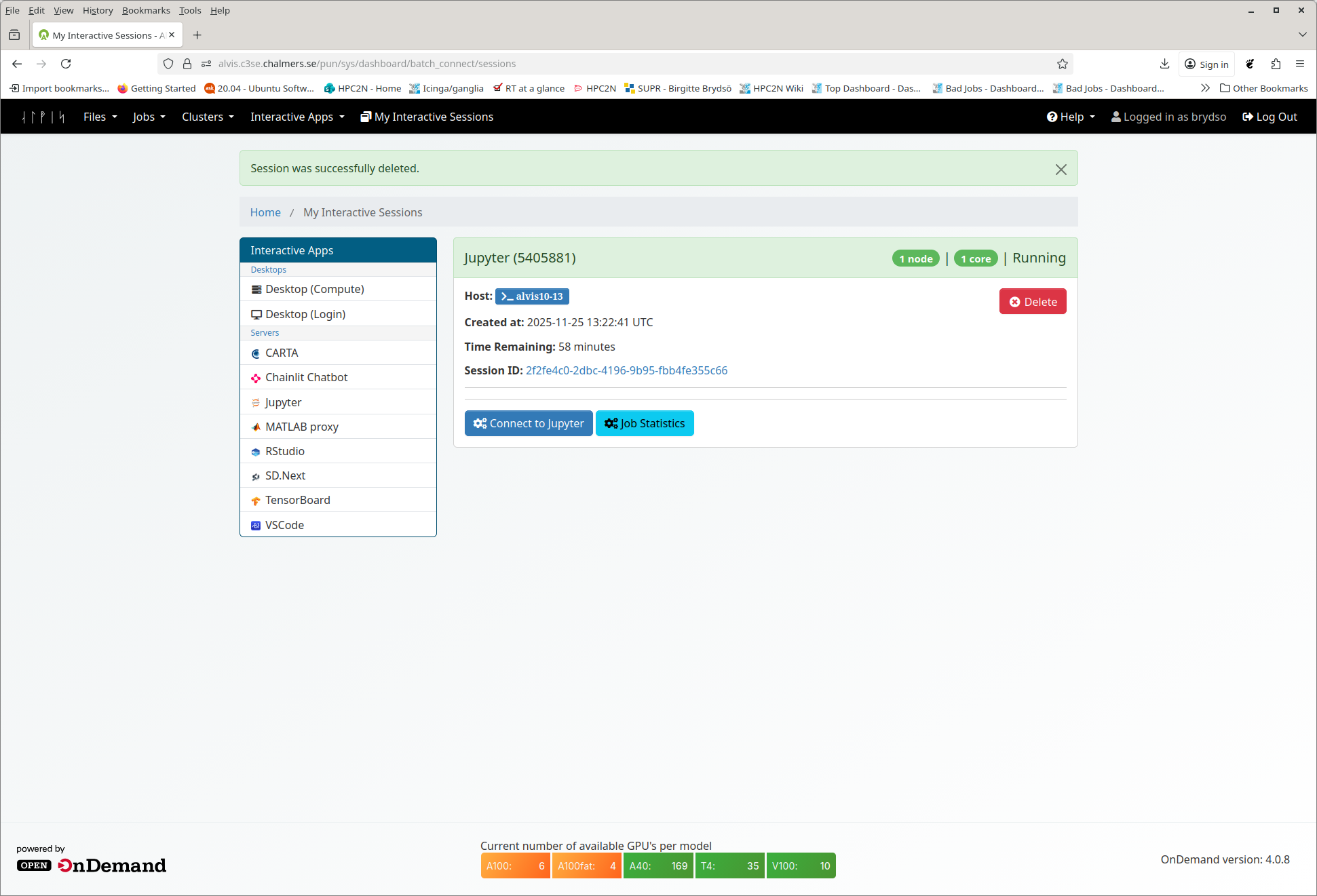
For all apps, the equivalent of a start button will be a bright blue rectangle near the bottom of the job box, usually with “Connect to” and the app name on it. When you click this button, your app should launch in a new window.
Important
Closing the GUI window for your app before time runs out (e.g. the browser for Jupyter Notebook) does not stop your job or release the resources associated with it! If you want to stop your job and avoid spending any more of your resource budget on it, you must click the red “Delete” button near the top right of your interactive job listing. Otherwise, you can reopen any closed app as long as time remains in the job allocated for it.
Job Parameters - GPUs
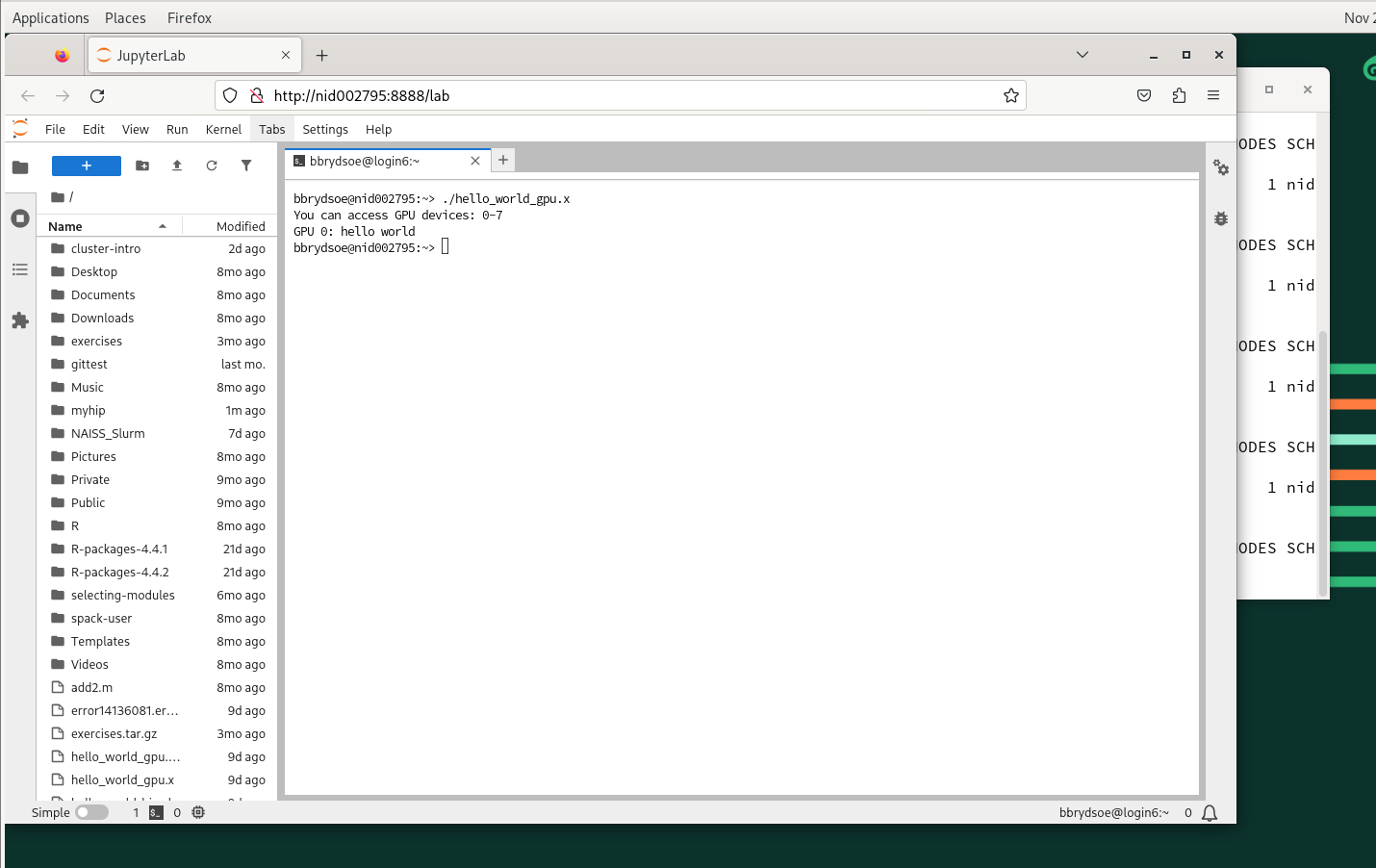
Most settings are the same, with exception of the “Resource” or “Node Type”/”Core Number” settings. Here is shown how it would look:
This is how it looks in Dardel, which has a GfXLauncher setup very similar to Cosmos.
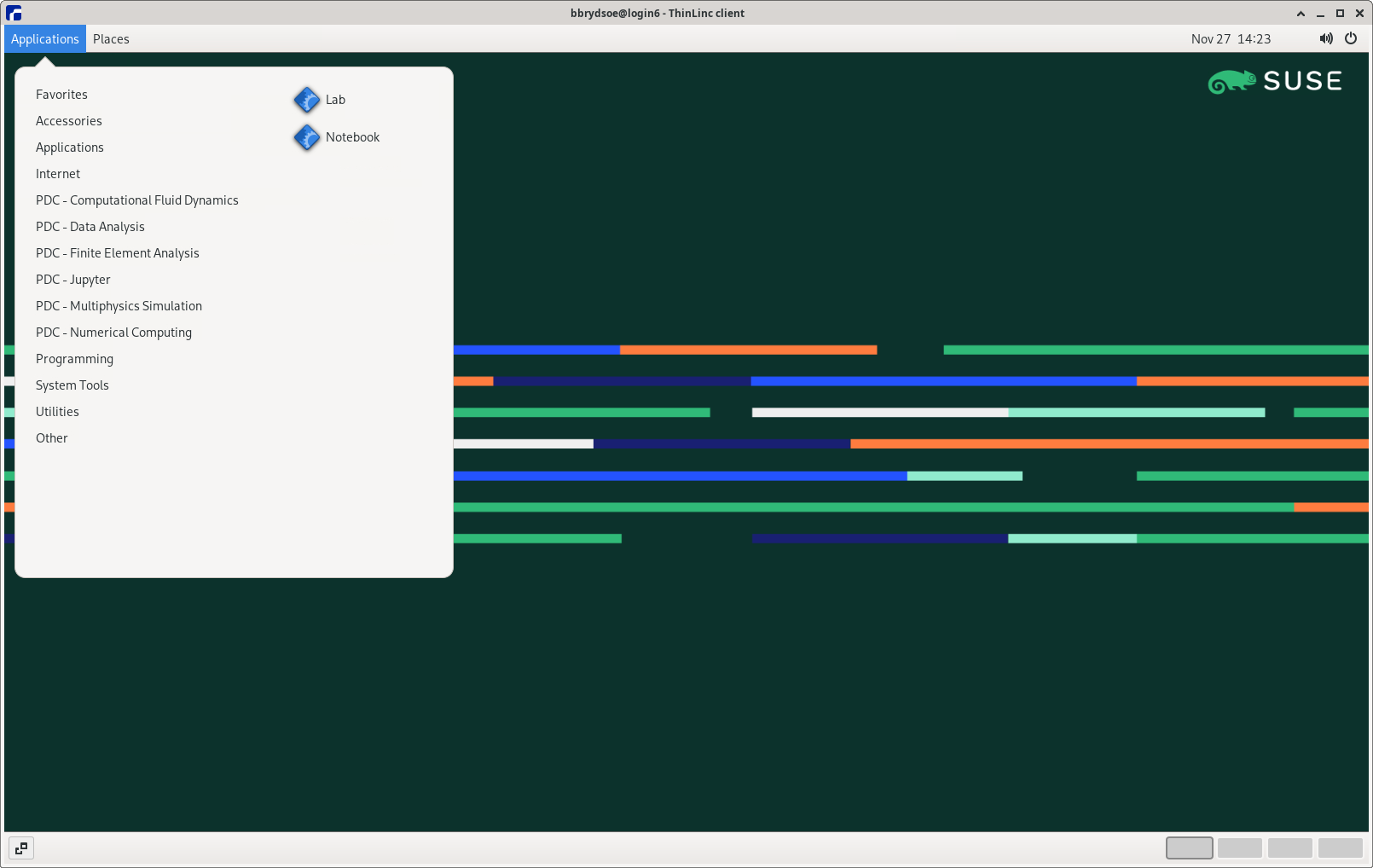
Since these are similar, I am only showing how it looks in Alvis.
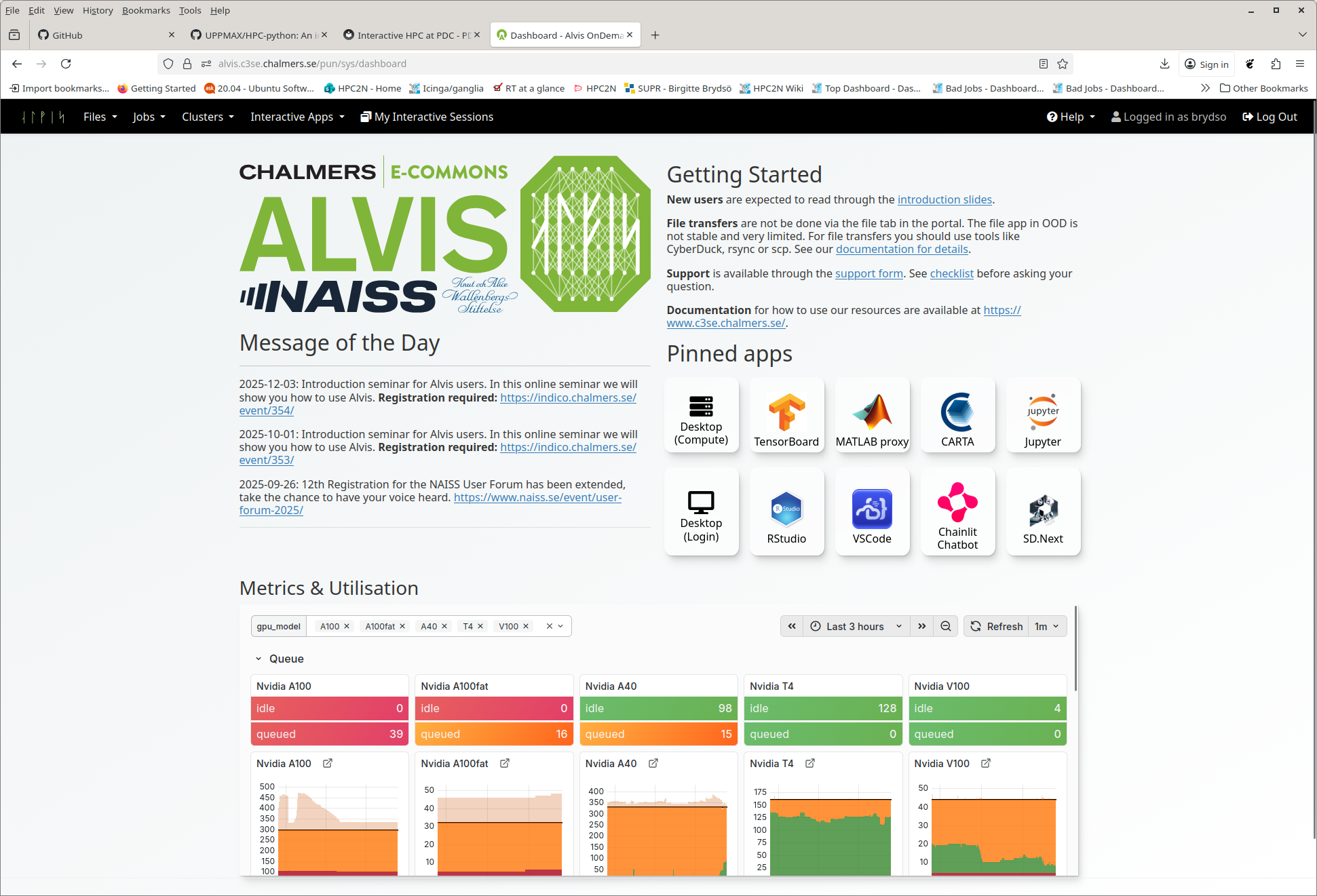
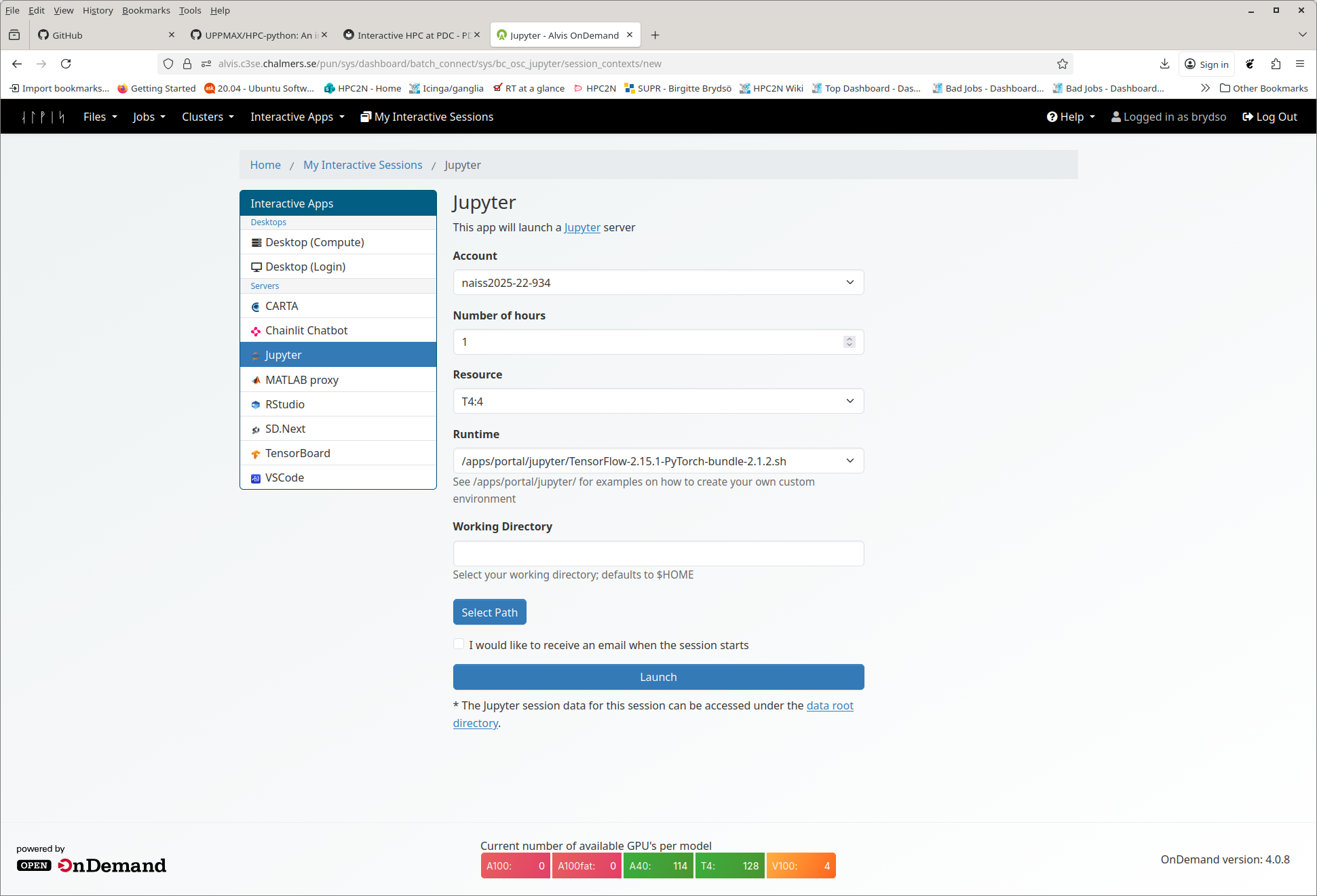
Click “Launch”
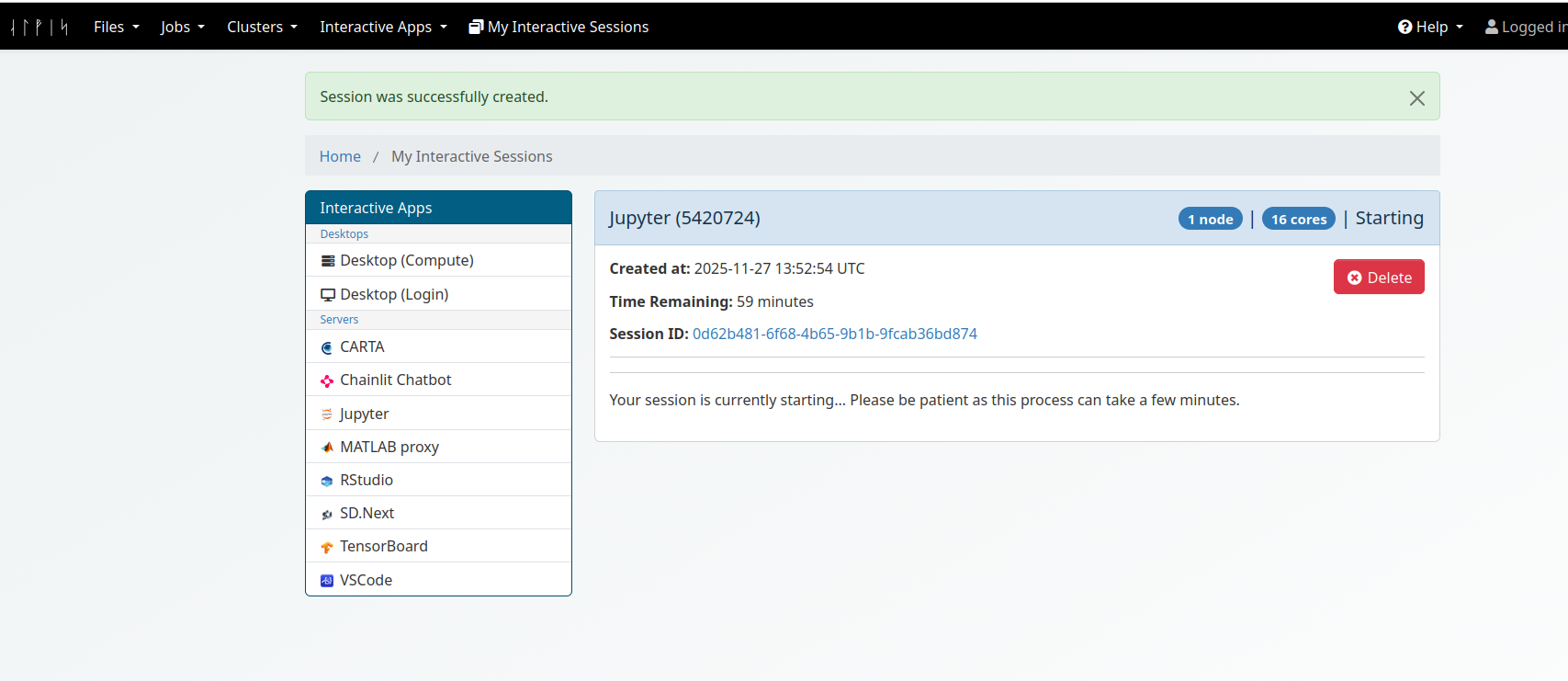
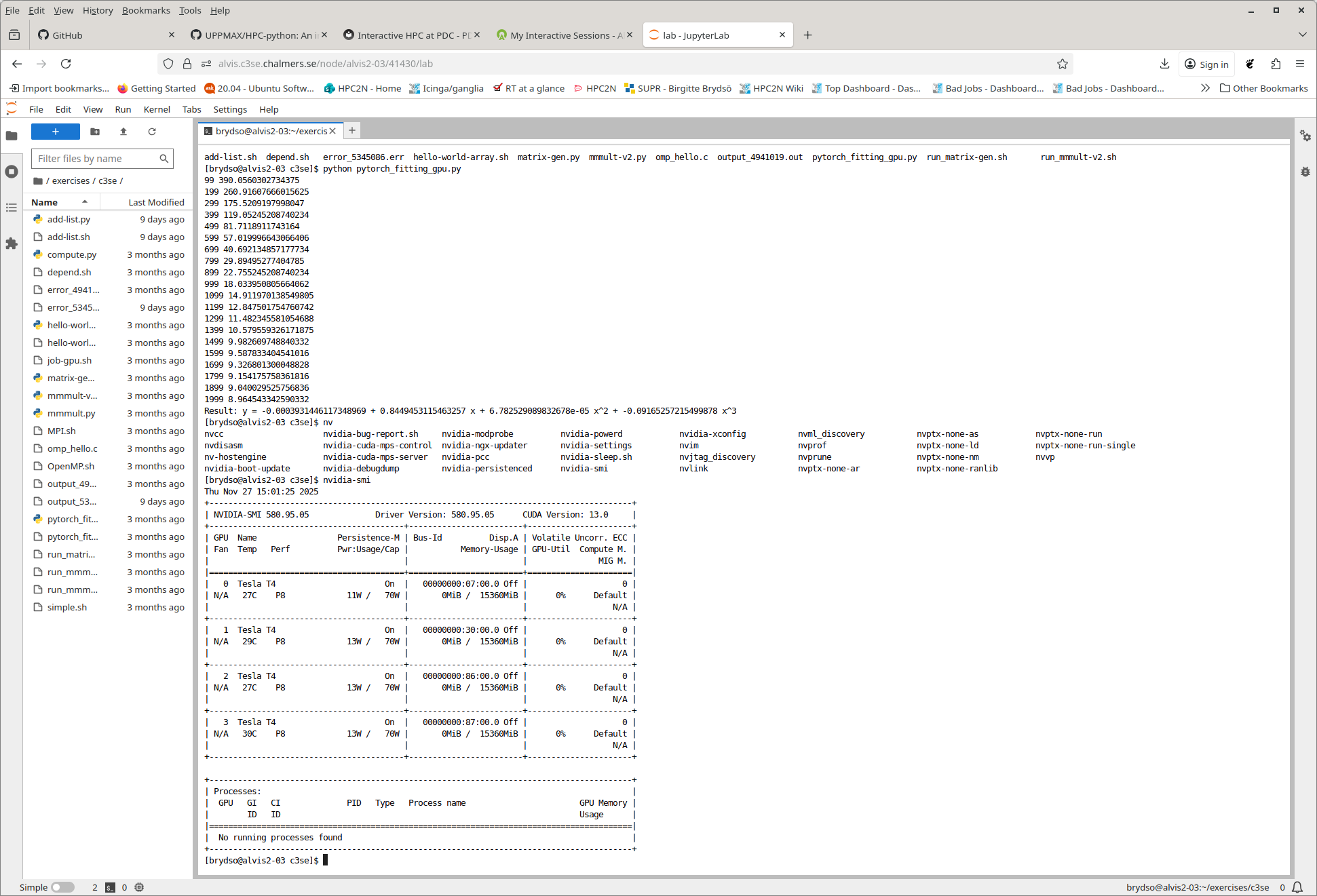
When it is ready, click “Connect to Jupyter”. Here I have started a terminal inside Jupyter, changed to my exercises directory and checked I can run a Python program (with PyTorch). I also check I have GPUs.
At centres that have OpenOnDemand installed, you do not have to submit a batch job, but can run directly on the already allocated resources
OpenOnDemand is a good option for interactive tasks, graphical applications/visualization, and simpler job submissions. It can also be more user-friendly.
Regardless, there are many situations where submitting a batch job is the best option instead, including when you want to run jobs that need many resources (time, memory, multiple cores, multiple GPUs) or when you run multiple jobs concurrently or in a specified succession, without need for manual intervention. Batch jobs are often also preferred for automation (scripts) and reproducibility. Many types of application software fall into this category.
At centres that have ThinLinc you can usually submit MATLAB jobs to compute resources from within MATLAB.
Starting IDEs
We will look briefly at how to start three IDEs through the Gfx launcher/OpenOnDemand portal. Later sessions will show you how to use the IDEs.
“Reminder”
Jupyter (Lab and/or Notebook) is available as an On-Demand application at all 4 facilities covered on this page. For Cosmos specifically, it can also load custom conda environments (but NOT pip environments).
On Alvis, Cosmos and Kebnekaise, VSCode can also be run via On-Demand.
Spyder can be run via On-Demand on Cosmos only. It also supports custom conda environments.
On Cosmos, there are also interactive On-Demand command lines (for CPUs and GPUs) under Applications - General that can be used to start Jupyter or Spyder with a custom pip-based environment.
Regardless of which of the IDEs, start out by following the <a href=”https://uppmax.github.io/HPC-python/day2/ondemand-desktop.html#starting-the-on-demand-interface”>”Starting the On-Demand Interface”</a> as shown further up on this page, depending on the cluster.
Next, start your IDE as shown below.
Jupyter
This is using ThinLinc + GfxLauncher
As already shown, log into COSMOS/Dardel via Thinlinc to start a HPC Desktop session.
Click “Applications” in the top left corner and hover over the items prefixed with “Applications” - until you find your desired application (on Dardel, On-Demand applications are prefixed with
PDC-), and click it.
Choose Jupyter Lab
Note that for JupyterLab, GfxLauncher will also offer an additional menu item titled “Job settings…”. This is where you can load custom environments or additional modules if absolutely necessary. Only use if you are sure of what you are doing!
This is when connecting through the Open-On-Demand Portal
When you have signed in you will now be on the HPC2N Open OnDemand dashboard. The top of it looks like this:

Find the
Interactive Appstab in the menu bar along the top and click it to open a drop-down menu of available apps. The menu currently looks like this:
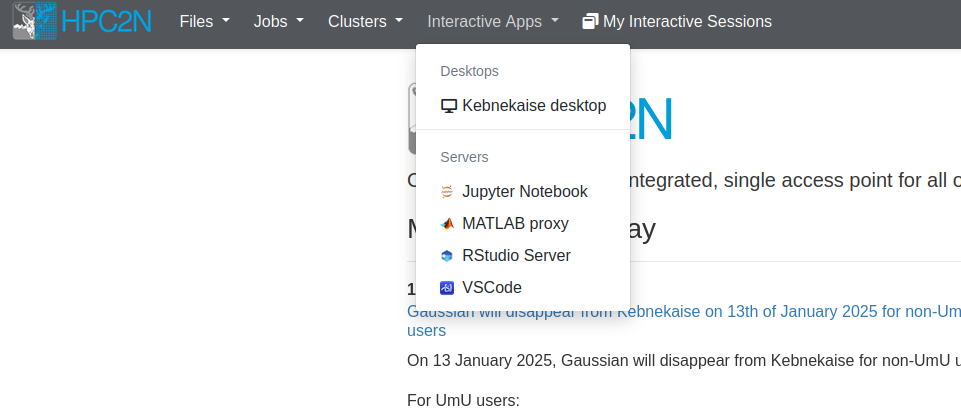
Select Jupyter Notebook:
Set options. A specific one for Jupyter is that you can choose a Runtime environment. Choices include “System provided”, “Project provided”, or “User provided”. If you or your project do not have a custom environment, then use “System provided”. After picking options, click Launch.
When the job starts, the title bar of the box containing your job will turn from blue to green, the status message will change from “Queued” to “Running”, and the number of nodes and cores with appear in the title bar. You can have more than one OnDemand job running or queued. Running jobs will look like these:
For all apps, the equivalent of a start button will be a bright blue rectangle near the bottom of the job box, usually with “Connect to” and the app name on it. When you click this button, your app should launch in a new window.
This is when connecting through the Open-On-Demand Portal
When you have signed in you will now be on the Alvis Open OnDemand dashboard. The top of it looks like this:
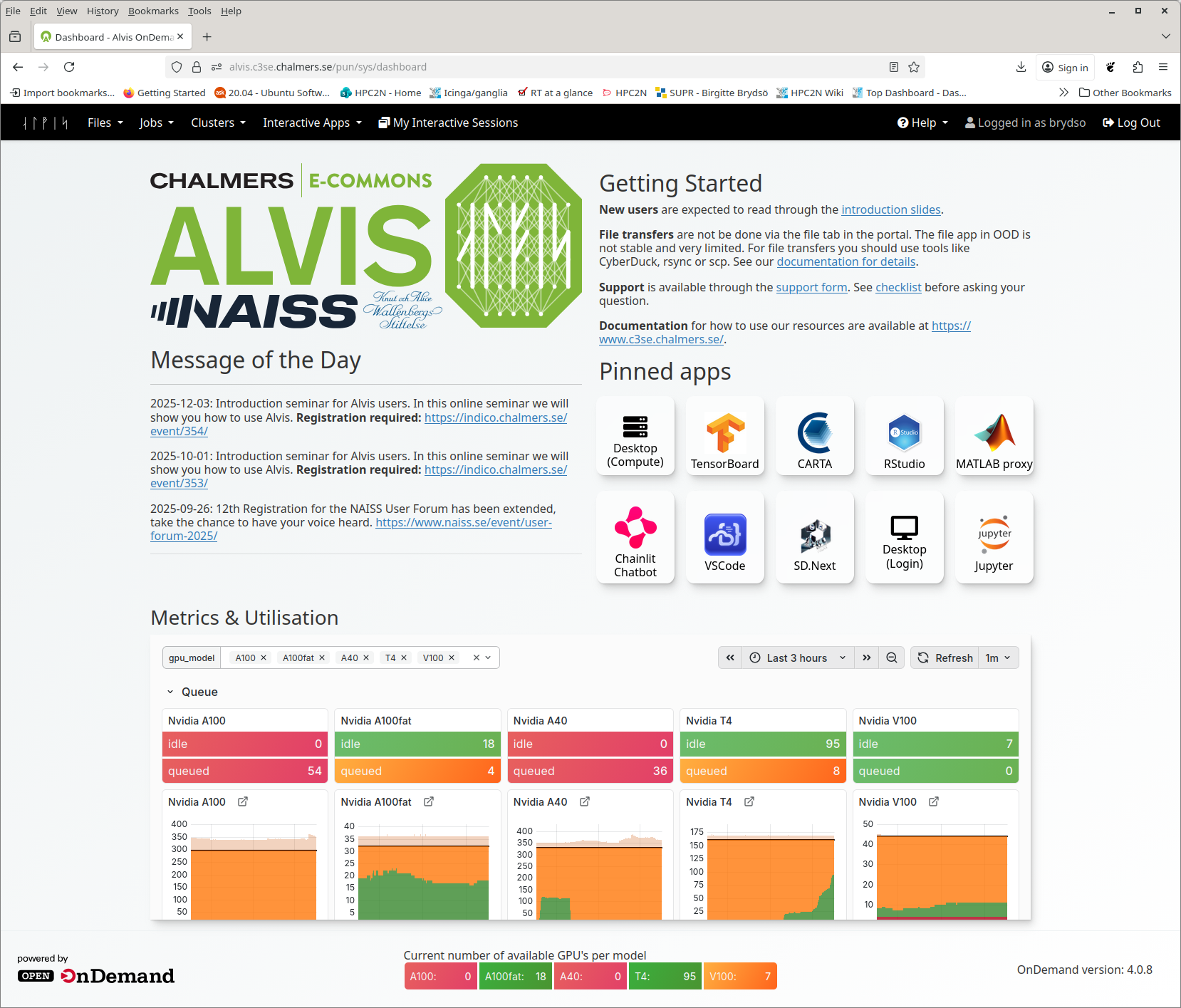
Find the
Interactive Appstab in the menu bar along the top and click it to open a drop-down menu of available apps. The menu currently looks like this:
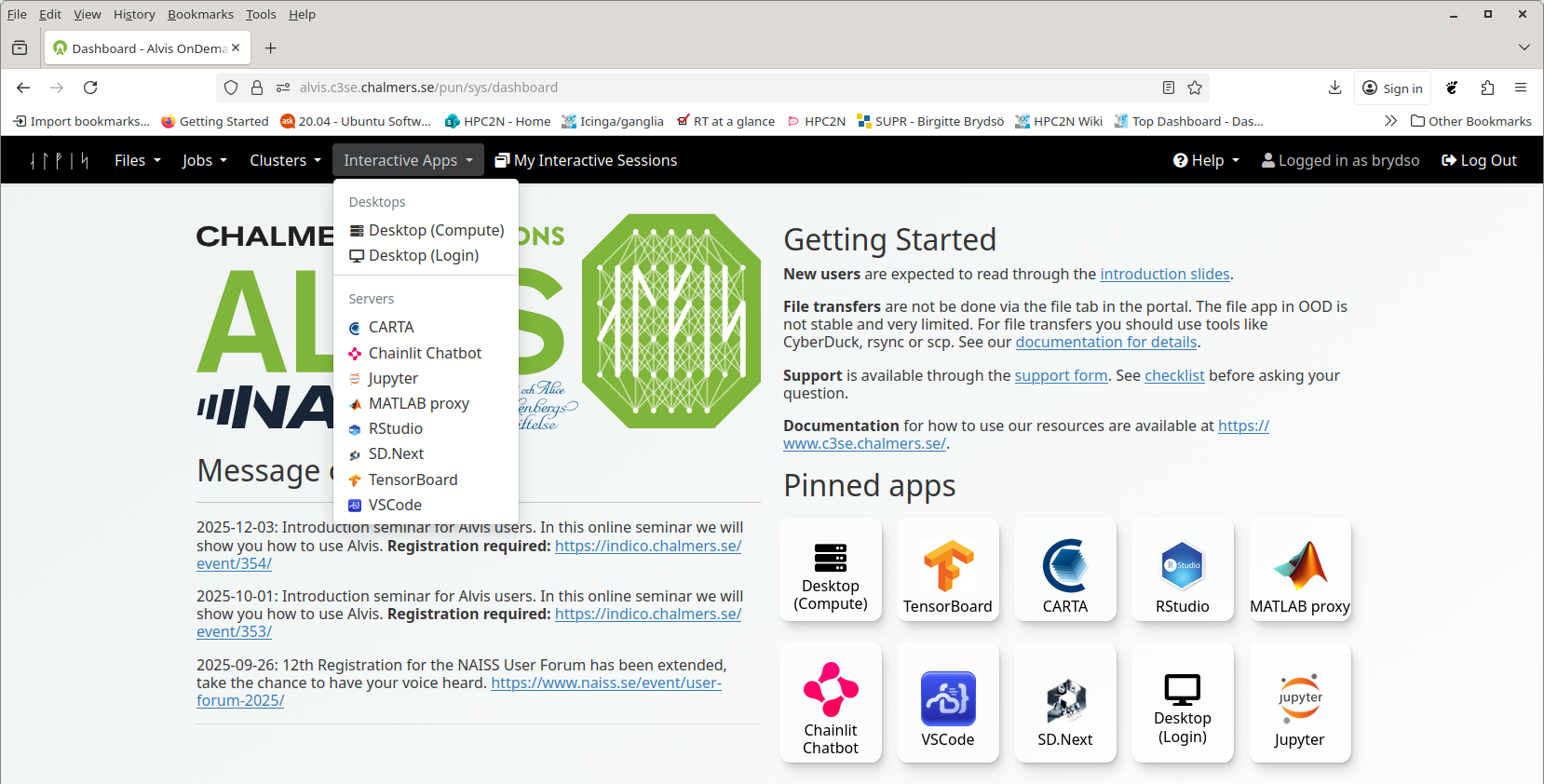
Select Jupyter:
Set options, possibly including picking a Runtime environment if you created one. Then click Launch
When the job starts, the title bar of the box containing your job will turn from blue to green, the status message will change from “Queued” and then “Starting” to “Running”, and the number of nodes and cores will appear in the title bar. You can have more than one OnDemand job running or queued. Running jobs will look like these:
Spyder
This is using ThinLinc + GfxLauncher
As already shown, log into COSMOS/Dardel via Thinlinc to start a HPC Desktop session.
Click “Applications” in the top left corner and hover over the items prefixed with “Applications” - until you find your desired application, and click it. Spyder should be under general
Choose Spyder
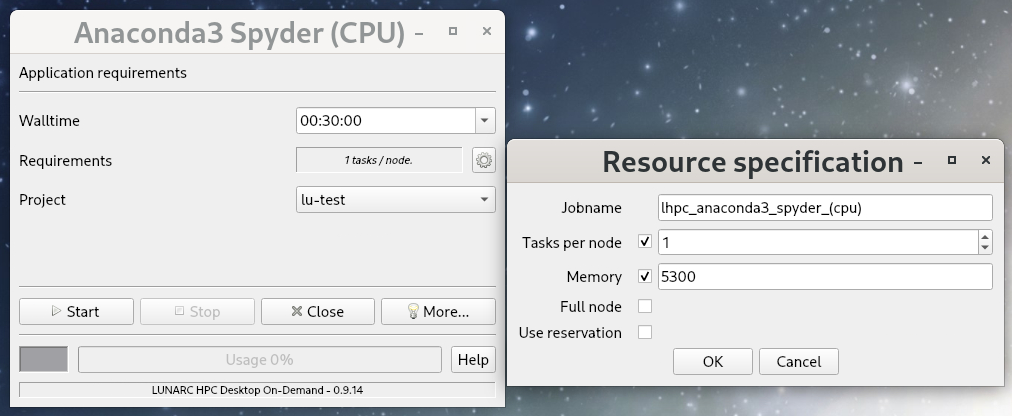
The box on the left is the basic menu and the box on the right is what pops up when the gear icon next to Requirements is clicked.
When you’re happy with your settings, click “Start”. The Gfx Launcher menu will stay open in the background so that you can monitor your remaining time and resources with the
Usagebar.If you want, you can also look at the associated SLURM scripts by clicking the “More” button at the bottom of the Gfx Launcher menu and clicking the “Script” tab (example below), or view the logs under the “Logg” tab.
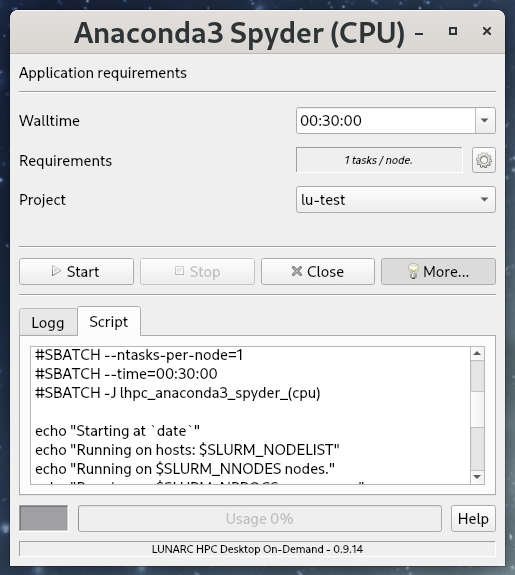
Not available through OpenOnDemand
VSCode
This is using ThinLinc + GfxLauncher
- As already shown, log into COSMOS/Dardel via Thinlinc to start a HPC Desktop session.
Another way of logging in is through SSH, like this:
ssh -X <username>@cosmos.lunarc.lu.se gfxmenu --interactiveand then give password and pocketpass/other MFA.
Click “Applications” in the top left corner and hover over the items prefixed with “Applications” - until you find your desired application. VSCode should be under “Applications - General”.
Choose VSCode
This is when connecting through the Open-On-Demand Portal
When you have signed in you will now be on the HPC2N Open OnDemand dashboard. The top of it looks like this:
Find the
Interactive Appstab in the menu bar along the top and click it to open a drop-down menu of available apps. The menu currently looks like this:
Select “VSCode”
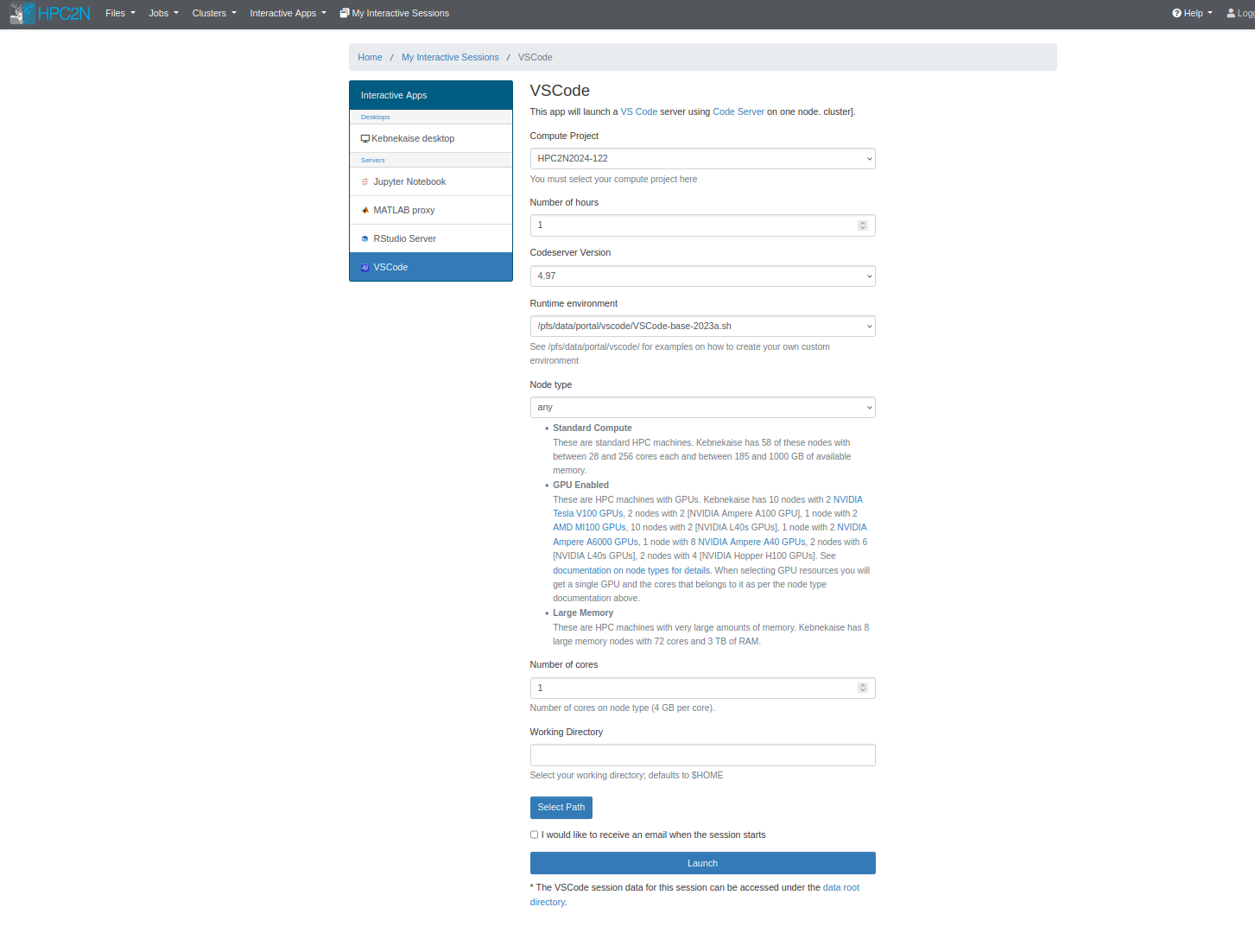
Most of the options are the same as for other interactive apps, but there is a Codeserver Version (just one version here) and a Runtime Environment to choose if you have created one. Otherwise pick System provided. It is described how to create your own, just as for Jupyter.
There is a description about using OpenOnDemand on Kebnekaise here: https://docs.hpc2n.umu.se/tutorials/connections/#open__ondemand
VSCode is not available through the Gfx launcher on Dardel. You have to use remote desktop.