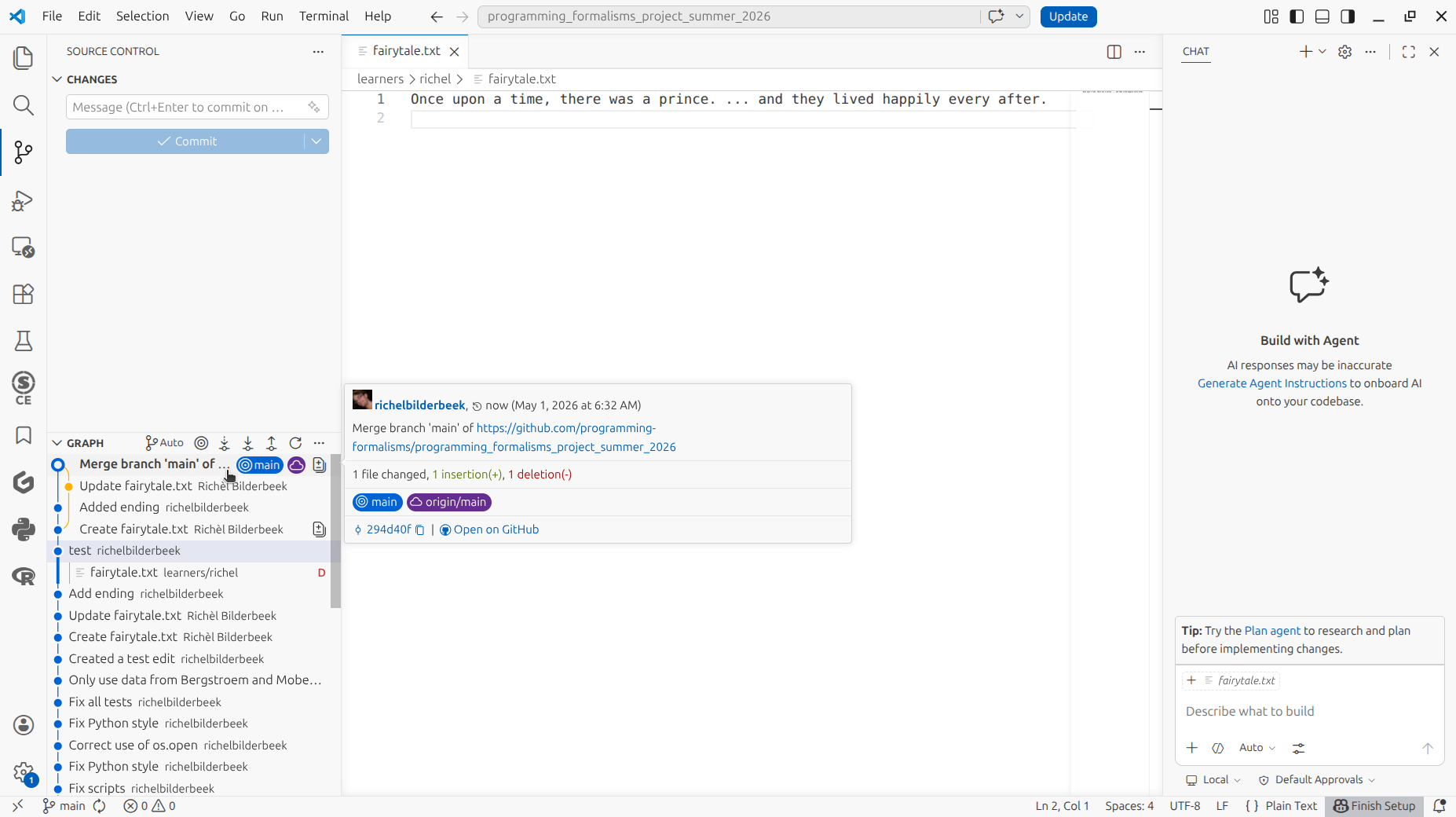
Merge conflicts
Learning outcomes
Learners ...
- understand what a merge conflict is
- can fix merge conflicts
For teachers
Prior:
- When would your version control system reject your push?
- What is a merge conflicts?
- Why can't merge conflicts be resolved automatically?
What is a merge conflict?
A merge conflict happens when two people have modified the same parts of the same file.
They are indicated in a file like this:
<<<<< fedcba0987654321fedcba
Once upon a time, there was a prince.
=====
Once upon a time ... ... and they lived happily every after.
>>>>> 1234567890abcdef123456
Here is a schematic overview of the merge conflict we will cause in the exercises:
graph TB
  classDef optional_node stroke-dasharray: 5 5

  subgraph online
    direction TD
    version_a_online["abcdef1: Once upon a time ..."]
    version_b["123456a: Once upon a time, there was a prince."]
    version_a_online --> version_b
  end
  subgraph local
    direction TD
    version_a_local["abcdef1: Once upon a time ..."]
    version_c["a1b2c3d: Once upon a time ... ... and they lived happily every after."]
    version_a_local --> version_c
  end
a schematic overview of the merge conflict we will cause in the exercises. The hexadecimal numbers indicate the version of the file (i.e. the commit hash). The actual file content starts after the colon.
Why are merge conflict important?
Merge conflicts inevitably happen when working together.
A merge conflict forces you to think and sometimes need special attention by the most experienced team member.
Strategies to avoid merge conflicts
- 'Take small steps - always'
[Thomas and Hunt, 2019](tip 42). This overlaps with the mantra 'Commit early, commit often' - Limit the amount of characters per line: the version control system works on a line-by-line basis
Exercises
Exercise 1: create a merge conflict
In the learners project, in your own learners subfolder,
create a file called fairytale.txt with the text:
How do I do this again?
Login to GitHub.
Navigate to the learners project.
Click on the learners folder.
If there is a folder with your name:
- click on that folder
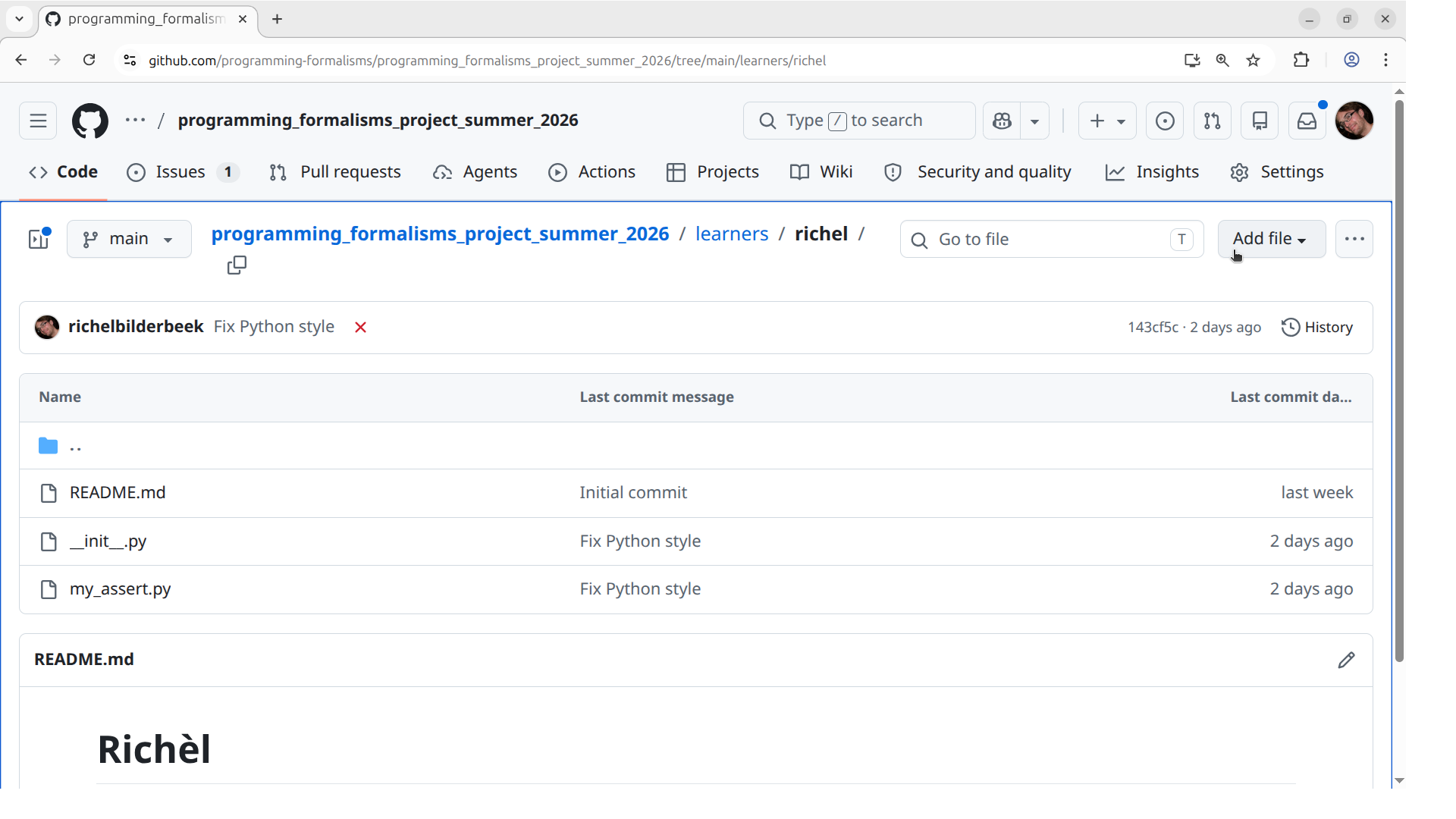
- click 'Add file'
How does that look like?
It looks similar to this:
Else:
- create it by putting the folder name before the filename
(e.g. call the file
sven/fairytale.txt).
Click on 'Create new file'.
How does that look like?
It looks similar to this:
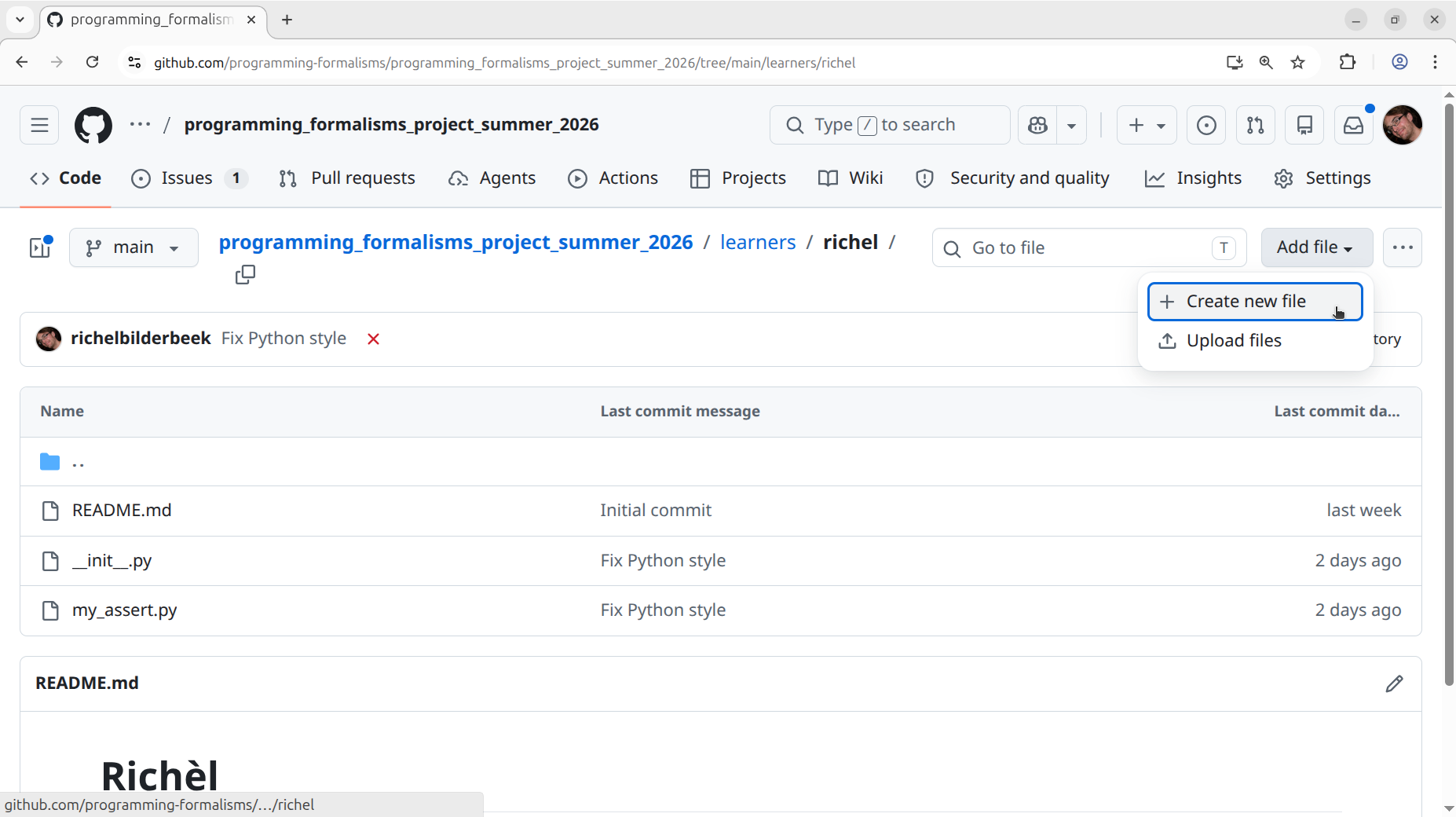
With the filename set to fairytale.txt and the text as requested,
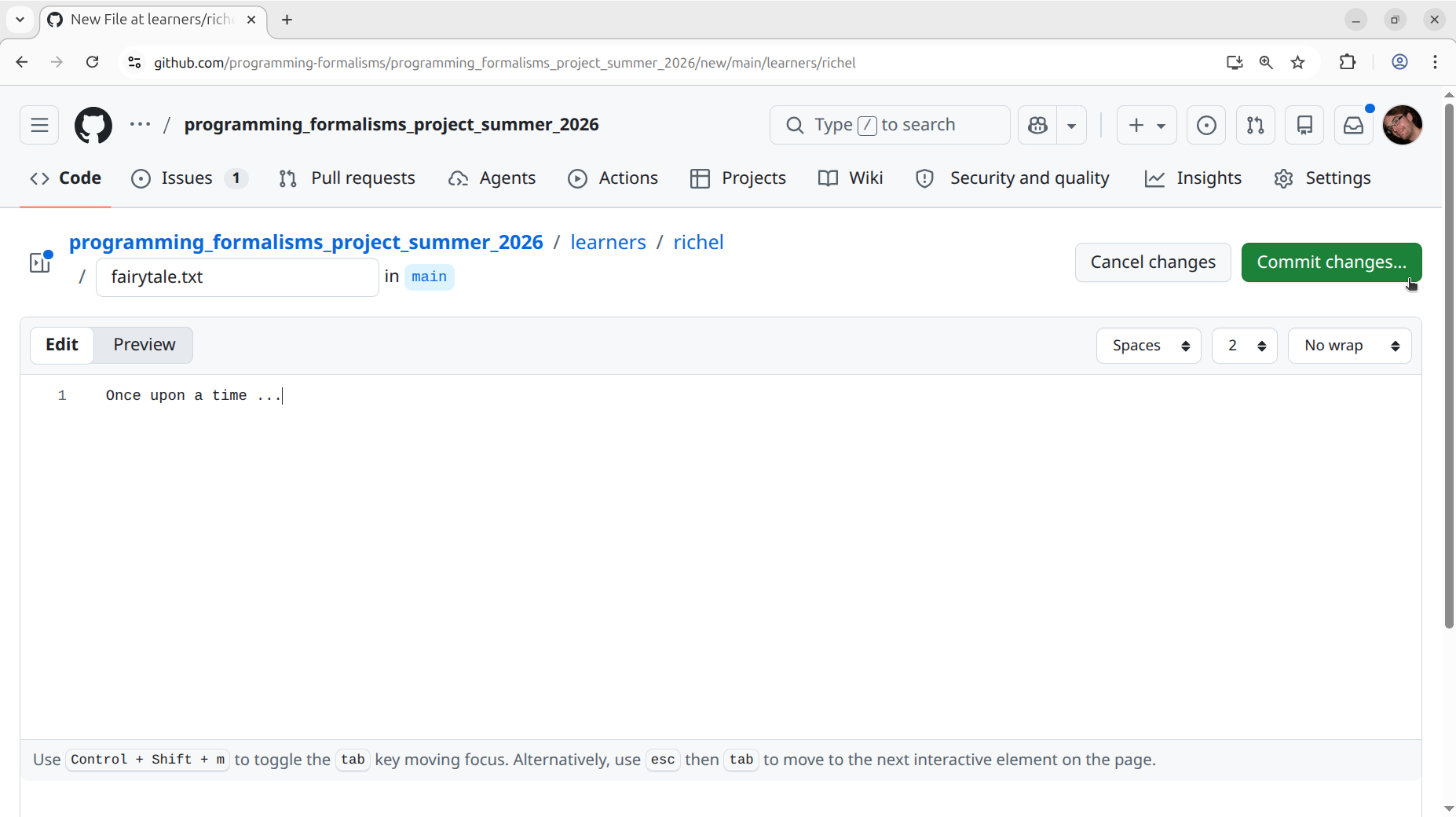
click on 'Commit'.
How does that look like?
It looks similar to this:
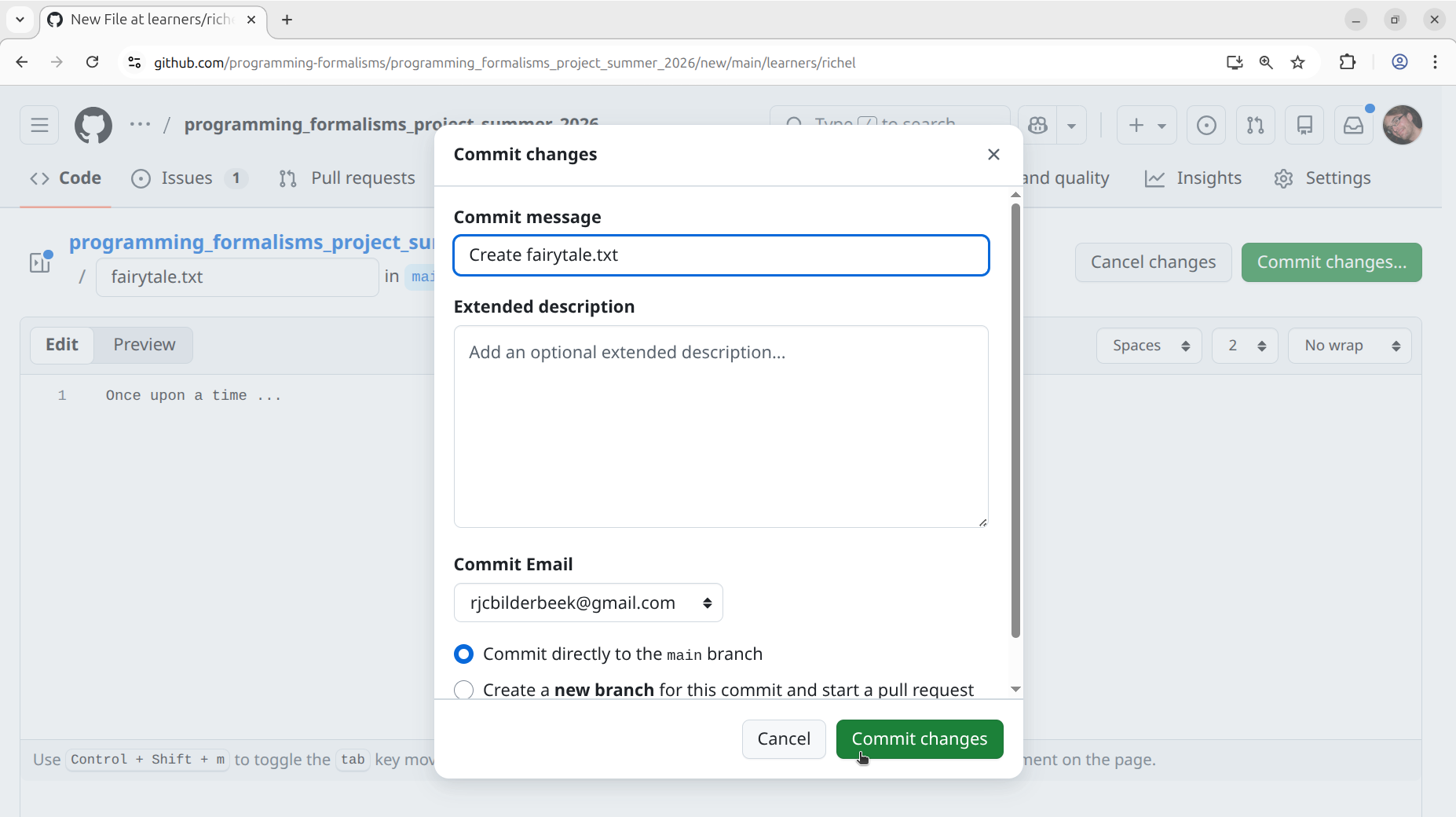
Enter a commit message (the default one is good enough) and click 'Commit changes'
How does that look like?
It looks similar to this:
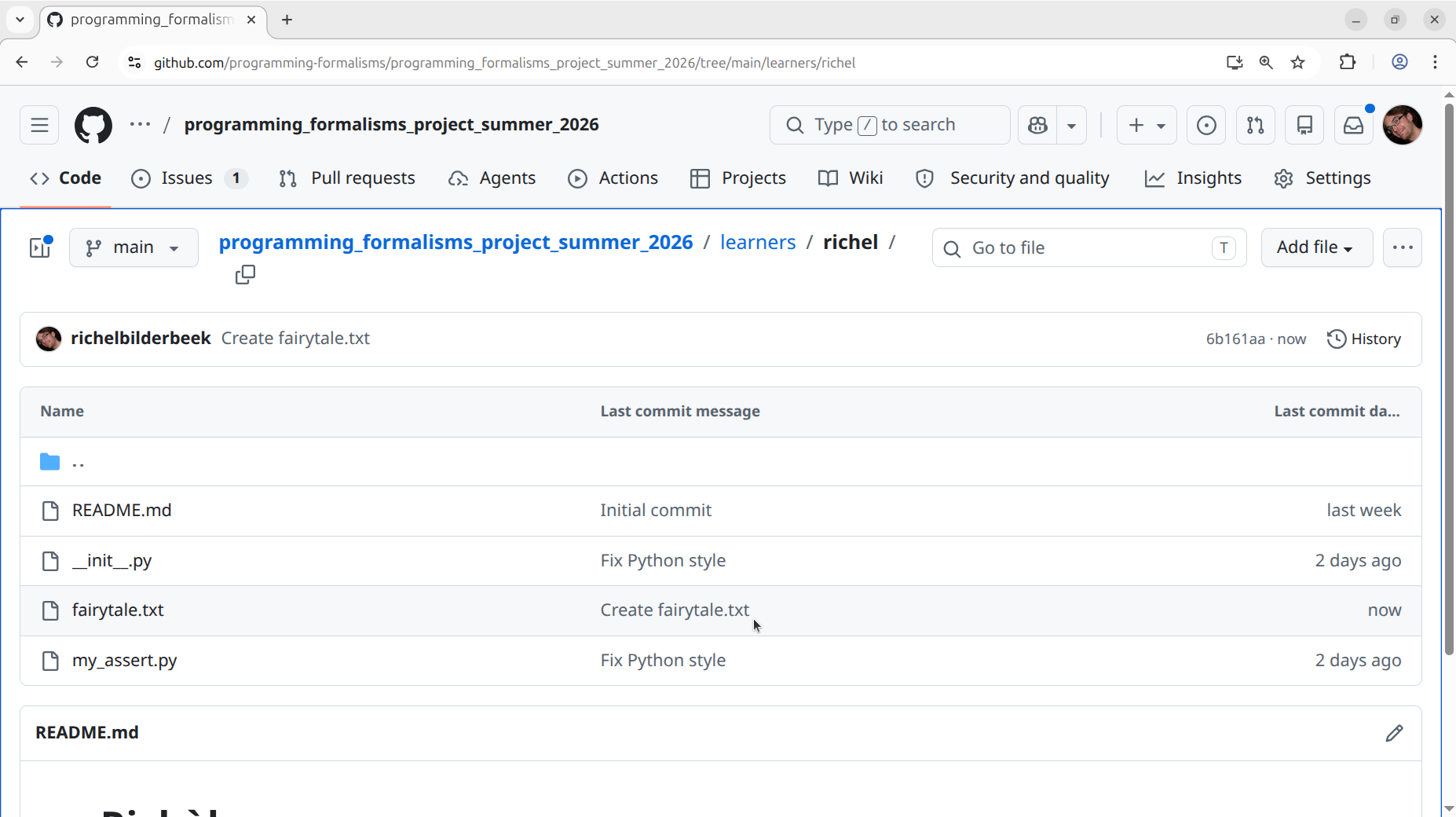
You have now created the new file, as shown by the web interface.
How does that look like?
It looks similar to this:
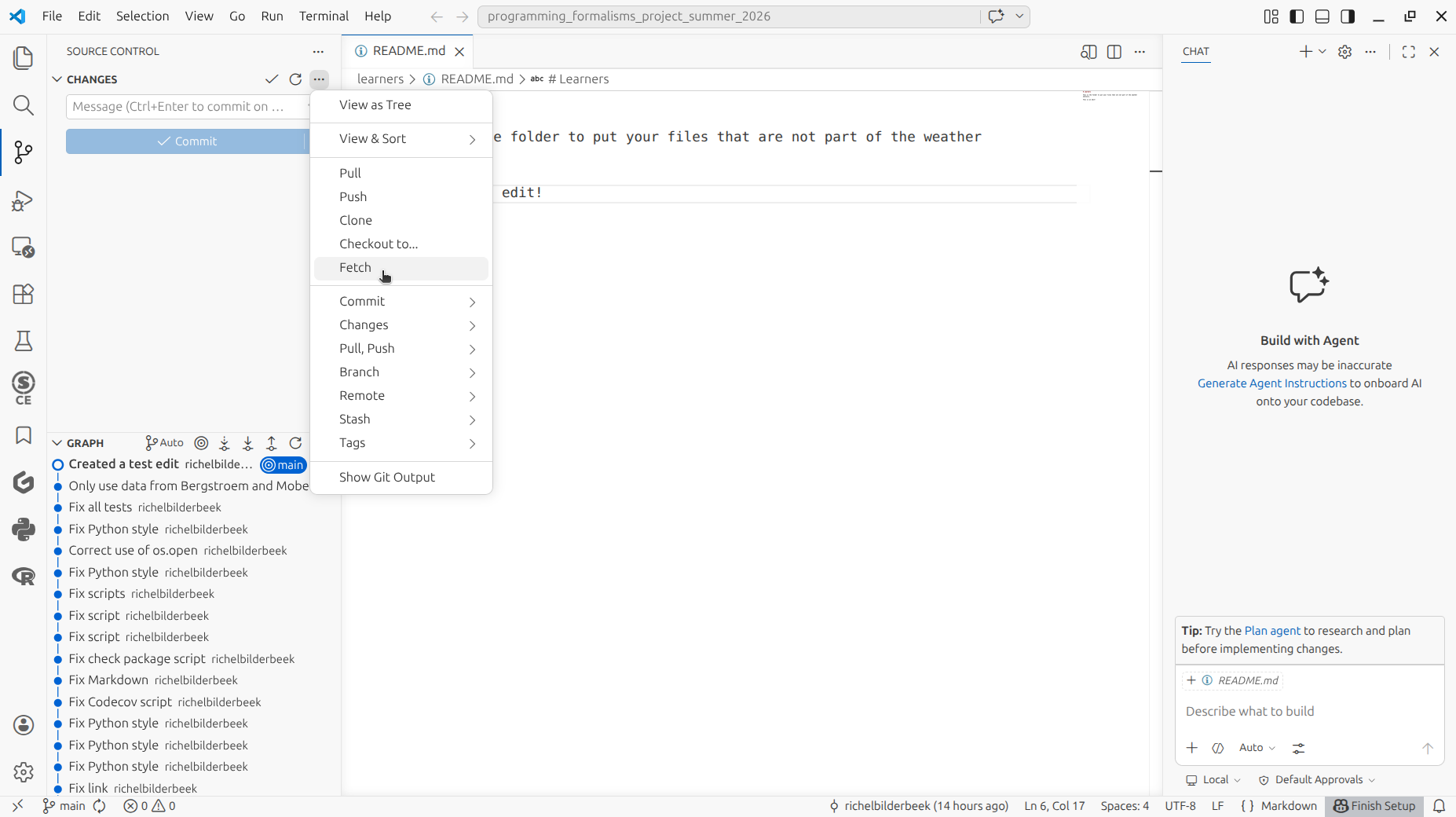
In VS Code, fetch the latest state of the remote repository.
How I do that again?
In the 'Source control' menu, click on the kebab (...) button
and click 'Fetch'.
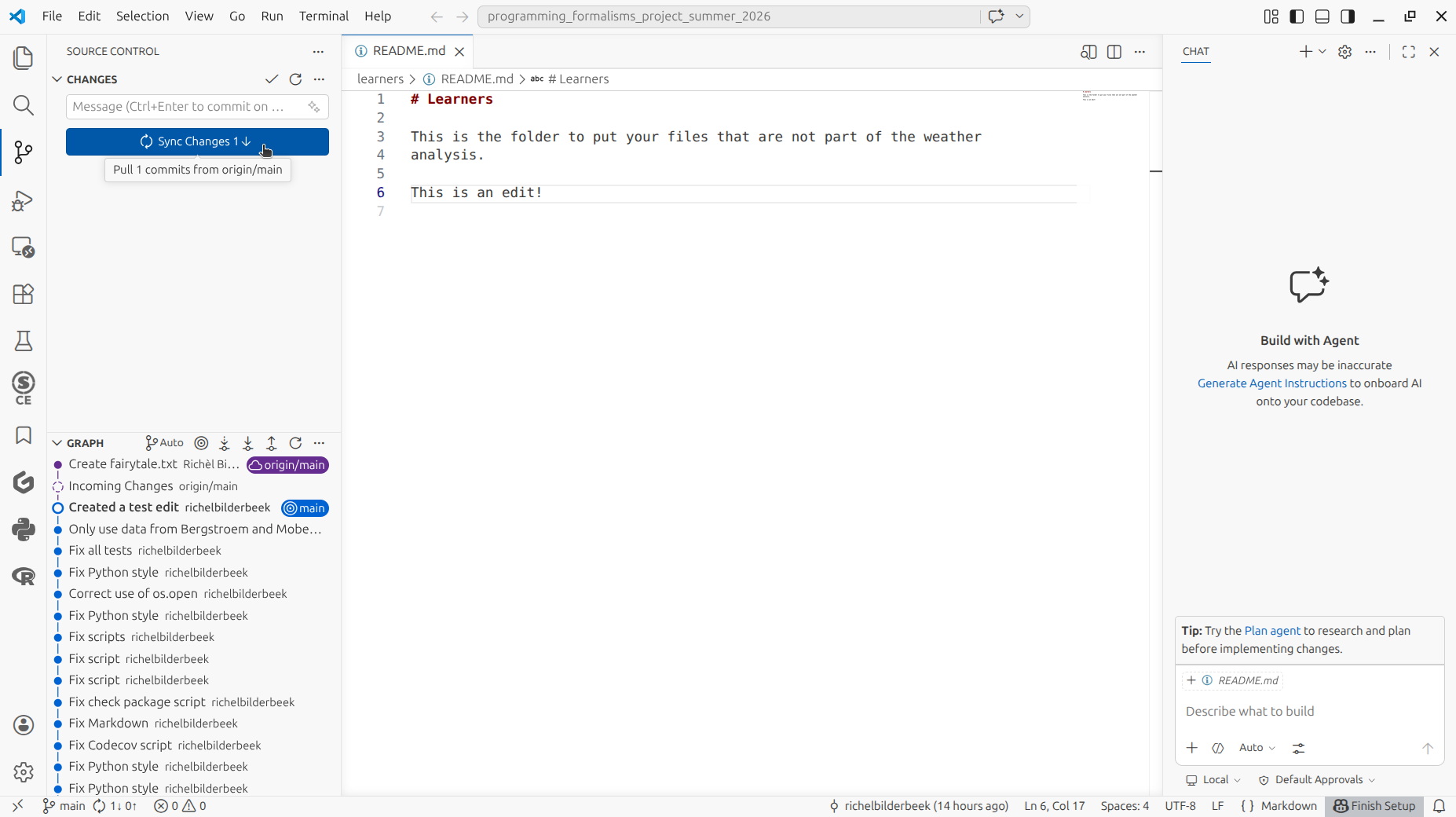
VS Code indicates that there is an incoming change.
How does that look like?
It looks similar to this:
Sync your local code with the remote repository.
How I do that again?
In the 'Source control' menu, click on the 'Sync' button and click 'Fetch'.
Now VS Code has downloaded this new file. Great!
How does that look like?
It looks similar to this:
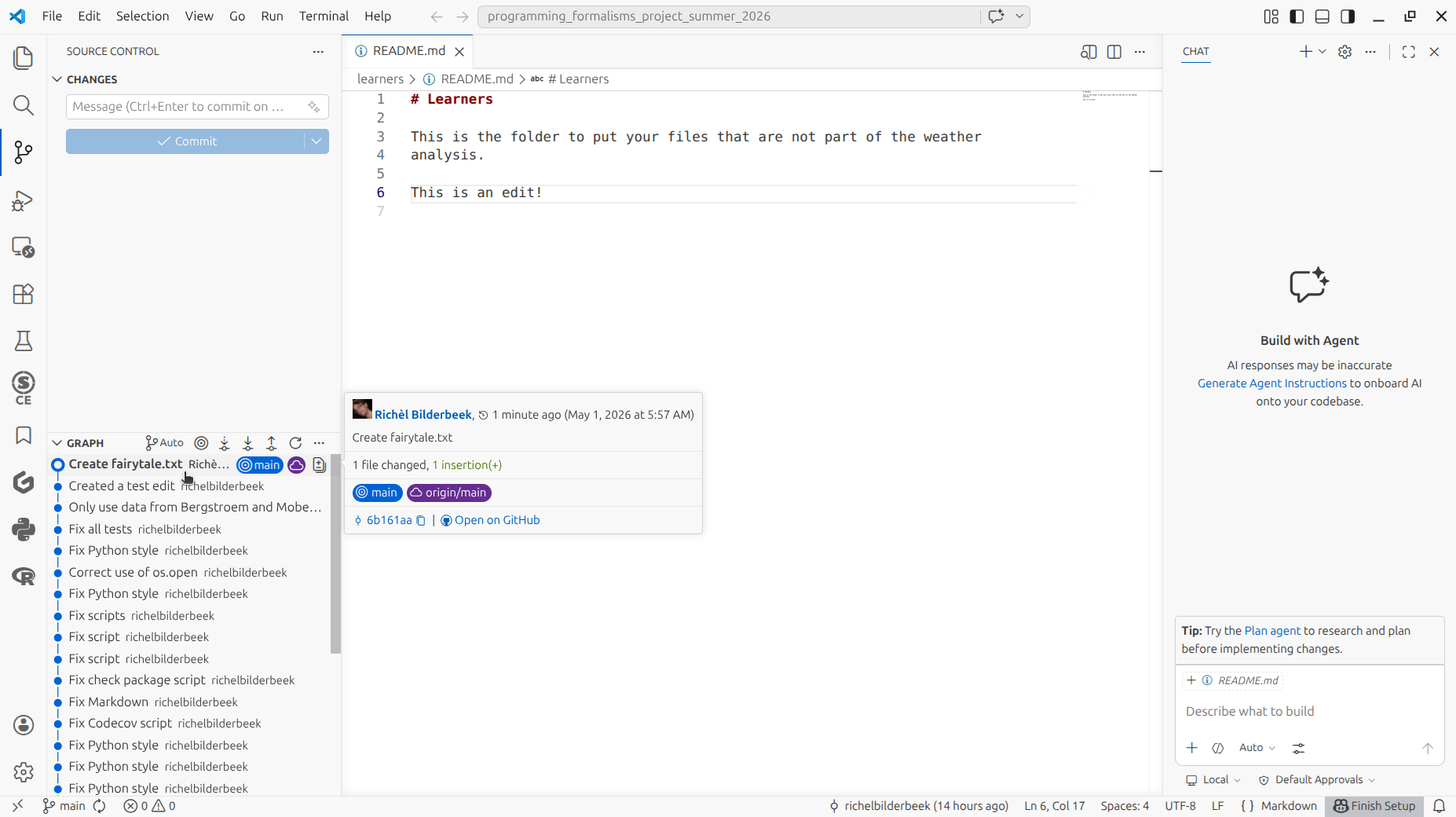
To start the merge conflict, using the web interface, change that file to:
How do I do this again?
In the web interface, have the file open and click 'Edit'
How does that look like?
It looks similar to this:
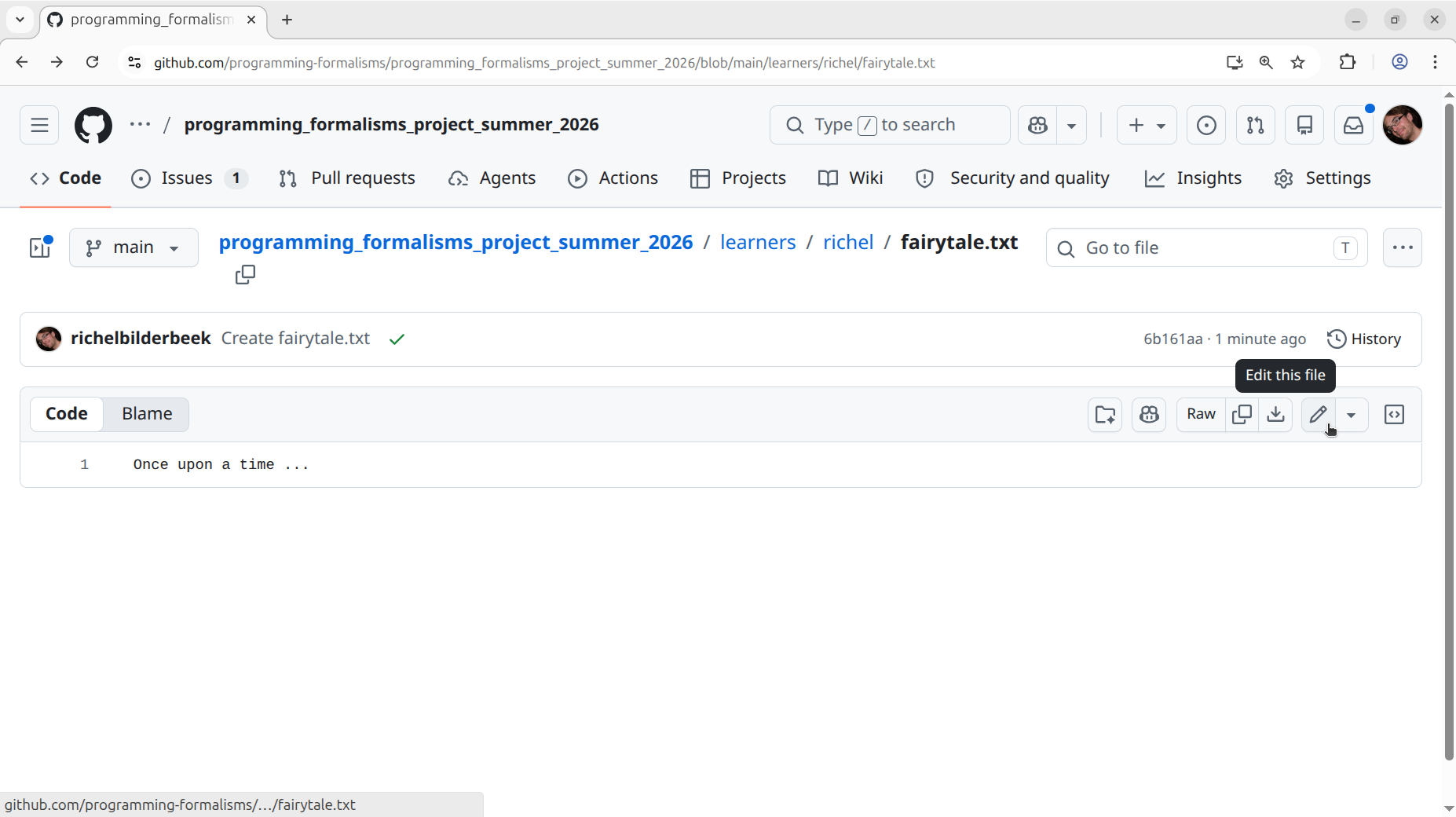
Edit the file and click 'Commit'.
How does that look like?
It looks similar to this:
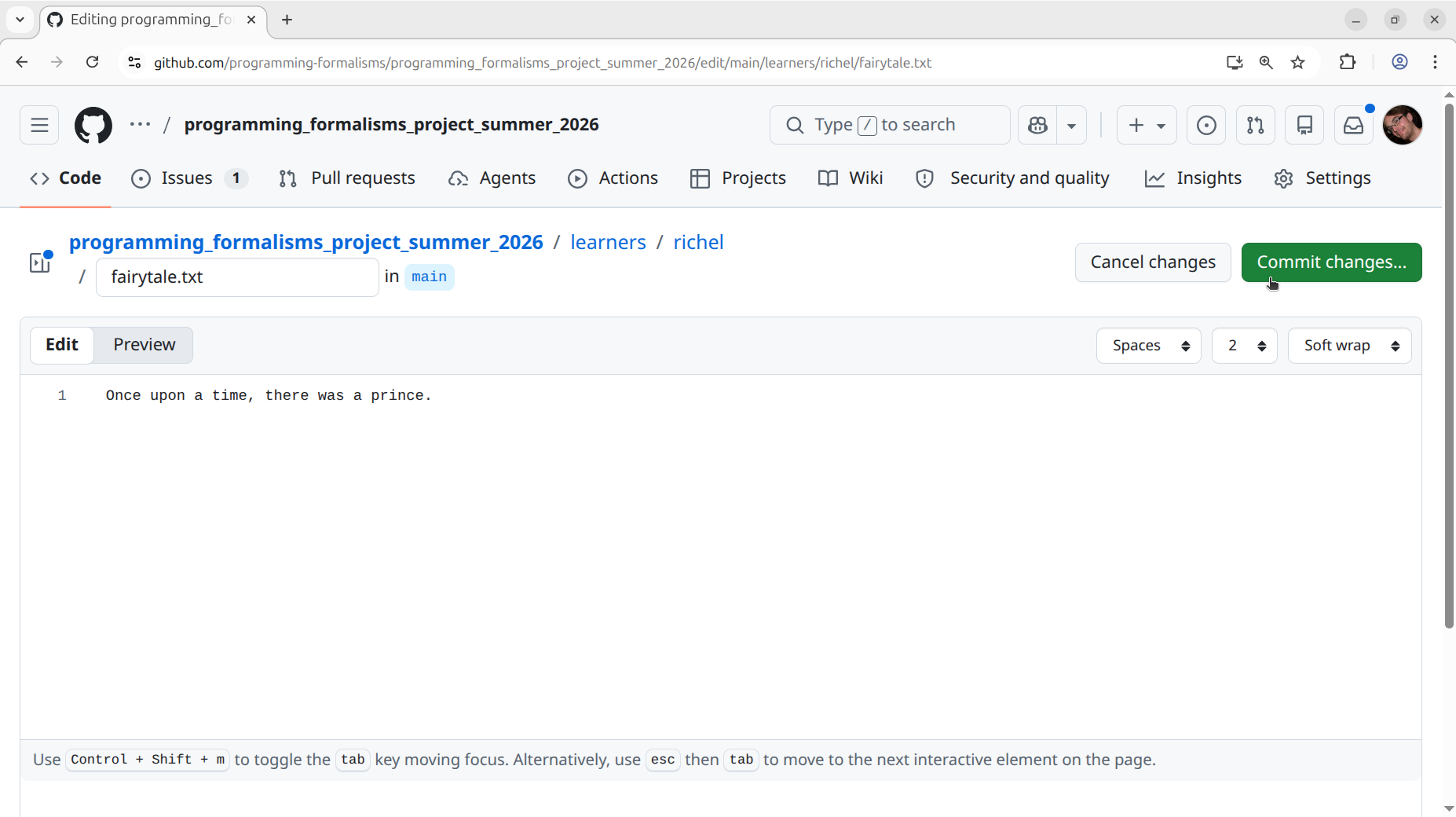
Enter a commit message (the default one is good enough) and click 'Commit changes'
How does that look like?
It looks similar to this:
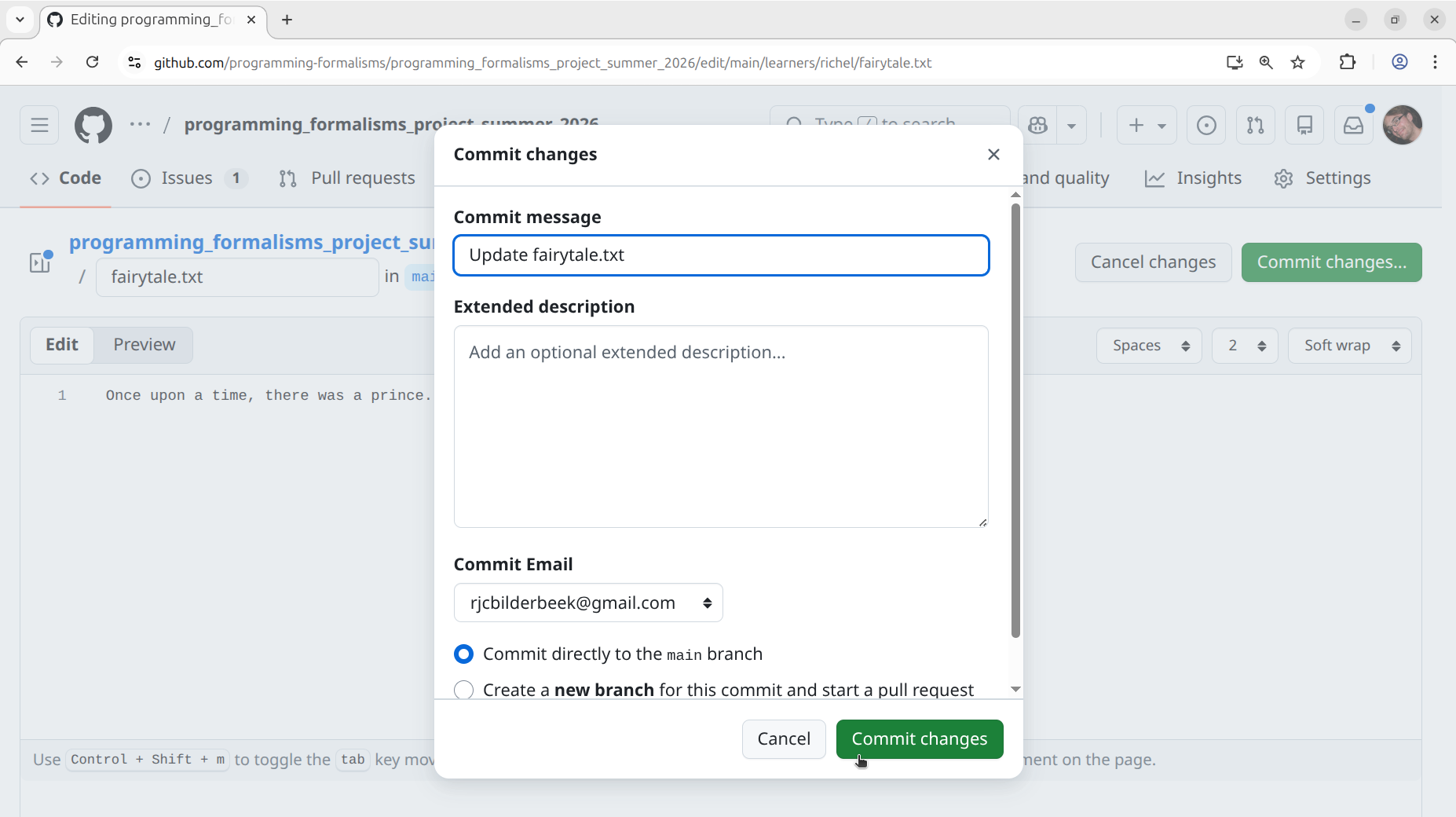
Now the web interface shows the edited file.
How does that look like?
It looks similar to this:
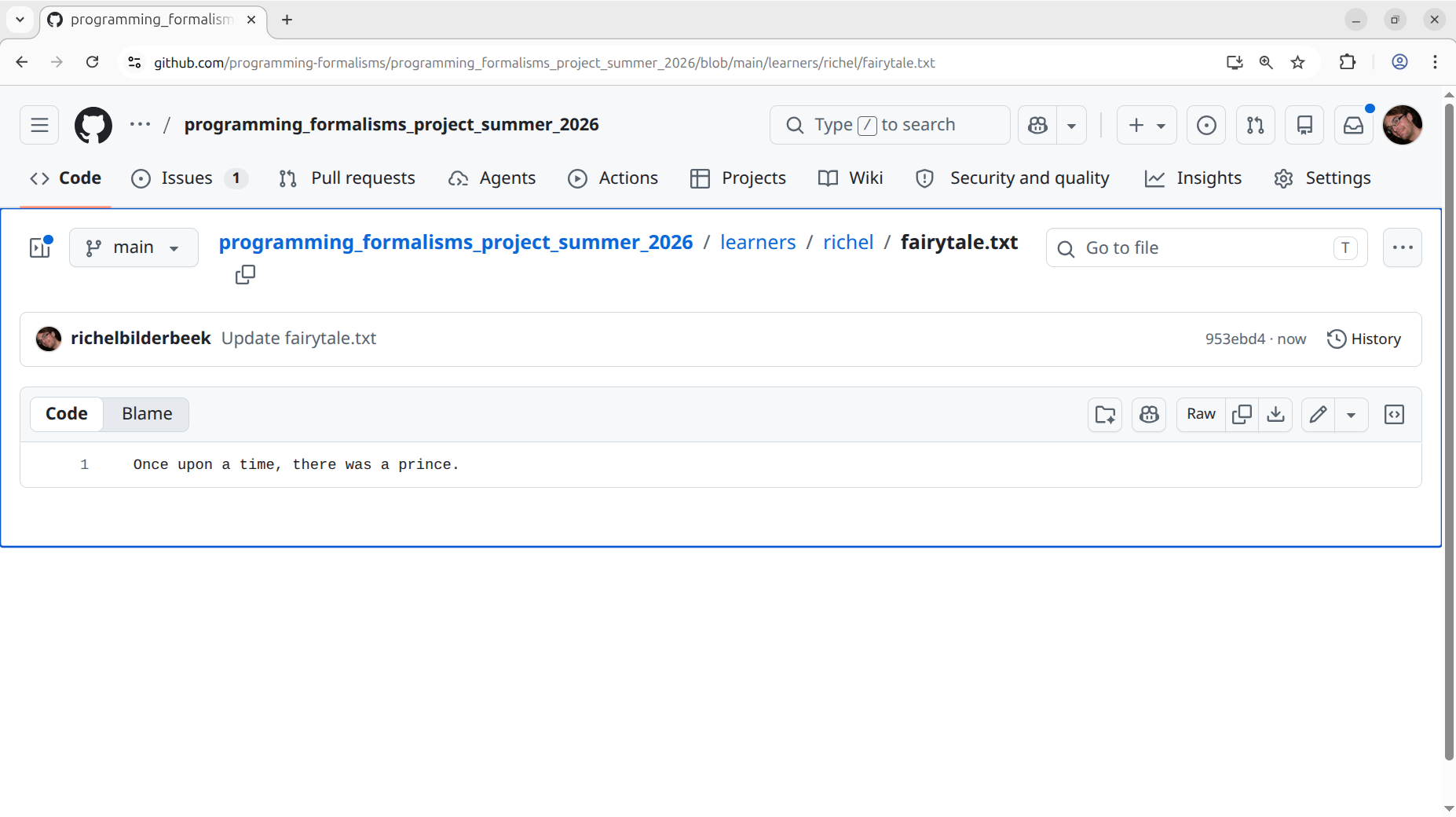
Now we create the local commit to conflict with.
In your local code, without fetching nor syncing, change the file to:
Save the file.
How does that look like?
It looks similar to this:
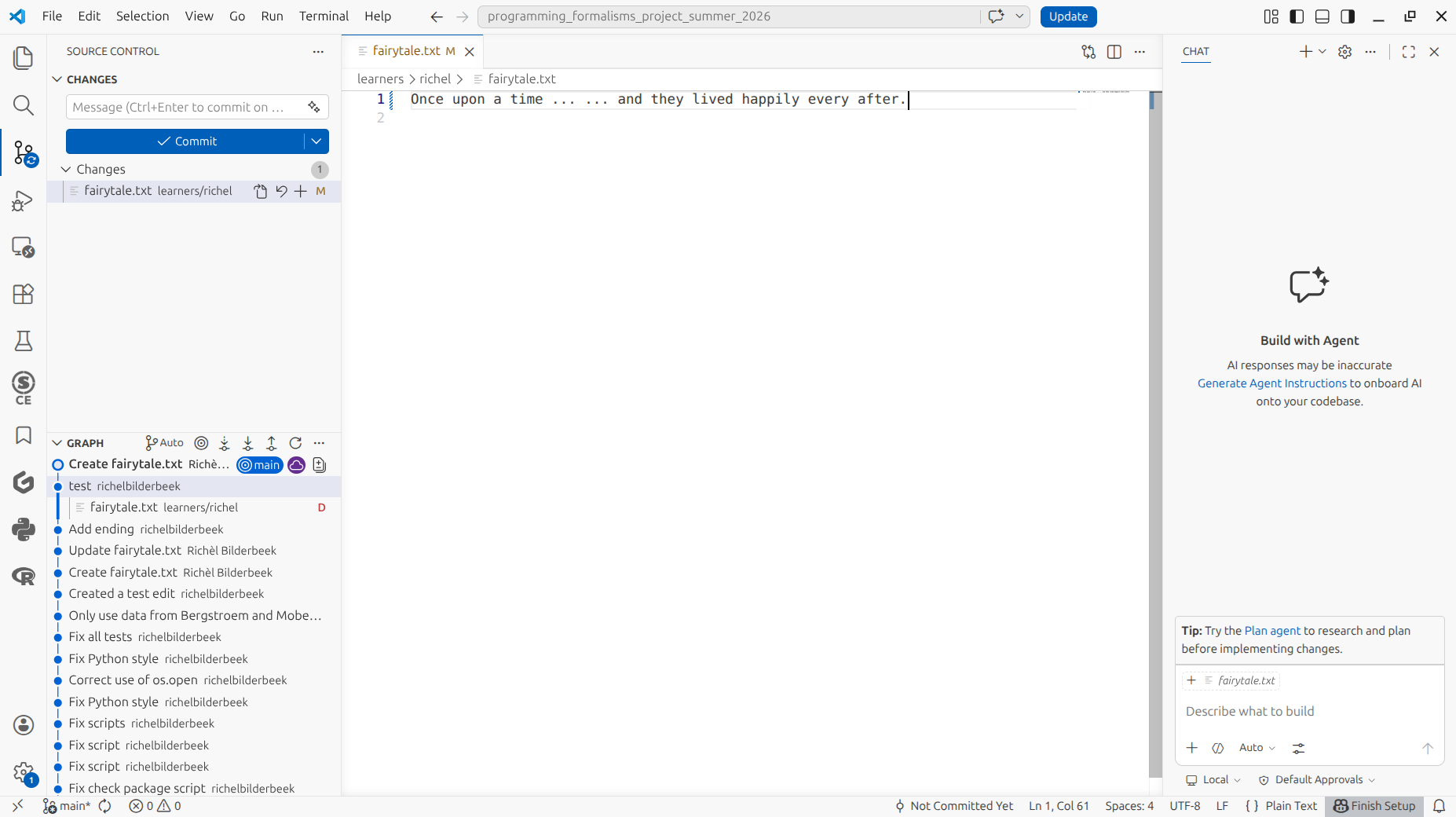
Add a commit message and commit the file.
How does that look like?
It looks similar to this:
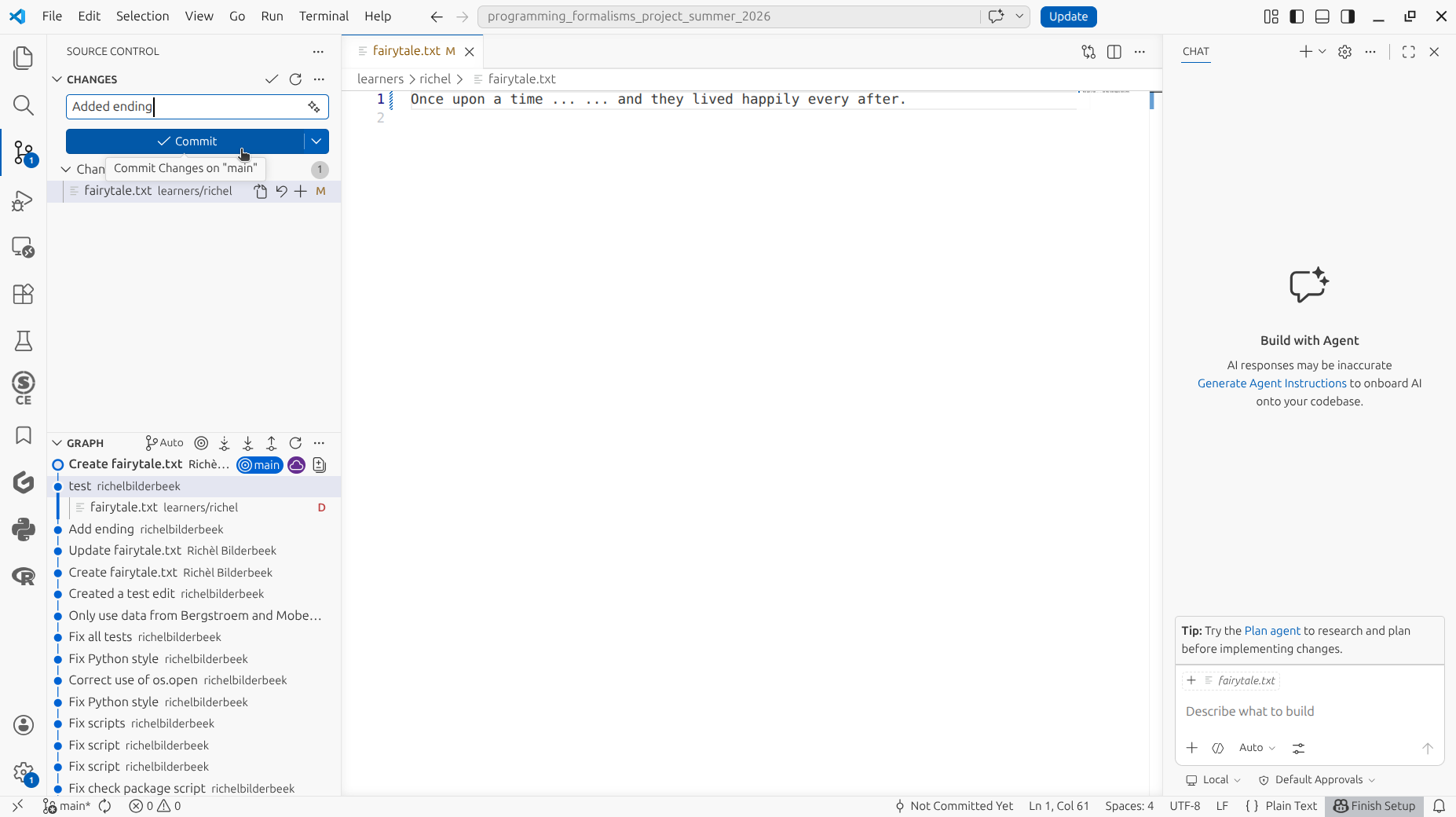
Sync the edited file
How do I do that?
Click on 'Sync':
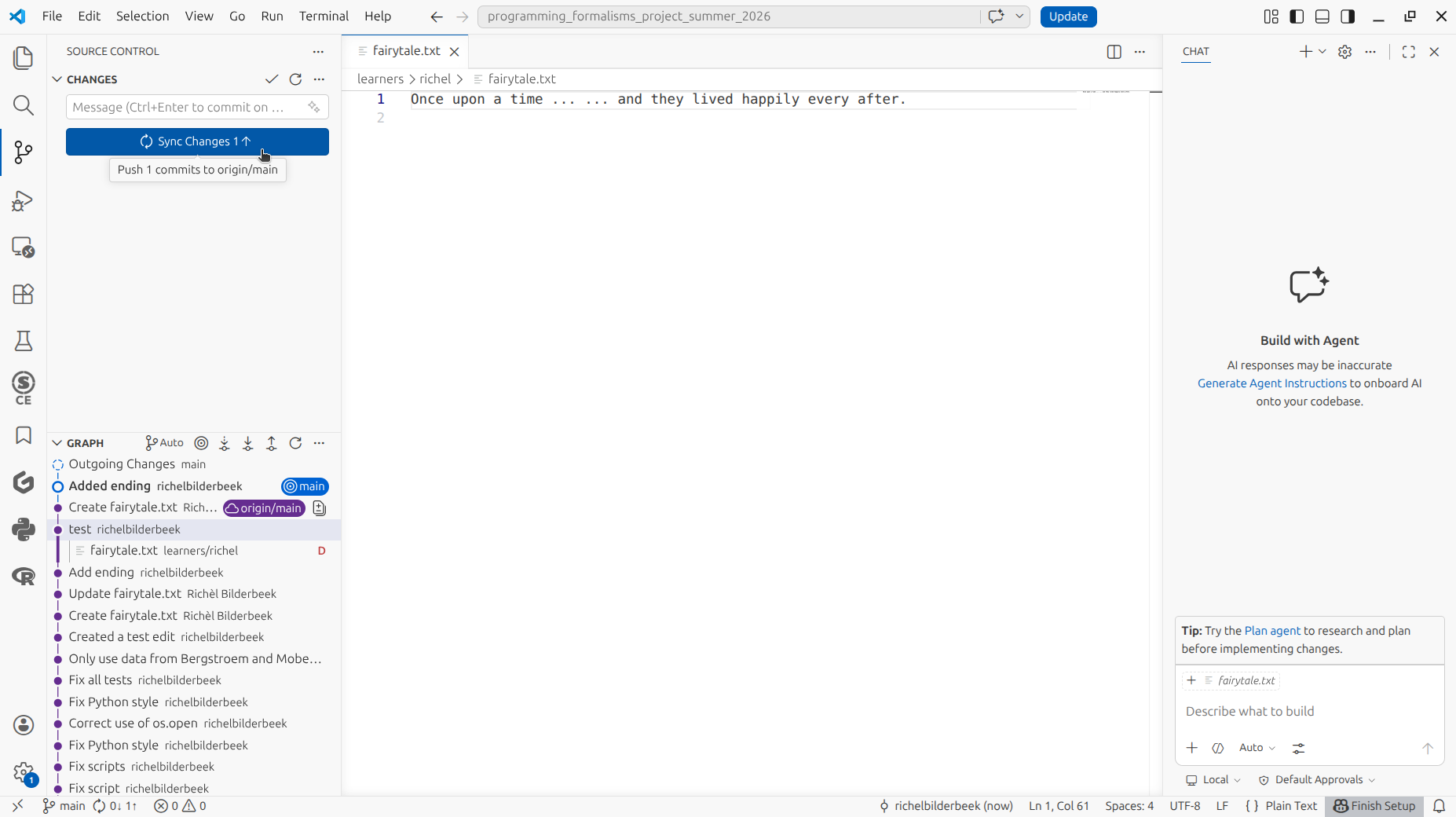
Now you see how a merge conflict looks like!
How does that look like?
It looks similar to this:
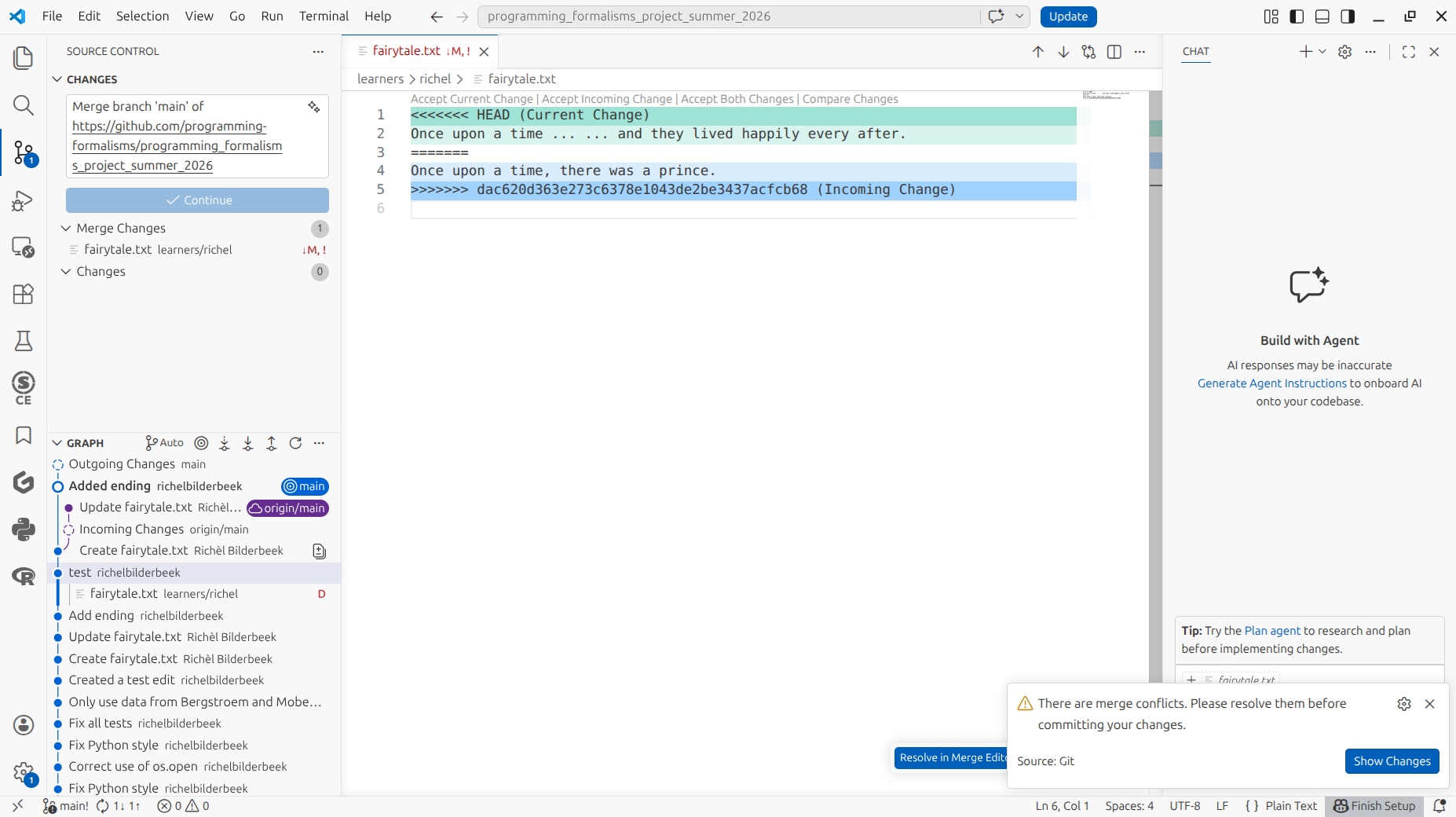
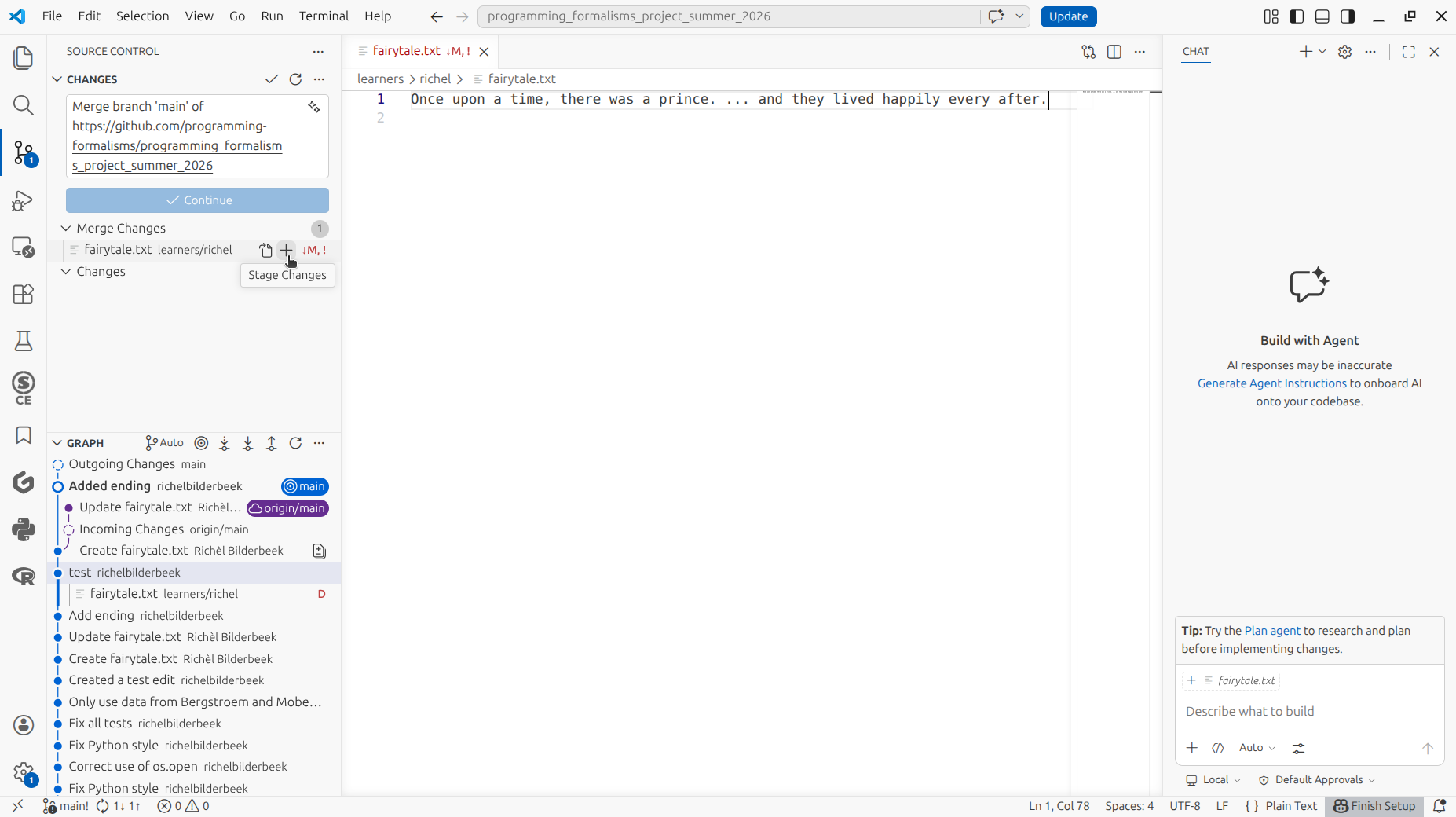
Edit the text in the editor to achieve a merged text (e.g. the text below) and click 'Stage changes'
How does that look like?
It looks similar to this:
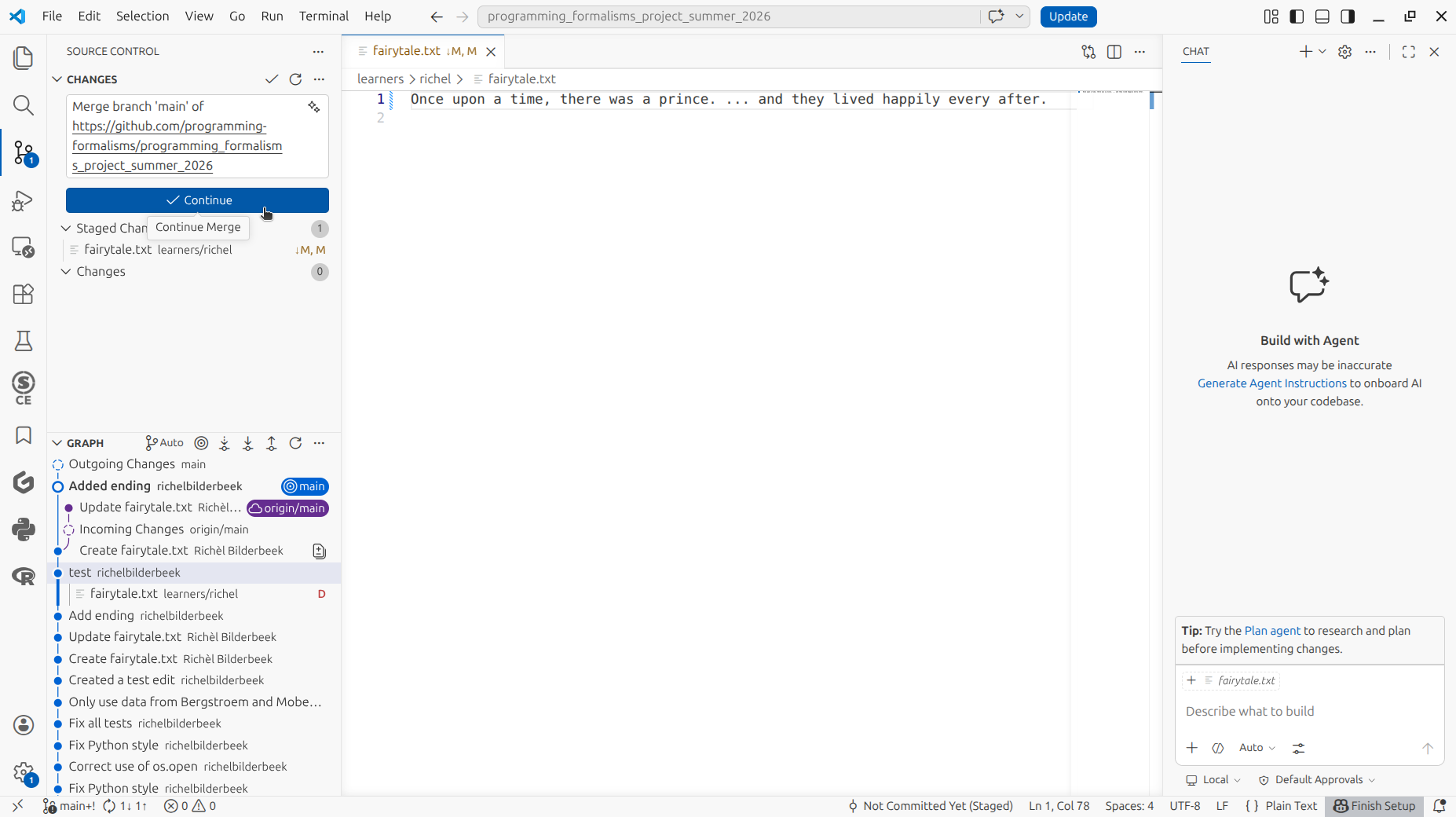
Click 'Continue'.
Where is that?
It is the blue button:
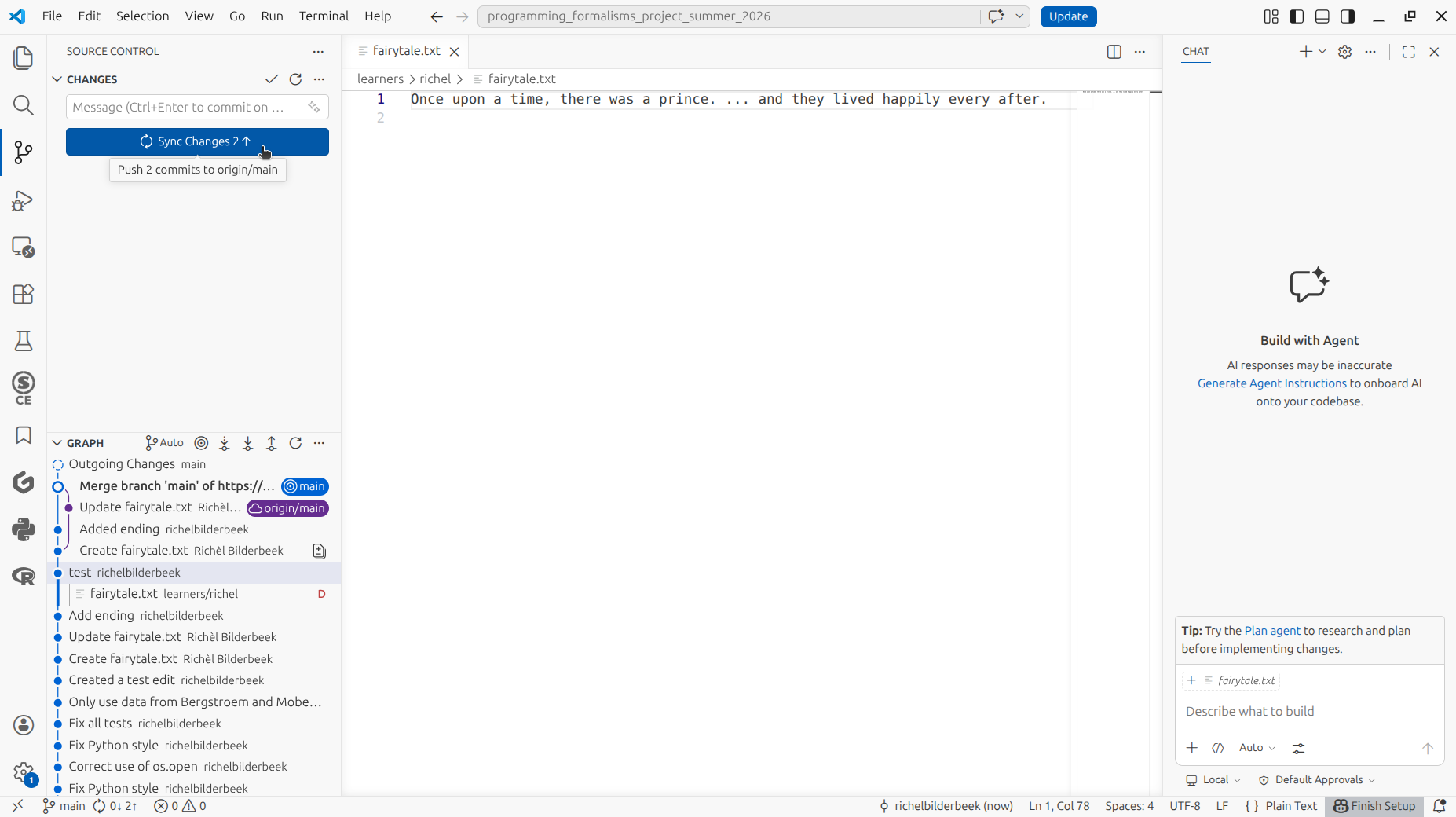
Now that the merge conflict is resolved, click 'Sync'.
Where is that?
It is the blue button:
You have now resolved your first merge conflict 
How does that look like?
It looks similar to this: