Branches
Learning outcomes
Learners ...
- understand what branches are
- understand why to use branches
For teachers
Prior:
- You have code that works. Others are using it. However, you want to add improvements. You want to do so without harming others. How would you do this?
- You work in a team. You want to try out some new things in the code, due to which it will break the build sometimes. You want to do so without harming others. How would you do this?
- What is version control again?
- Why use version control again?
- What are branches?
- Why use branches?
- What is a merge?
What are branches?
Branches are a term in version control, and are in meaning similar to 'version with a specific name'
| Branch name | Description |
|---|---|
main or master |
The version that always works |
develop |
The version that is being developed |
Other, e.g. sven |
A topic/feature branch named after a developer or topic |
Why use branches?
To be able to work independently on code, i.e. without harming others.
A workflow for a single developer
Here we see the workflow of a single developer:
gitGraph
    commit
    branch develop
    checkout develop
    commit
    commit
    checkout main
    merge develop
In words:
- The developer started with version
0from themainbranch - On the
developbranch, he/she created two new versions - The second new version
2was then merged to themainbranch
A workflow for multiple developers
Here we see the workflow for multiple developers:
gitGraph
    commit
    branch develop
    checkout develop
    commit
    branch feature
    checkout feature
    commit
    commit
    checkout develop
    merge feature
    checkout main
    merge develop
In words:
- This developer started with version
1from thedevelopbranch - On his/her feature branch, he/she created two new versions
- The second new version
3passed all tests on the feature, after which it was merged to thedevelopbranch - The second new version
3passed all tests on thedevelopbranch after which it was merged to themainbranch
Exercises
Exercise 1: create a feature branch for yourself using the web interface
In this exercises, we will create a feature branch for ourselves.
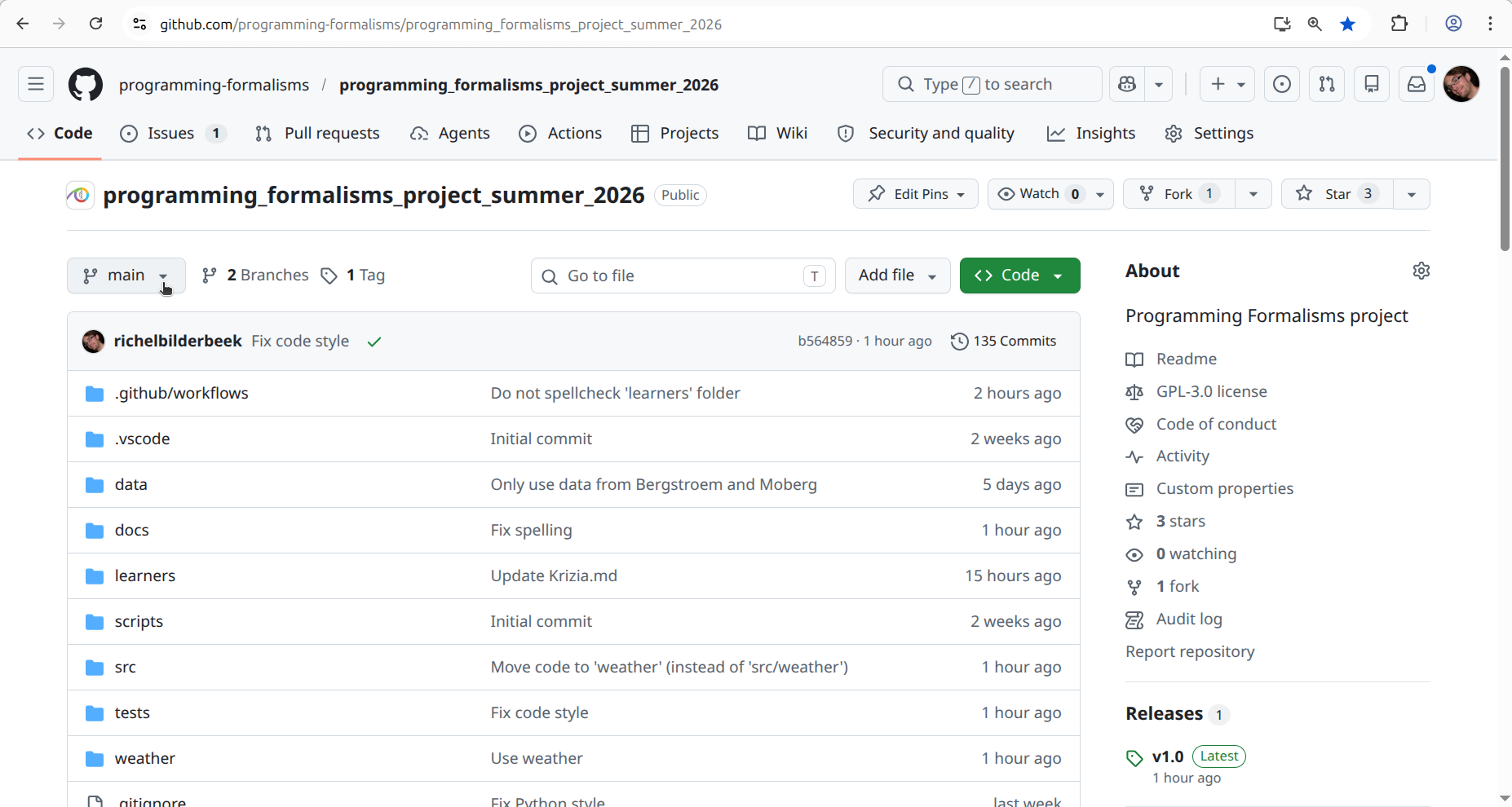
Click on the 'Branch' button (which displays the main branch).
Where is that?
It is at the top-left:
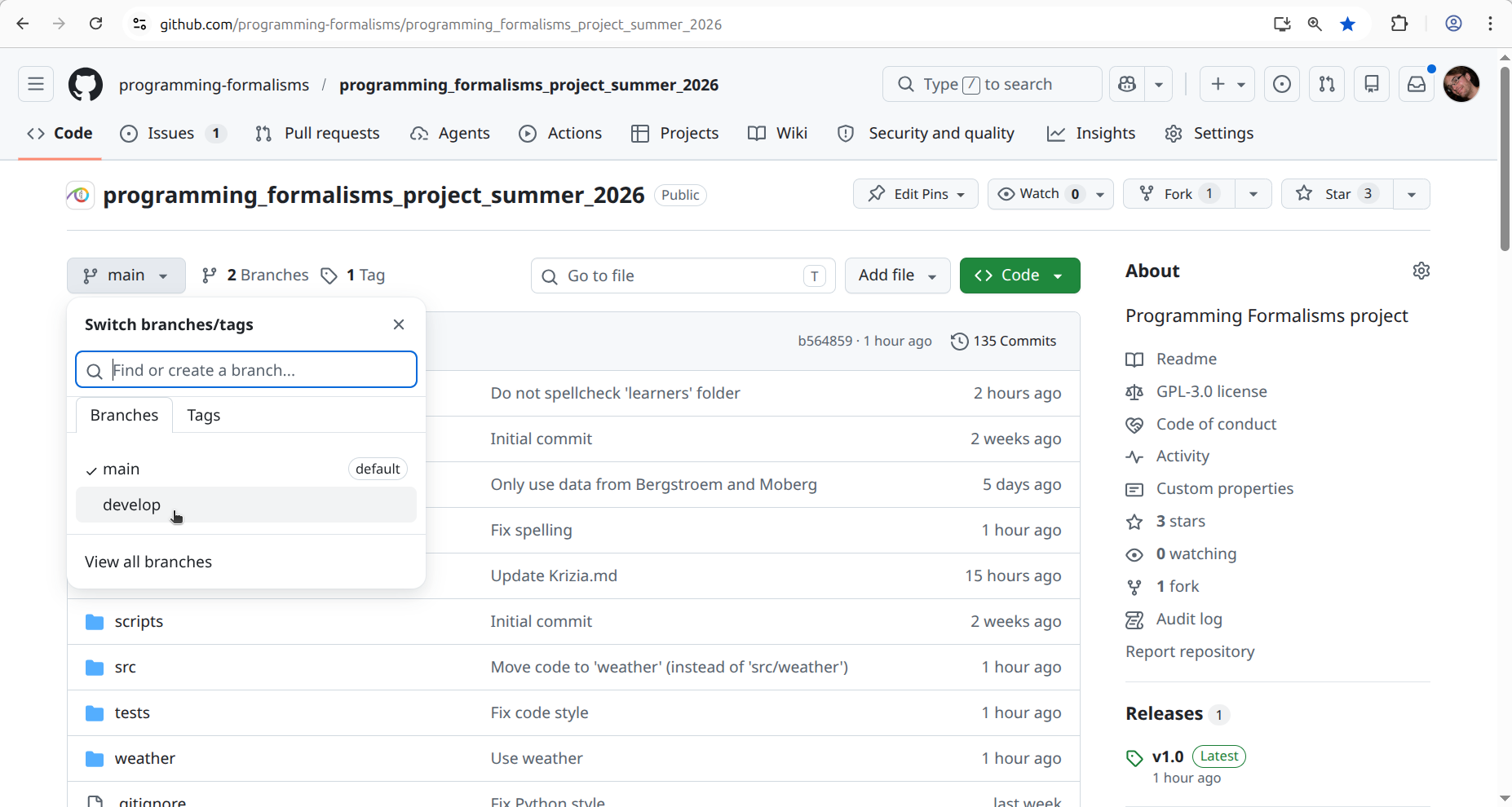
Select the develop branch.
Where is that?
It is in the drop-down menu:
Type the name of your feature branch (e.g. sven)
and click 'Create [your branch name] from develop'
How does that look like?
It will look similar to this:
![Click 'Create [your branch name] from develop](create_sven_from_develop.png)
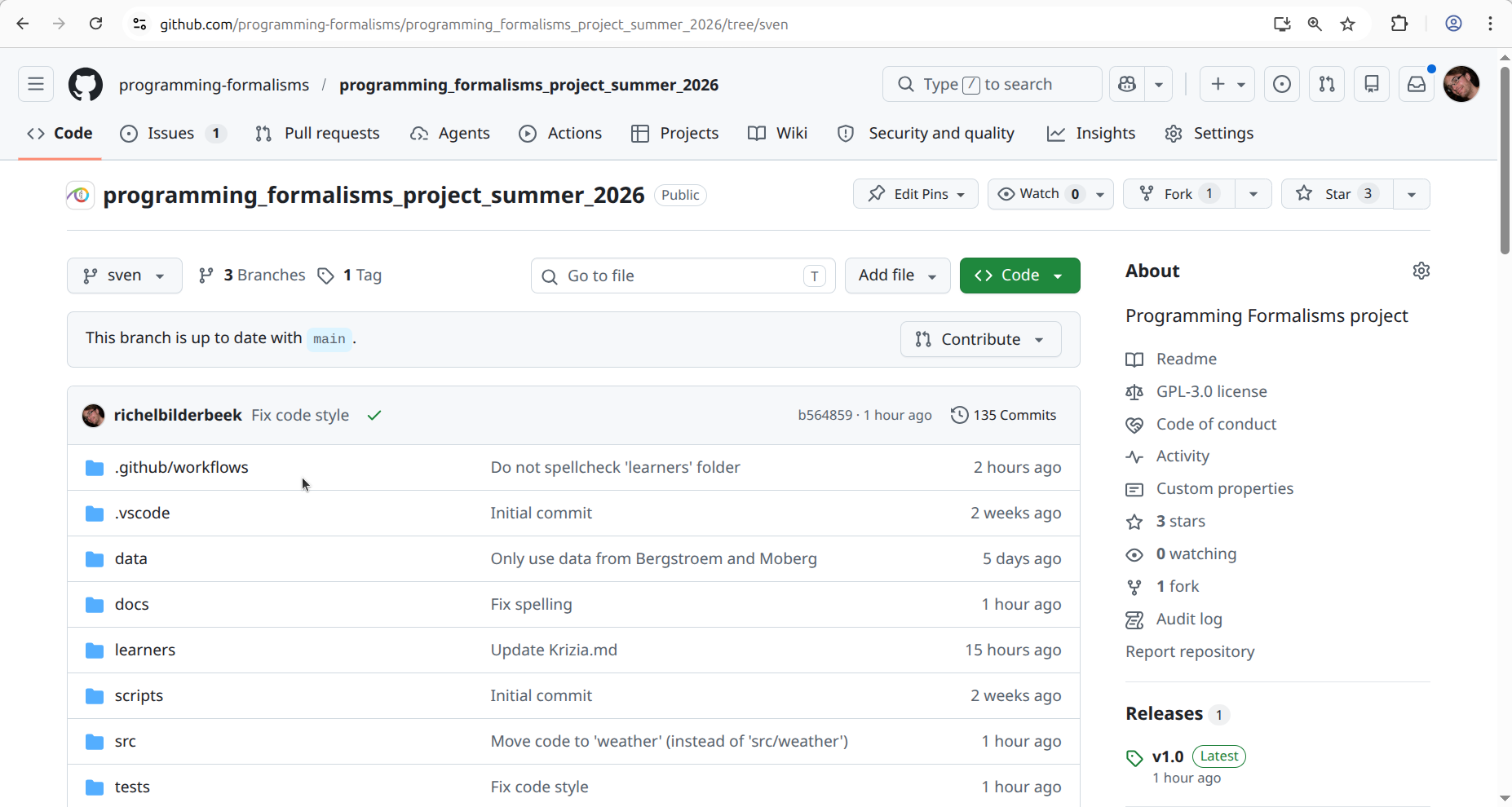
Your feature branch is now created!
How does that look like?
It will look similar to this:
Exercise 2: work on your feature branch
In this exercise, we'll put some trivial code on your feature branch,
which we will merge to develop.
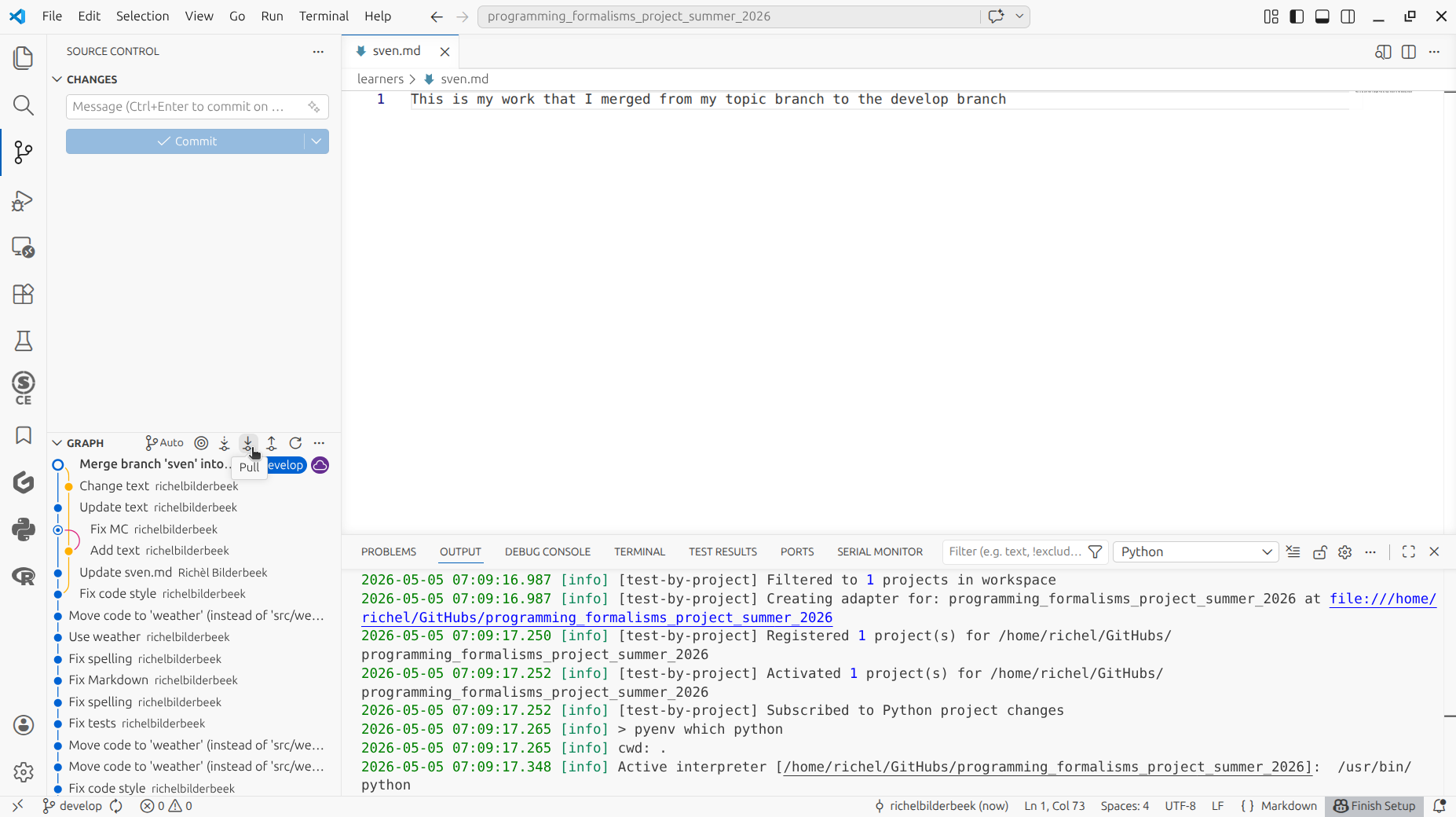
In VS Code, pull the repository
Where do I click?
Click on 'Pull':
Other things that may help:
Click on 'Sync changes':
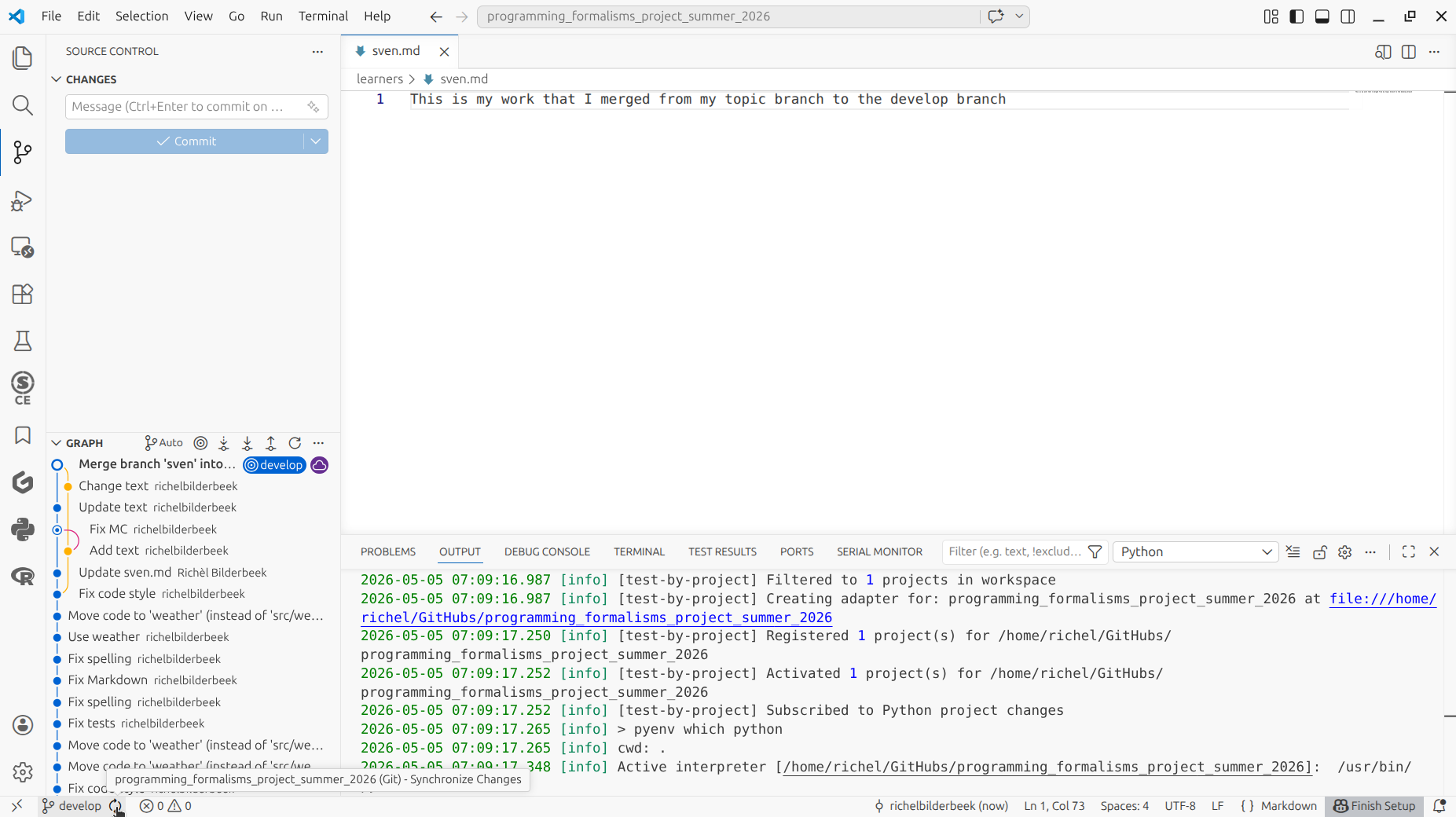
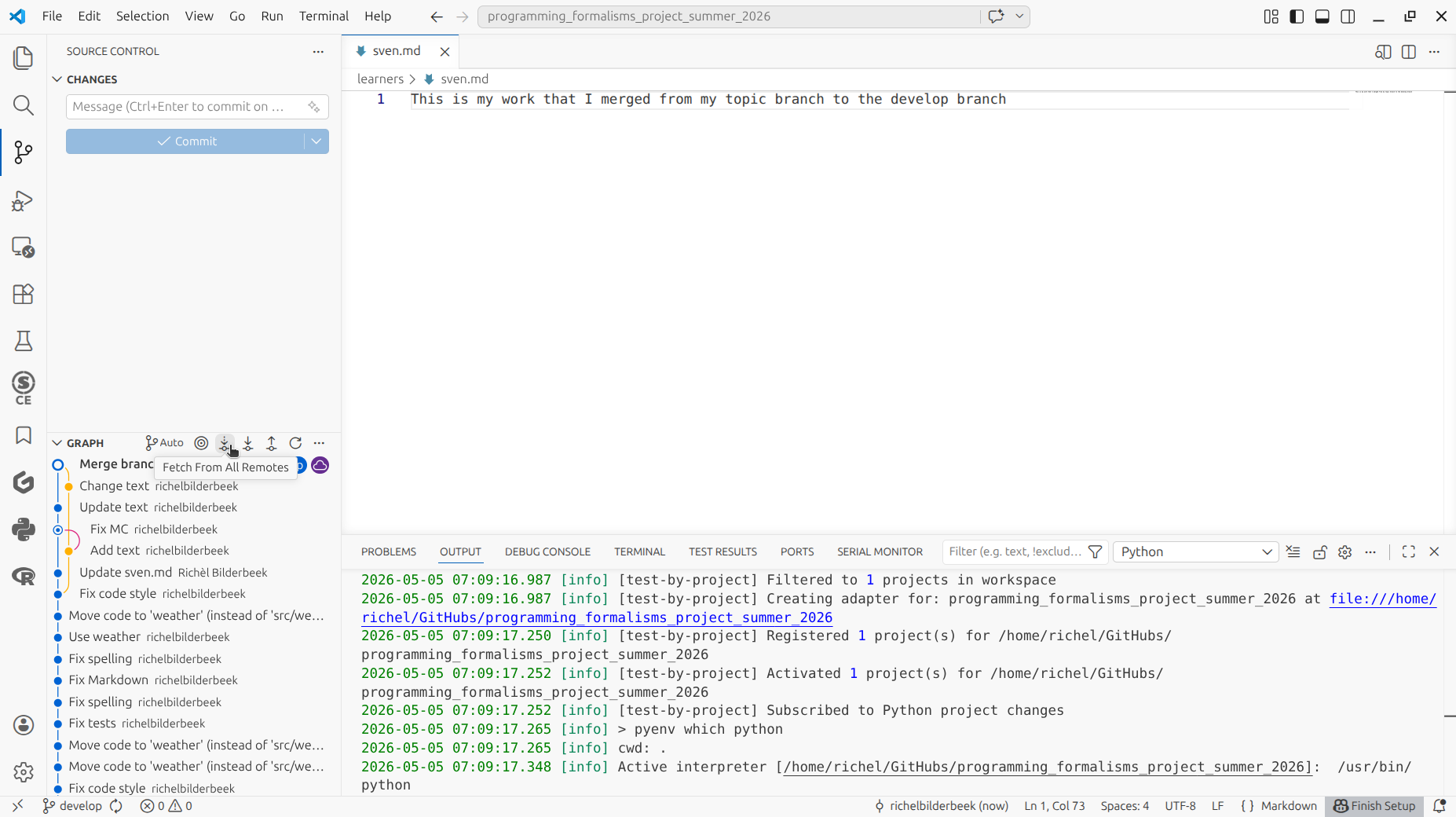
Click on 'Fetch from all remotes':
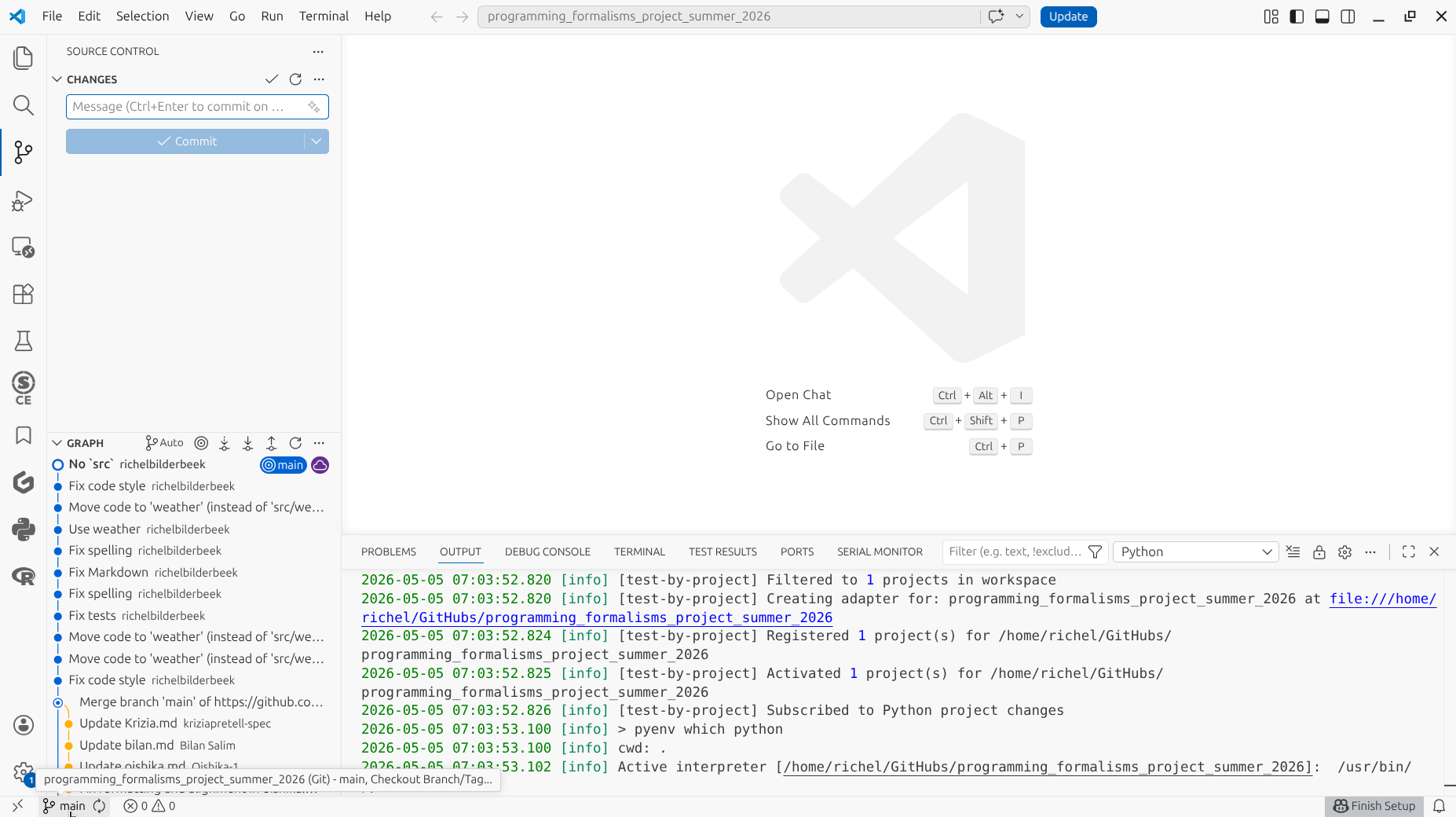
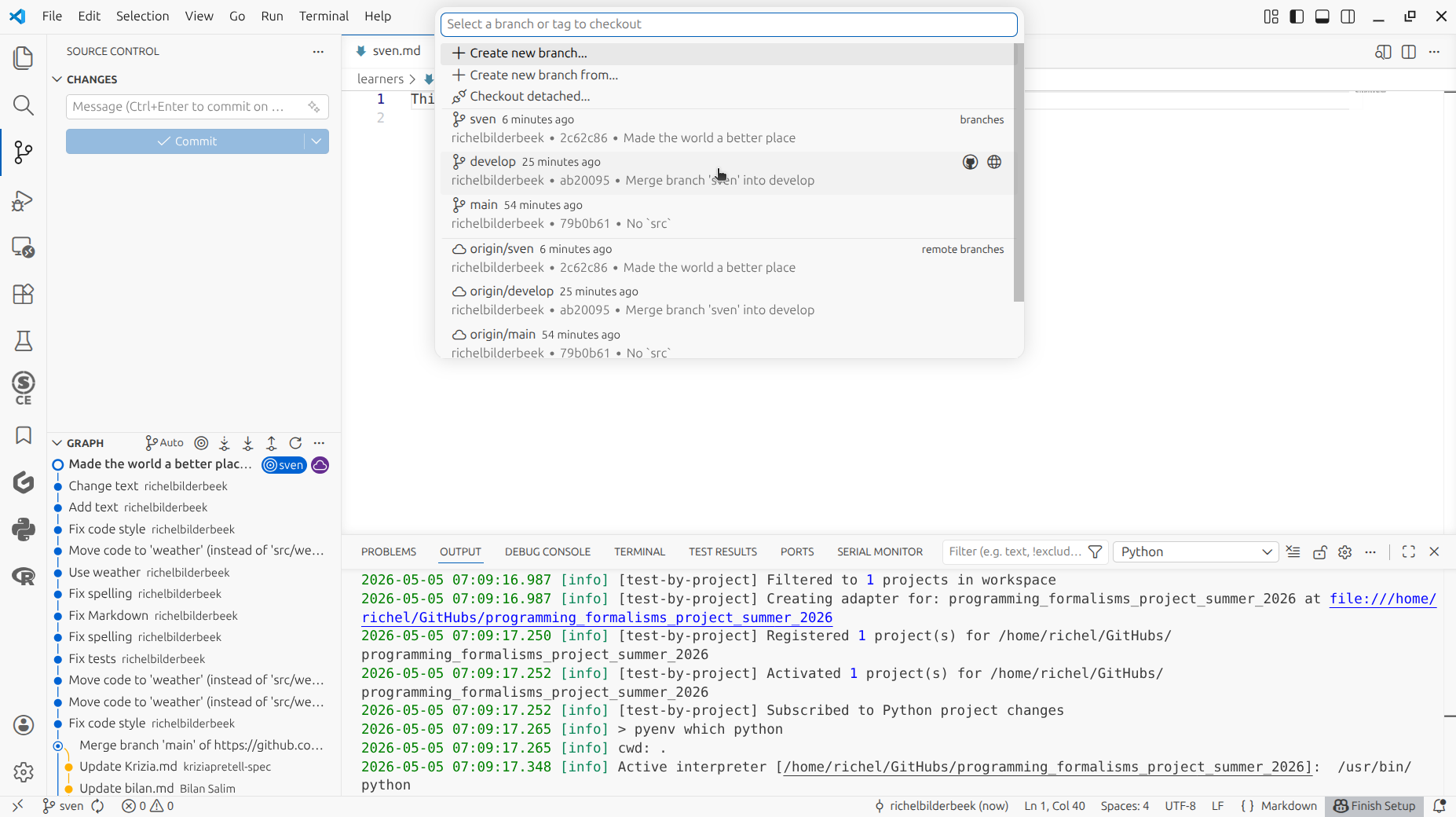
Checkout your feature branch.
Where do I click?
In VS Code, click on the place to select a branch, at the bottom-left of the screen:
In the 'Command Palette', click on your branch:
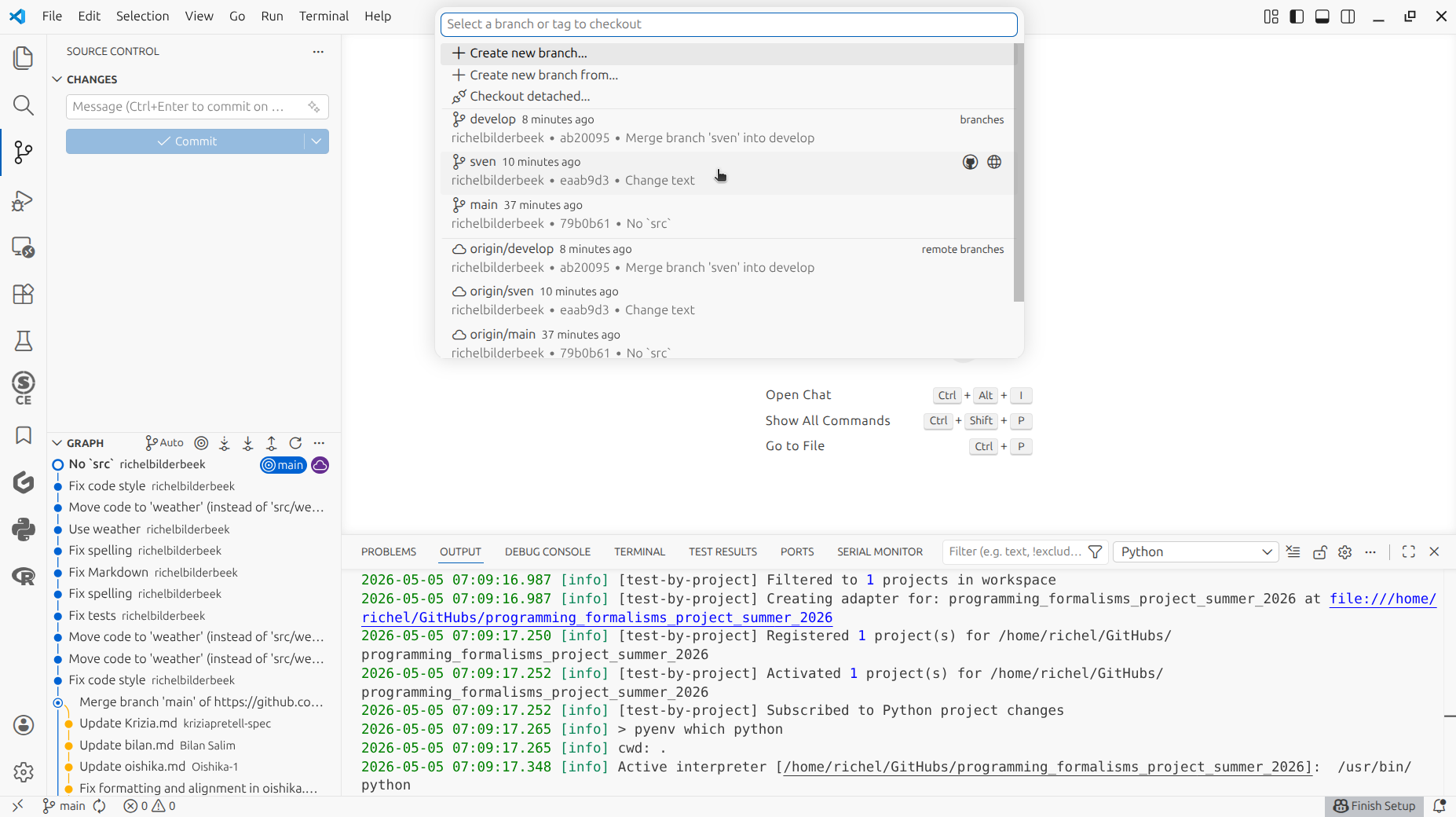
You are now on your own branch!
How does that look like?
In the bottom-left of the screen, the branch selector shows
the name of the branch you are on (sven in this example).
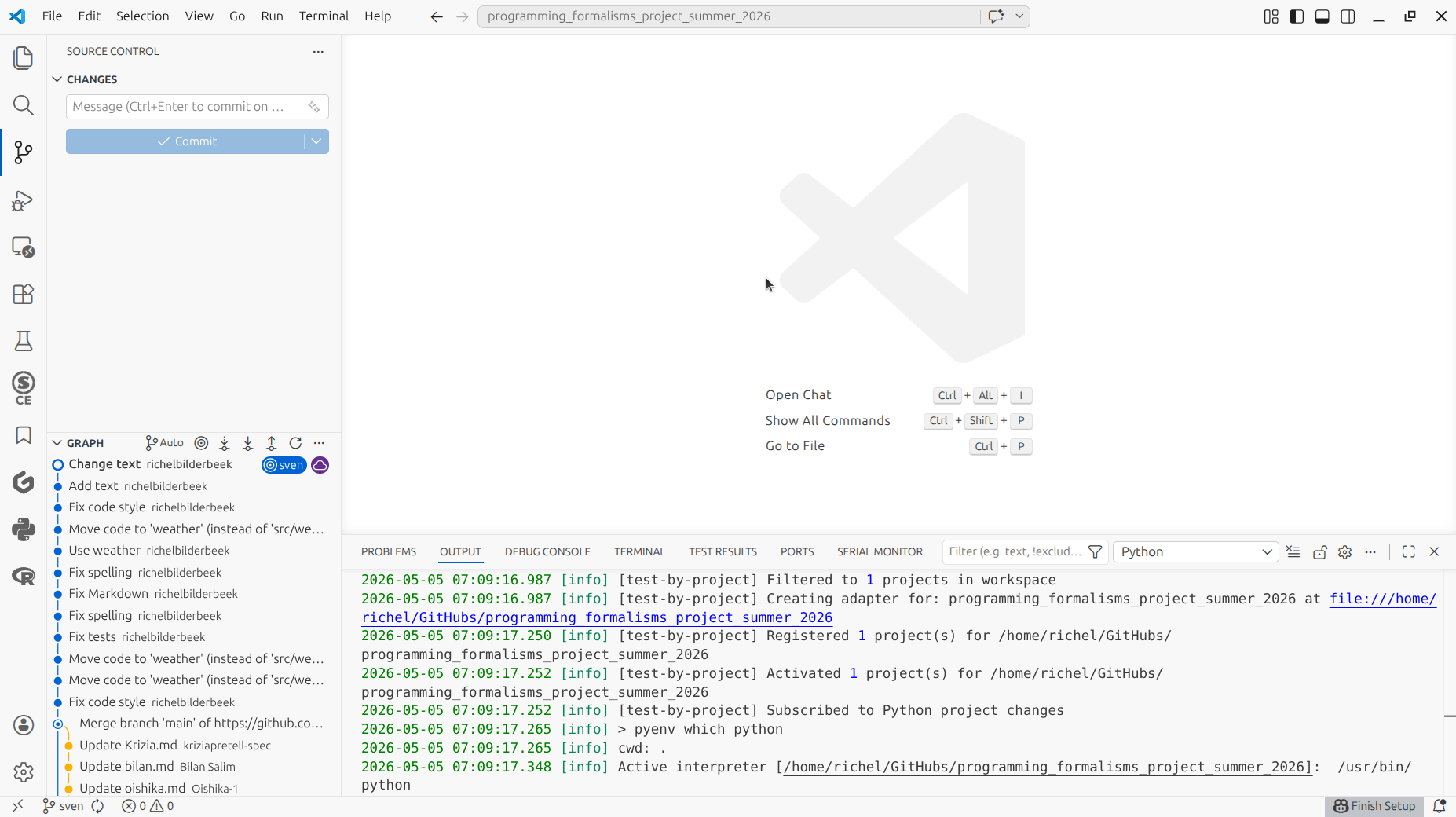
Modify something on your feature branch.
How does that look like?
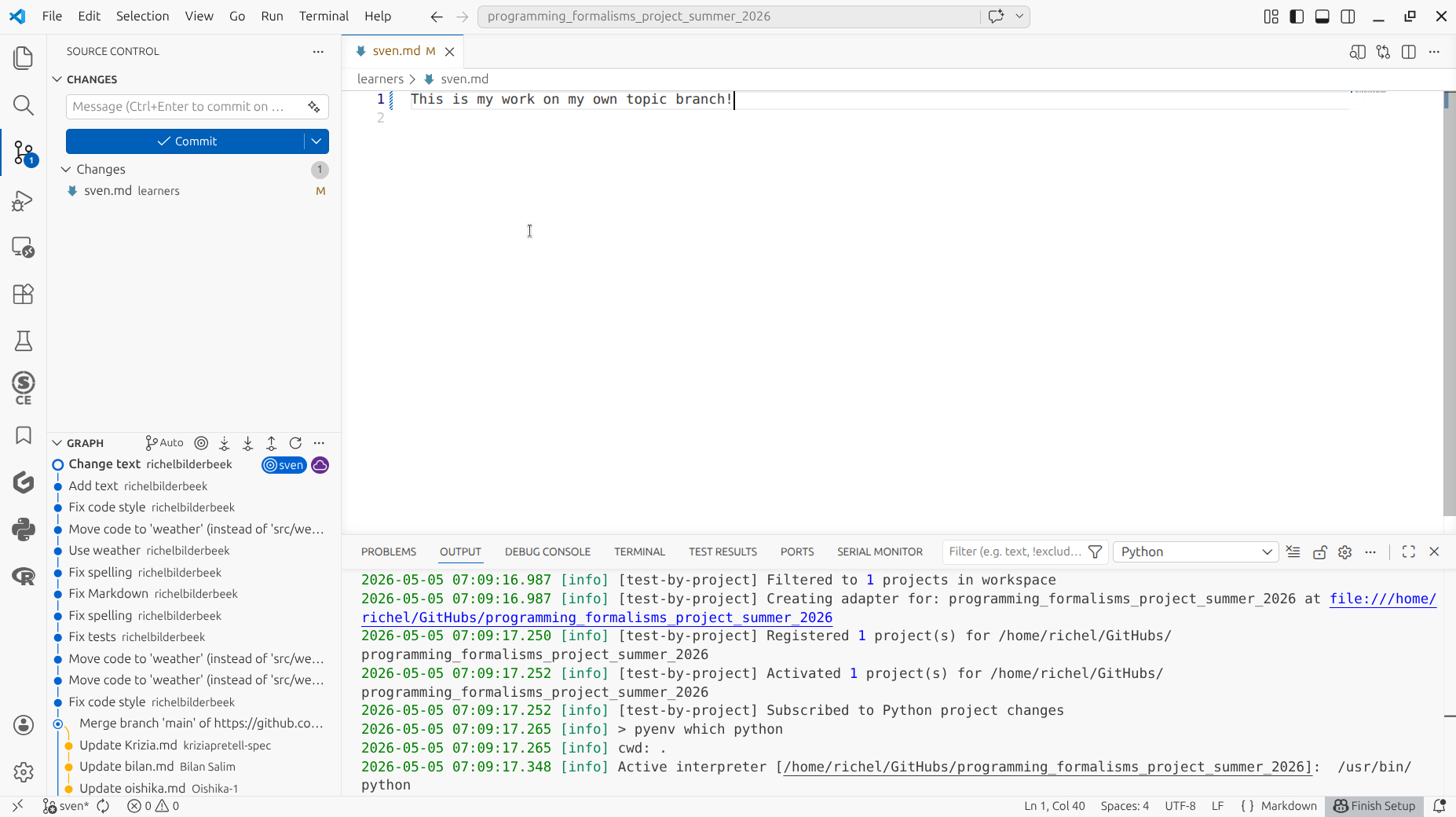
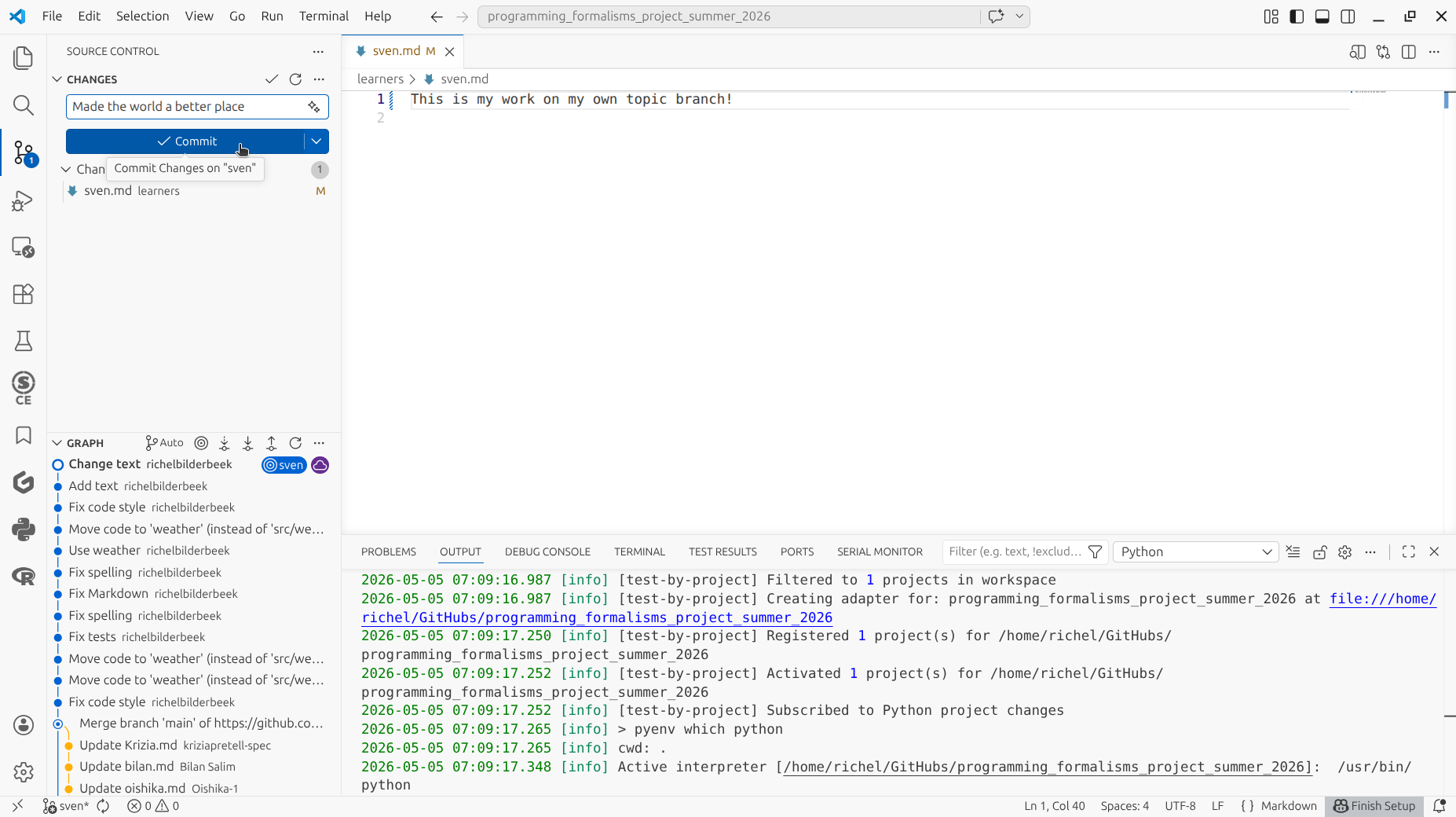
Commit the code as usual.
How does that look like?
Sync as usual.
How does that look like?
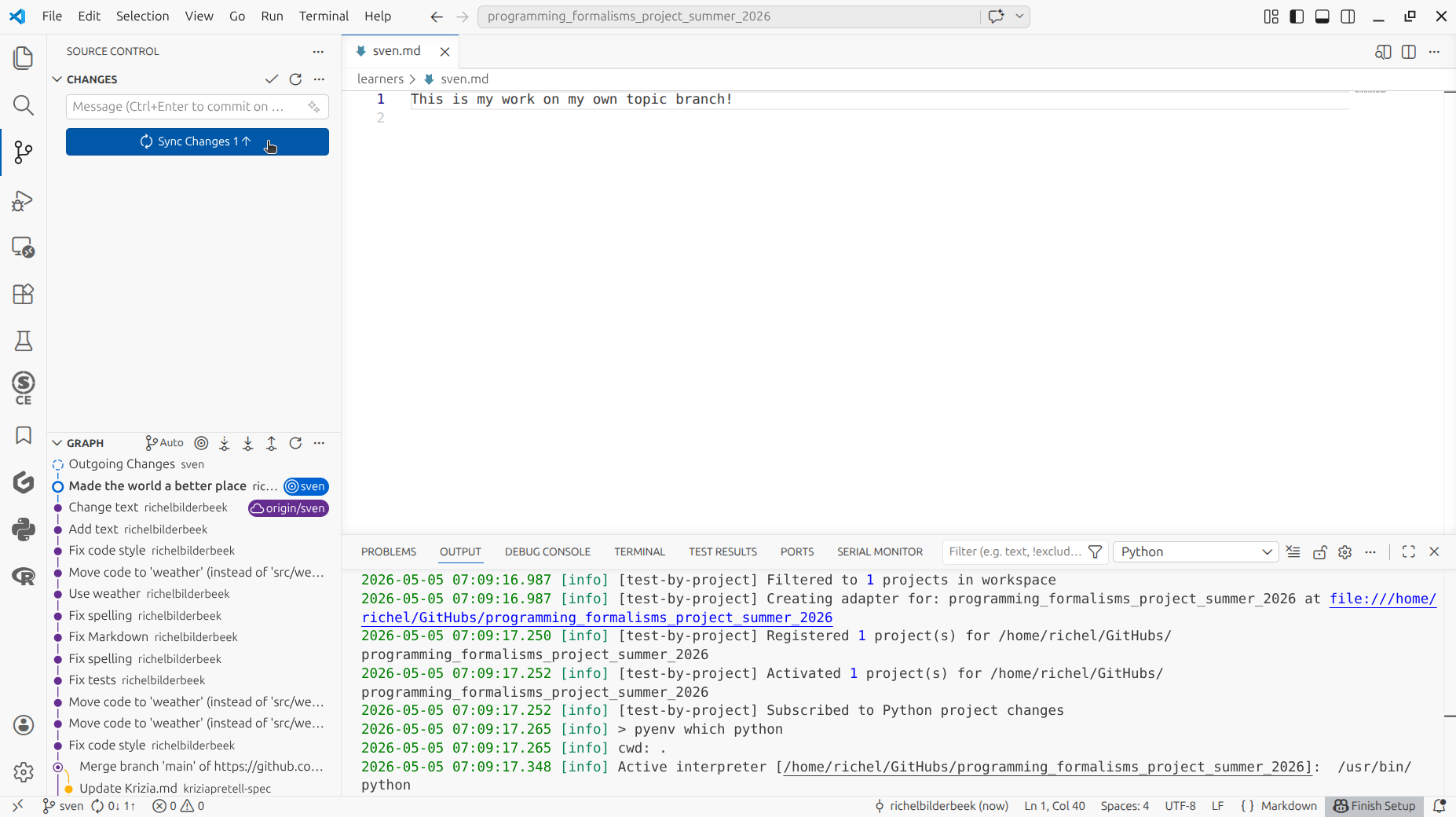
Now we have a commit on our feature branch.
Time to merge it do develop!
In VS Code, checkout the develop branch.
How does that look like?
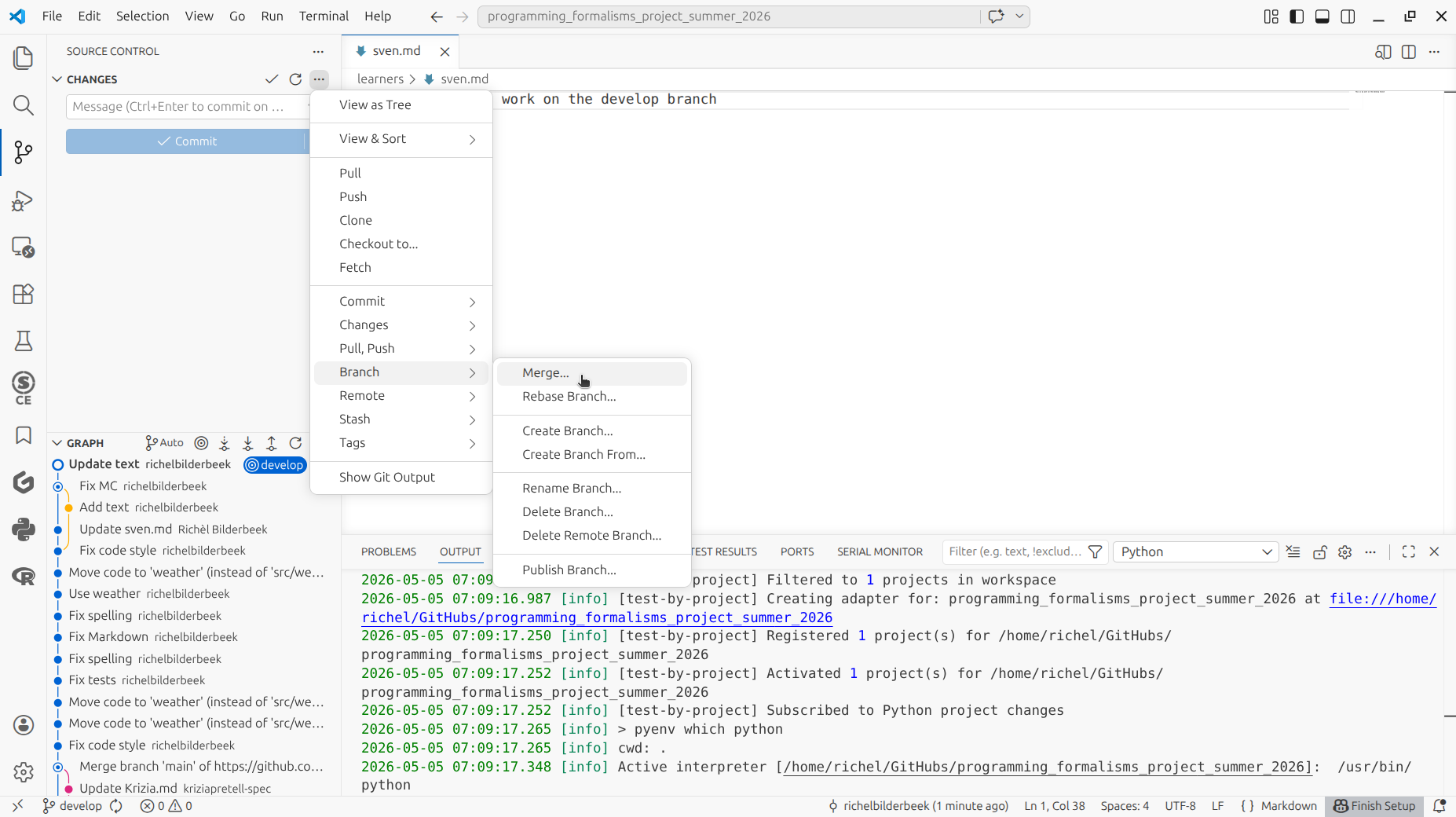
In VS Code, click on 'Merge'. It is hidden under the lower kebab button at the top of the 'Source control' tab.
How does that look like?
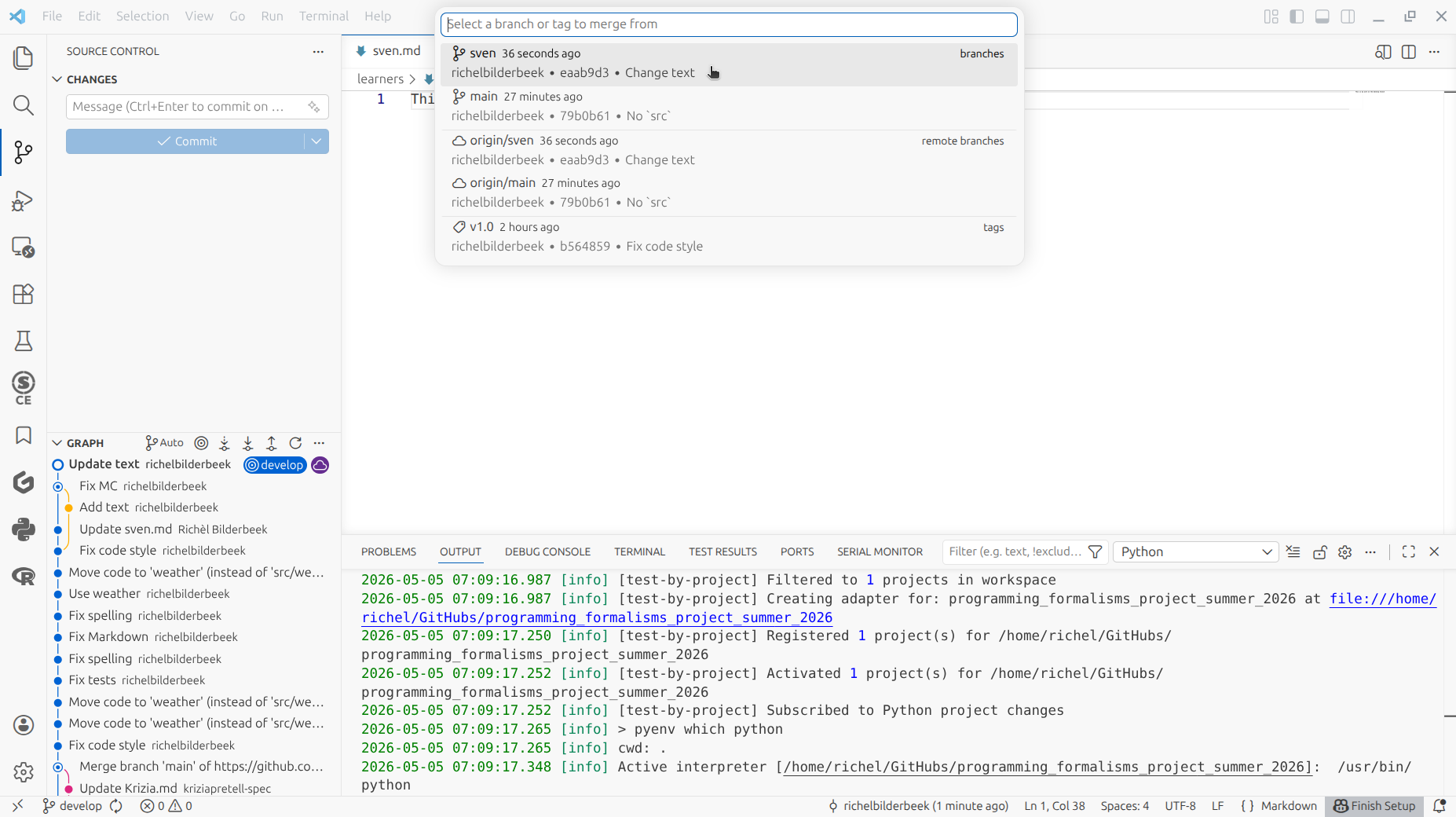
Click the branch to merge with.
How does that look like?
If you get a merge conflict, fix it.
How to do so again?
Here we see how a merge conflict is indicated:
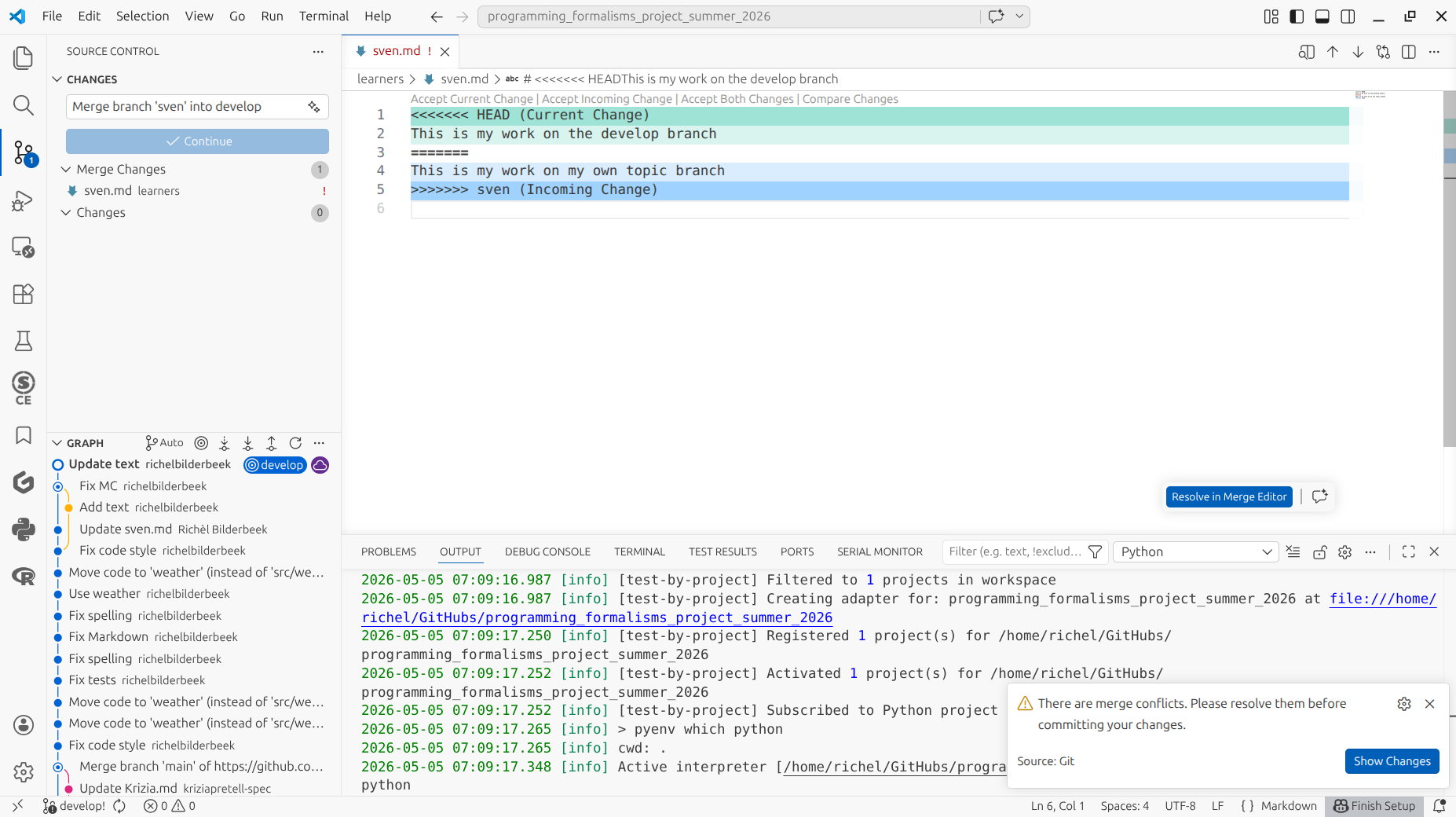
Even though there are colors and weird symbols, this is just text with text added.
Modift the text to resolve the conflict.
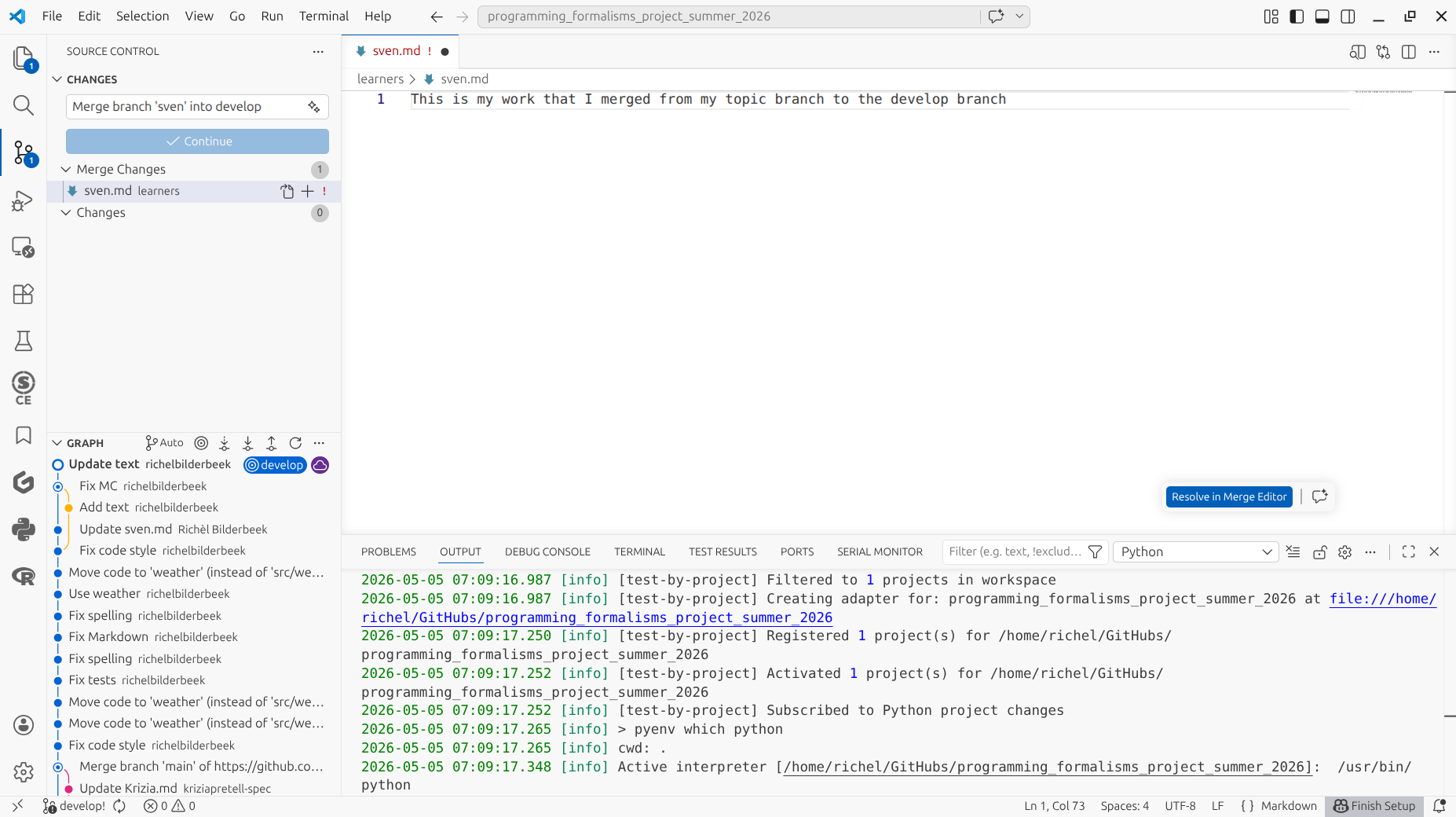
Save the text.
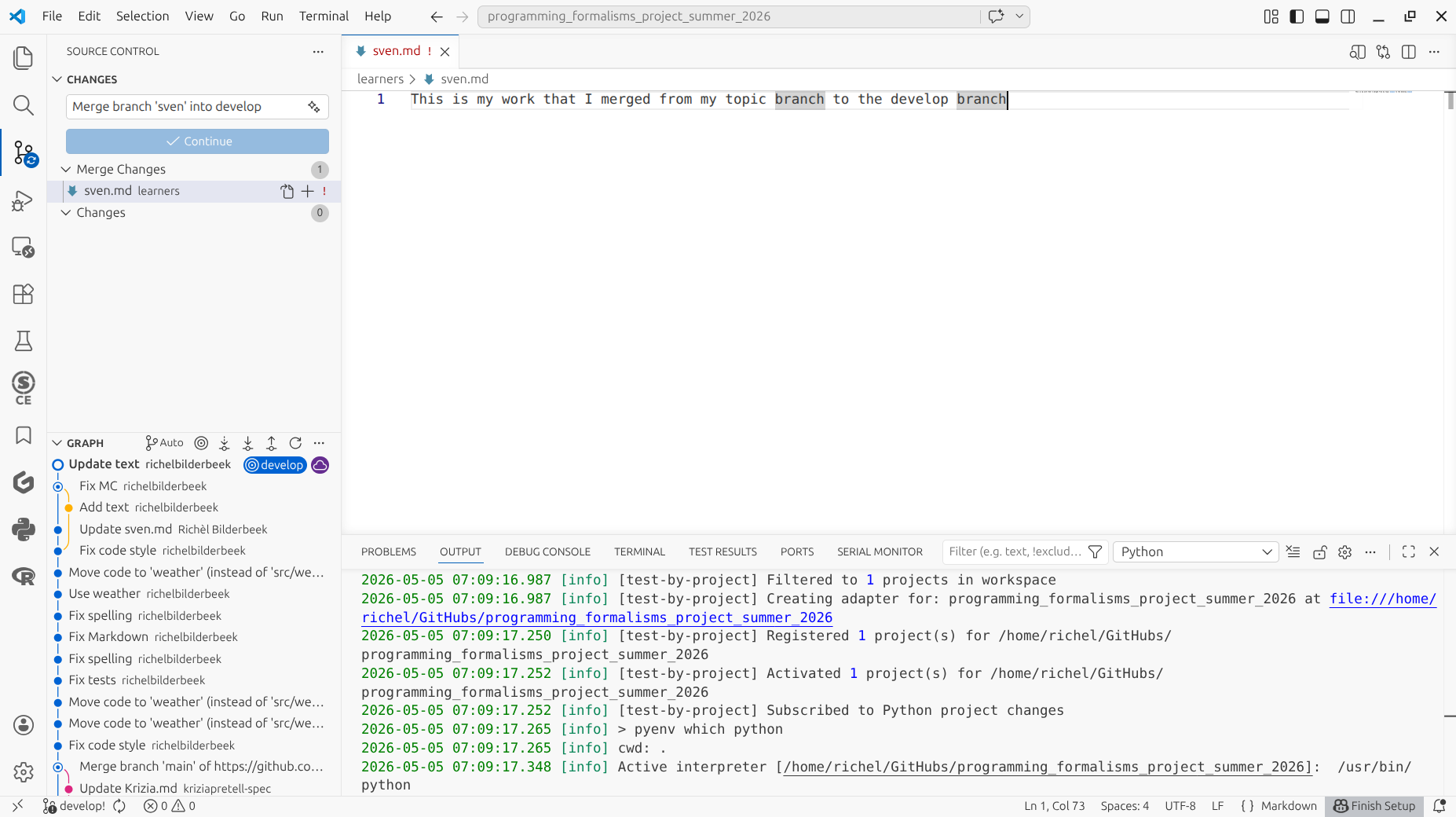
Stage the changes to fix the merge conflict.
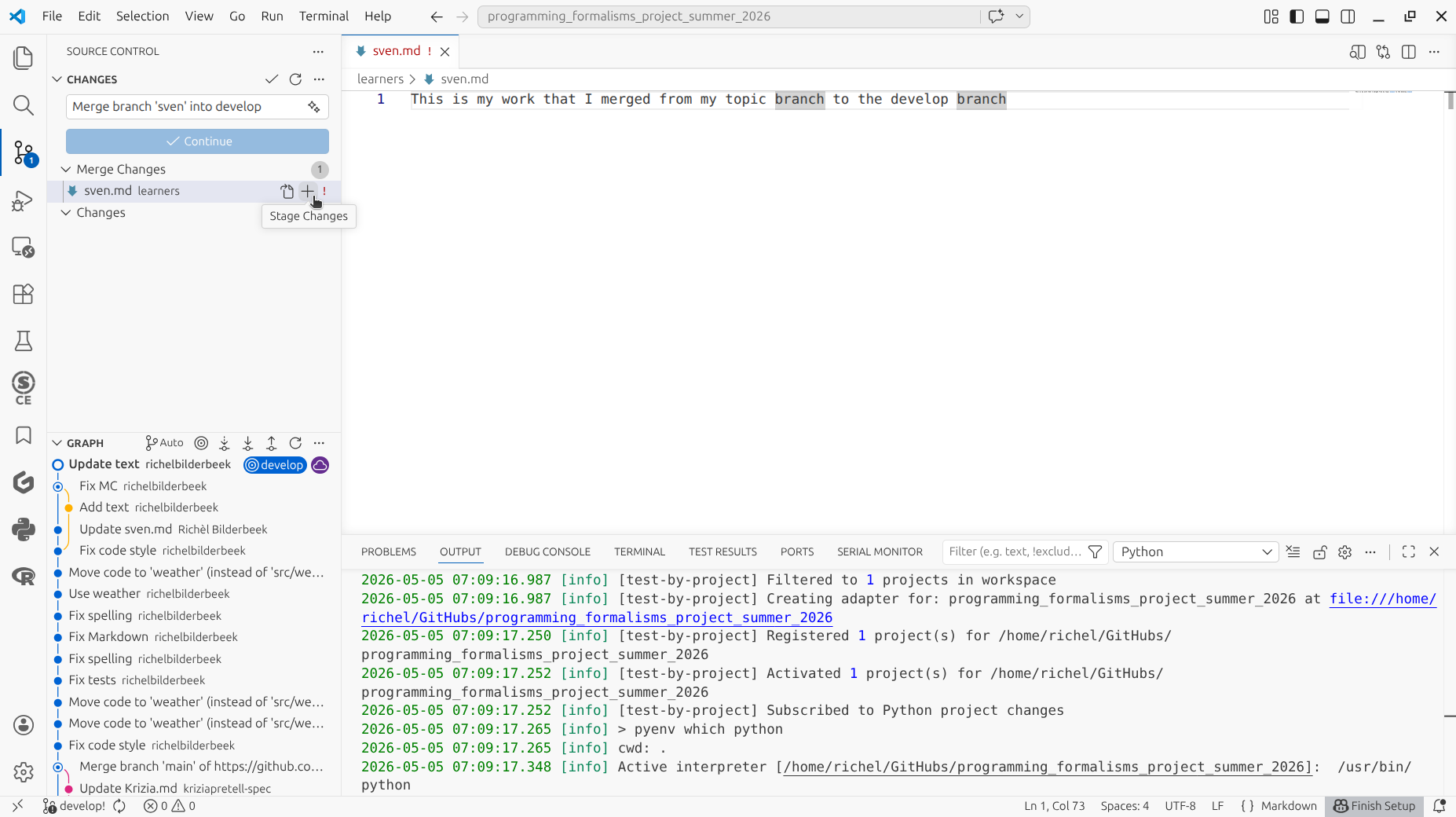
Click on 'Continue'.
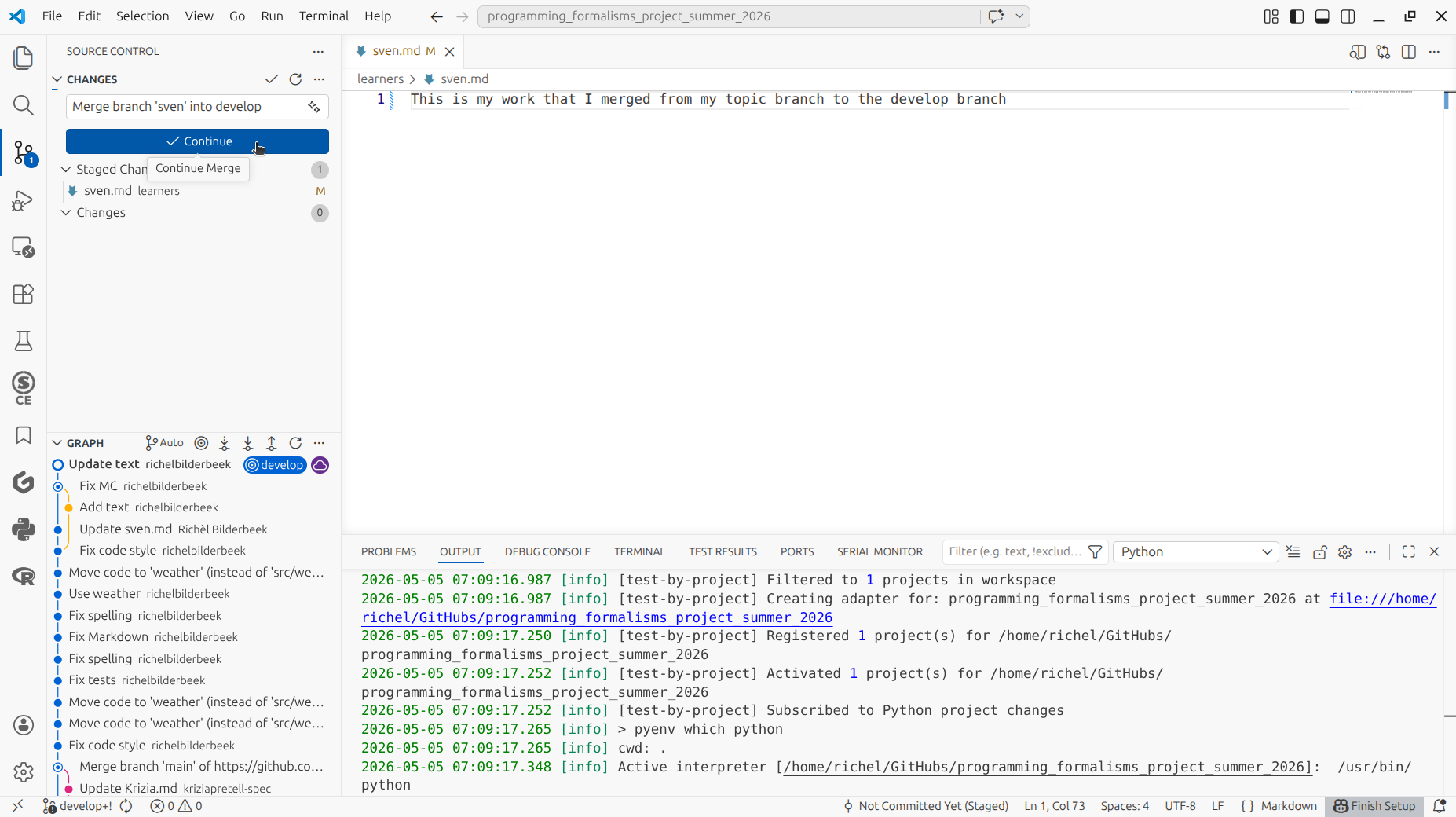
The next step is to sync as usual.
Click on 'Sync'.
How to do so again?
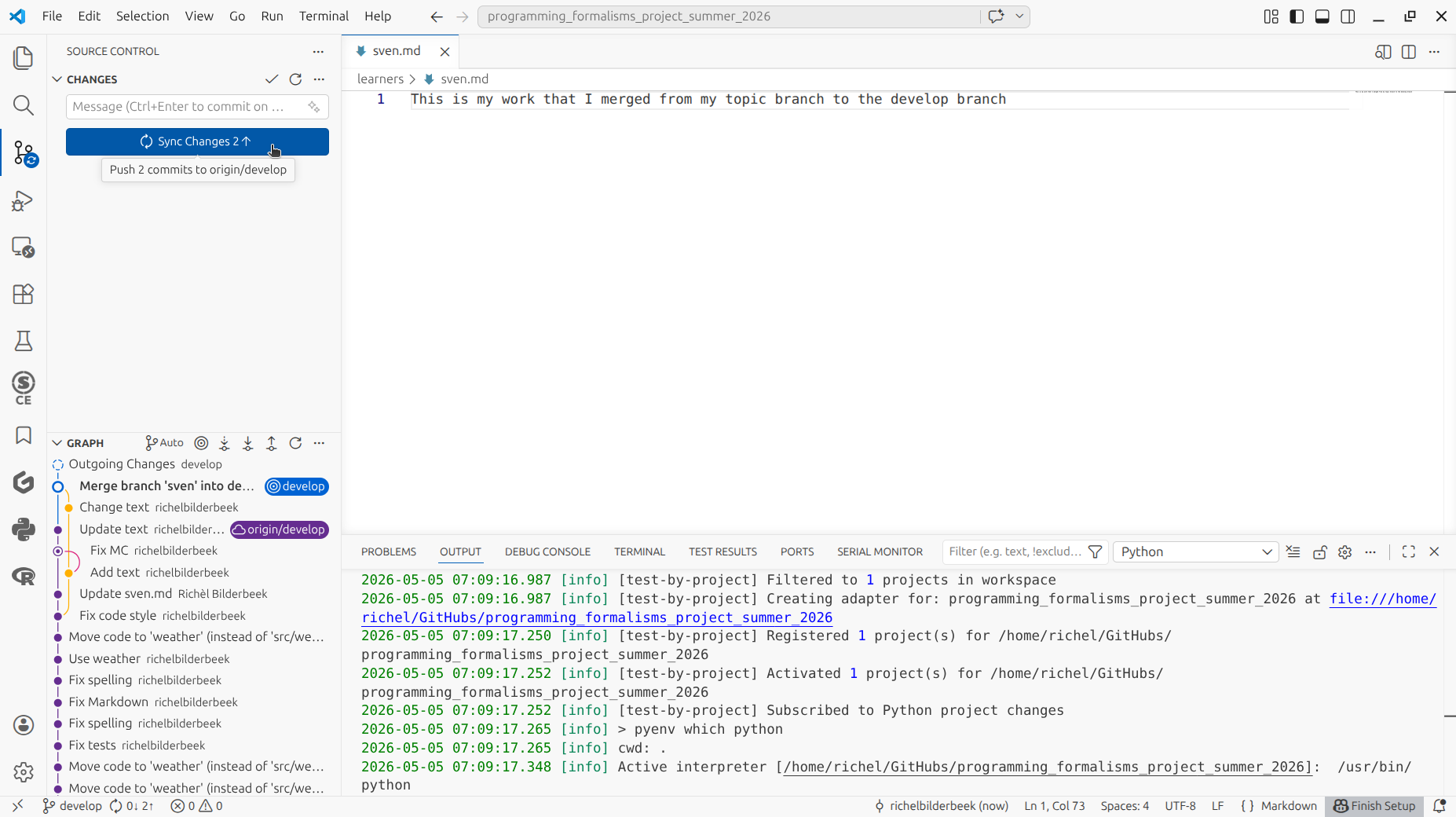
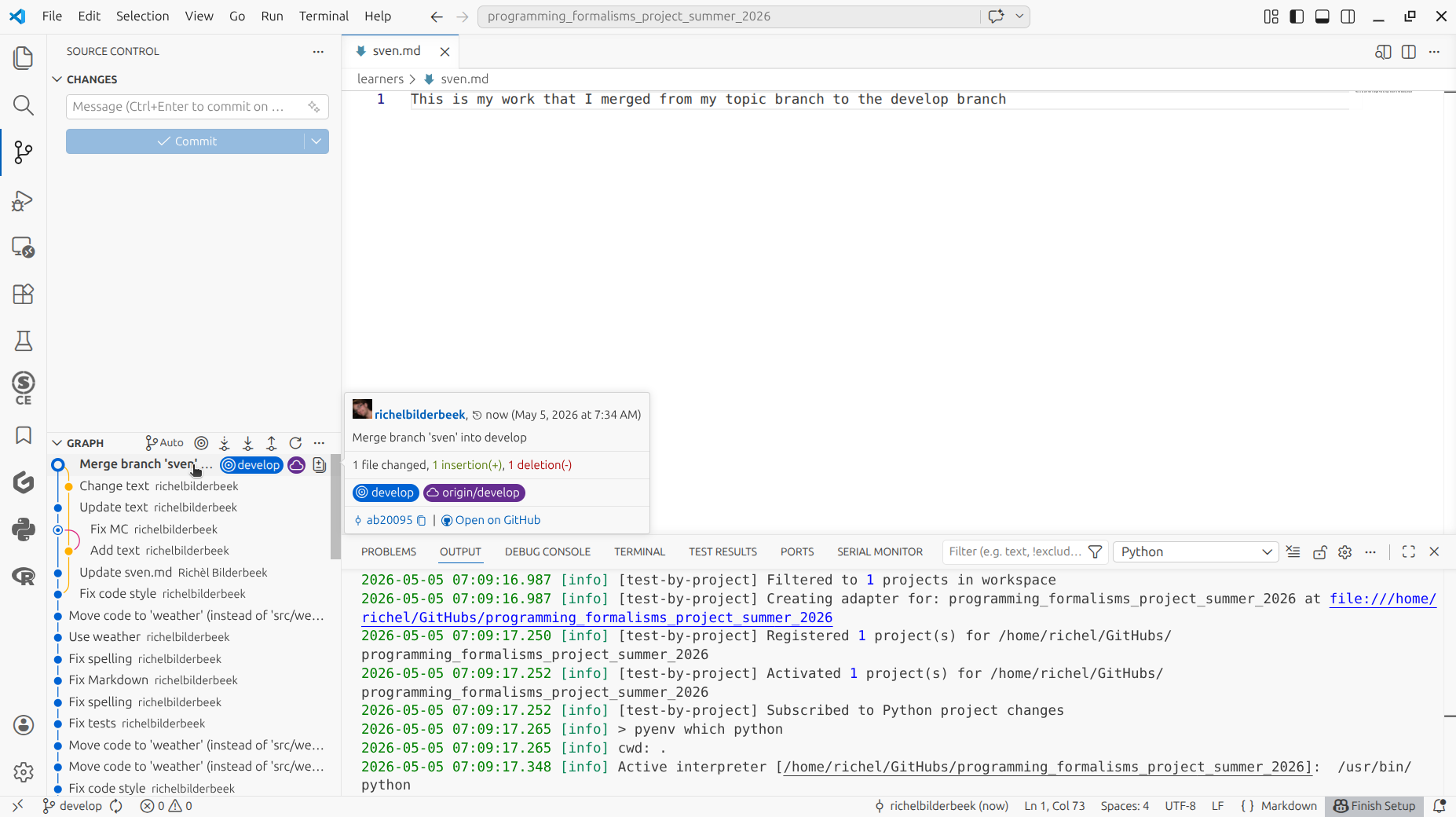
You did it: you merge the work from your topic branch
to the develop branch!
How does that look like?
(Optional) Exercise 3: merge develop to main
The main branch should always work.
Only if the develop branch builds cleanly, merge it to main. Else, first fix all the tests that break the build.
Someone else has merged tests that break the build!
This is a social problem, with solutions that differ per team.
Typically, one asks the person responsible, or creates an issue for this.