Integration development environment
Learning outcomes
Learners ...
- understand what an integrated development environment is
- can use our IDE to see the commit history
For teachers
Prior:
- What is an integrated development environment?
What is an integrated development environment?
It is the program that helps you program.
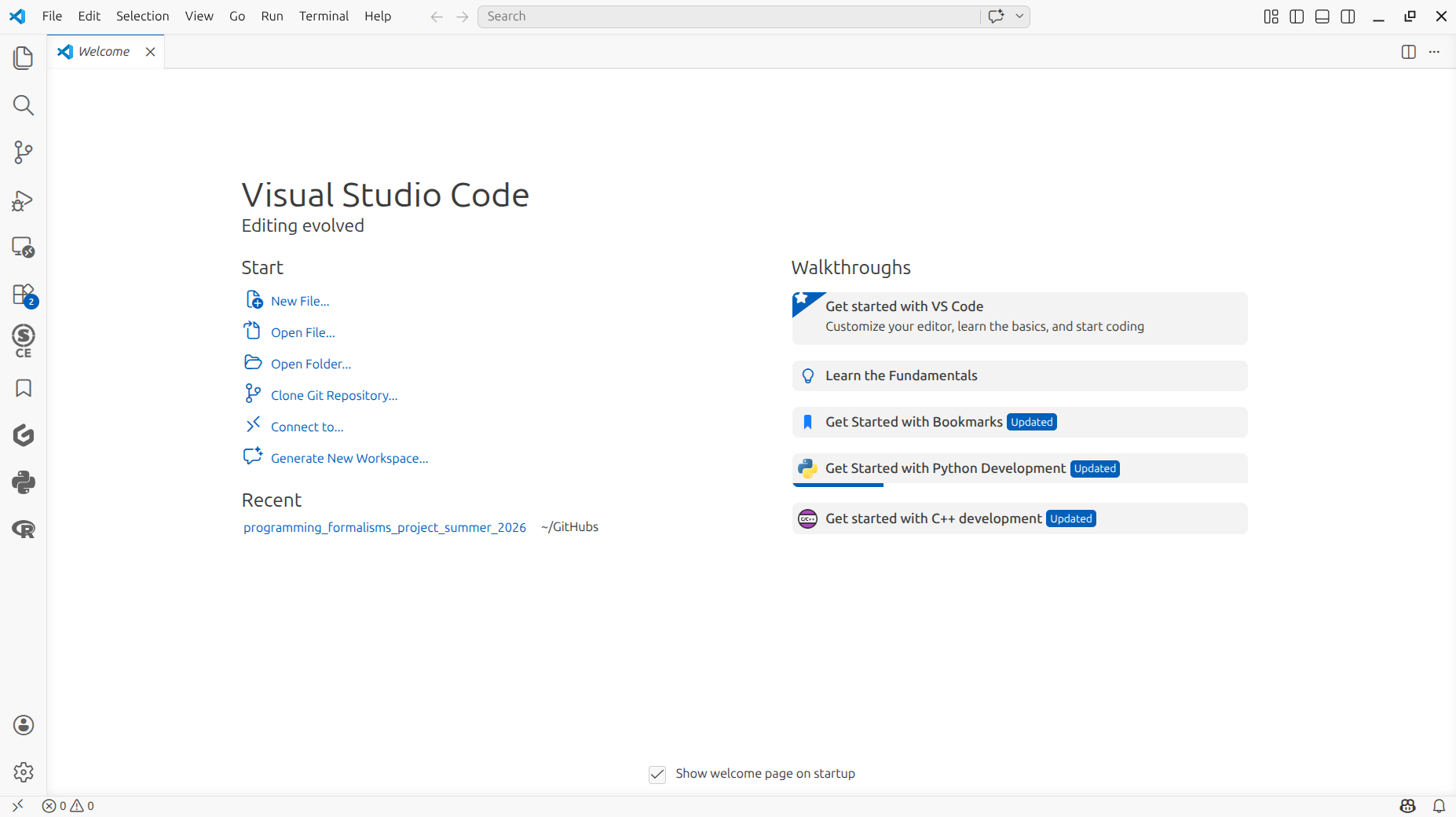
Why is an integrated development environment important?
An integrated development environment intends to help you program, with many features to do so.
What does the literature say?
- IDEs are perceived hard to use
[Morales et al., 2019] - IDEs are difficult to use, learn, and master.
Experts perceive IDEs better (but not much) than beginners
[Kline and Seffah, 2005] - Know your IDE
[Henney, 2010](page 90). The author of this chapter delights in the many useful features IDEs have nowadays and suggests, among others, to try to learn the keyboard shortcuts. - Even though syntax highlighting is present in most (all?) IDEs,
this does not improve readability or understanding
[Beelders and du Plessis, 2015] - A fun study:
IDEs can detect and improve the mood of the programmer
[Khan, 2009]. To improve the mood of a programmer, a video is shown to urge the developer to do ... exercises...?
How are IDEs perceived by beginners and experts?
Here is figure 1 from [Kline and Seffah, 2005]:
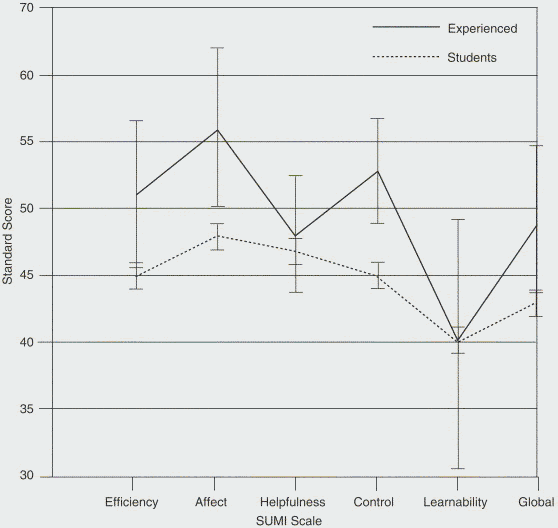
The large standard deviations in the experts is explain by the low amount of experts: there were 7 experts (compared to a 100 beginners).
Why does this course recommends to use an IDE anyways?
We recommend to use an IDE, because:
- it reduces the amount of tools you need to install,
as the IDE installs these for you:
- Built-in version control
- Built-in terminal
- Built-in git credential manager
- Built-in debugger
- it is intended to make the learning curve less steep: one can 'just click through things', where these things will make sense later.
- it gives a common environment to learn in, so that learners can better understand what the other is doing
We recommend VS Code, as this is the most popular IDE.
Exercises
Exercise 1: clone the learners project using VS Code
Prefer a video?
Watch the YouTube video How to use VSCode to (git) clone a repository
In this exercise, we are going to clone the learners project using VS Code.
What does 'clone' mean? You can look it up at the session about version control.
Answer
'Download'.
It is a bit more technical than that, but 'download' is the a good first step in your understanding.
The more technical explanation: 'to create a local copy from a remote repository'.
Start VS Code and try to clone and open the learners project without looking at the answers.
How do I do this?
In your favorite way.
Here I show the least technical way to do so.
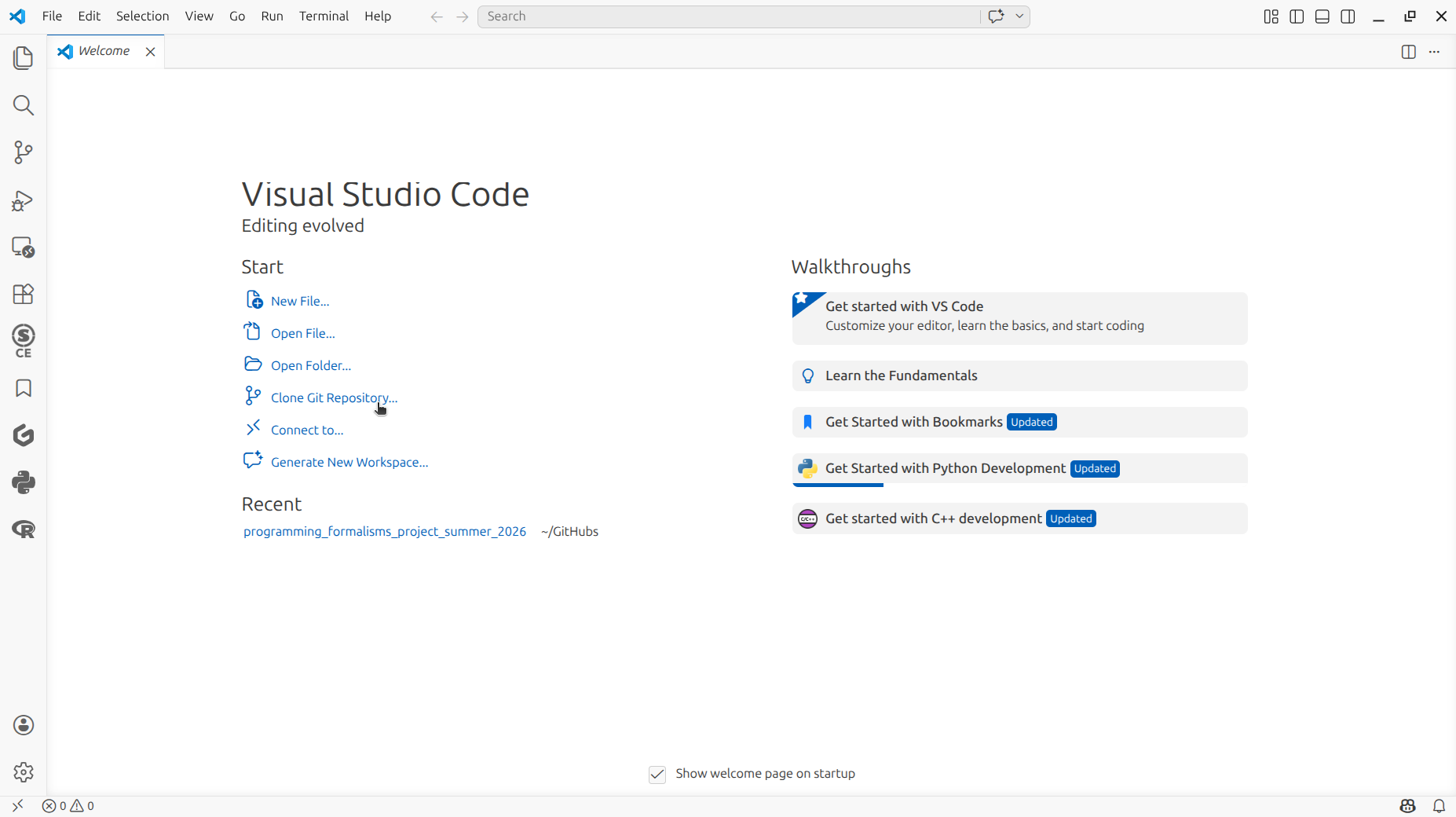
At the VS Code welcome screen, click on 'Clone Git repository':
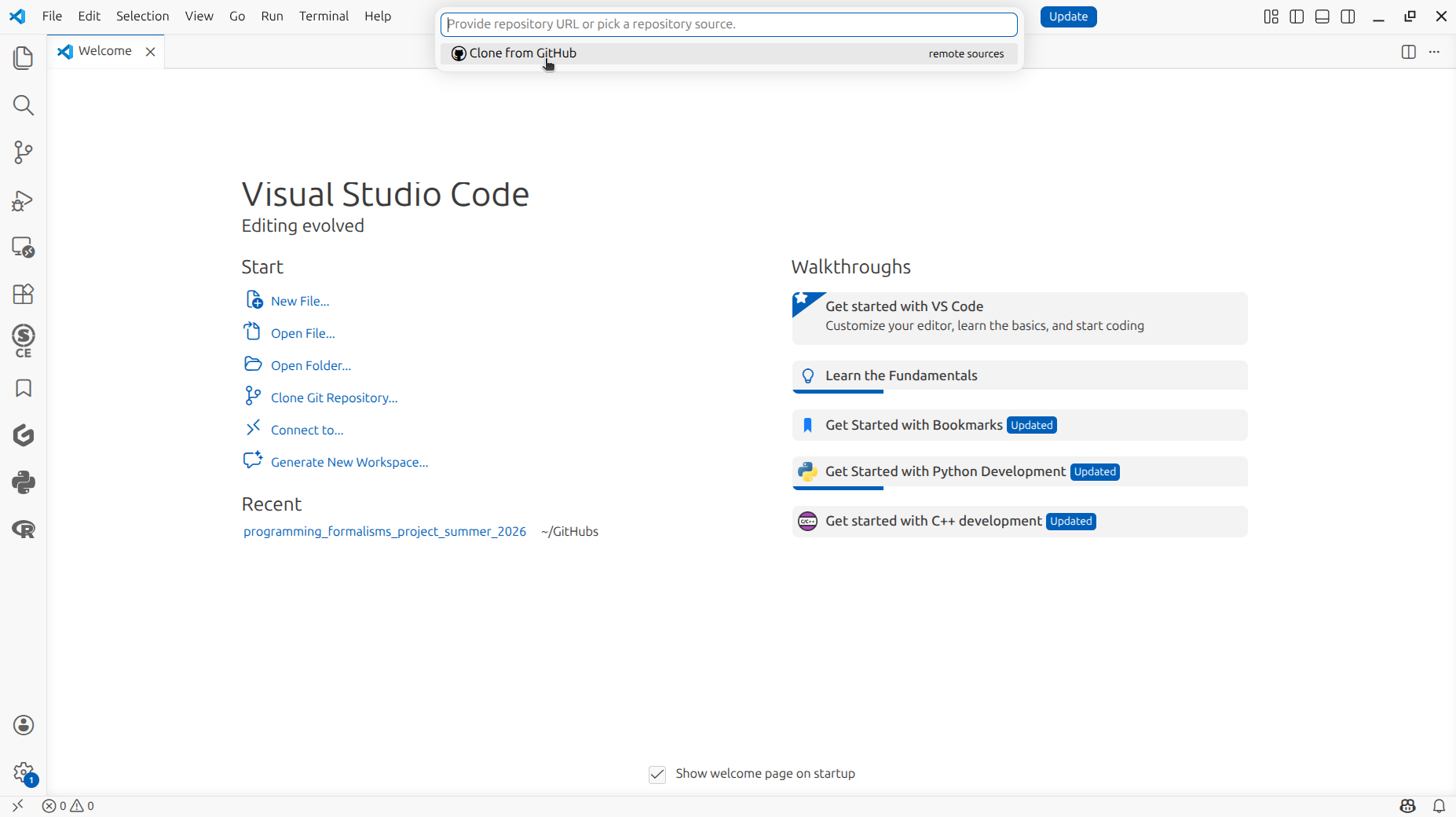
You will be taken to the top editor, called the 'Command Palette'. In the Command Palette, click 'Clone from GitHub'.
When VS Code request access to GitHub, click 'Allow'.
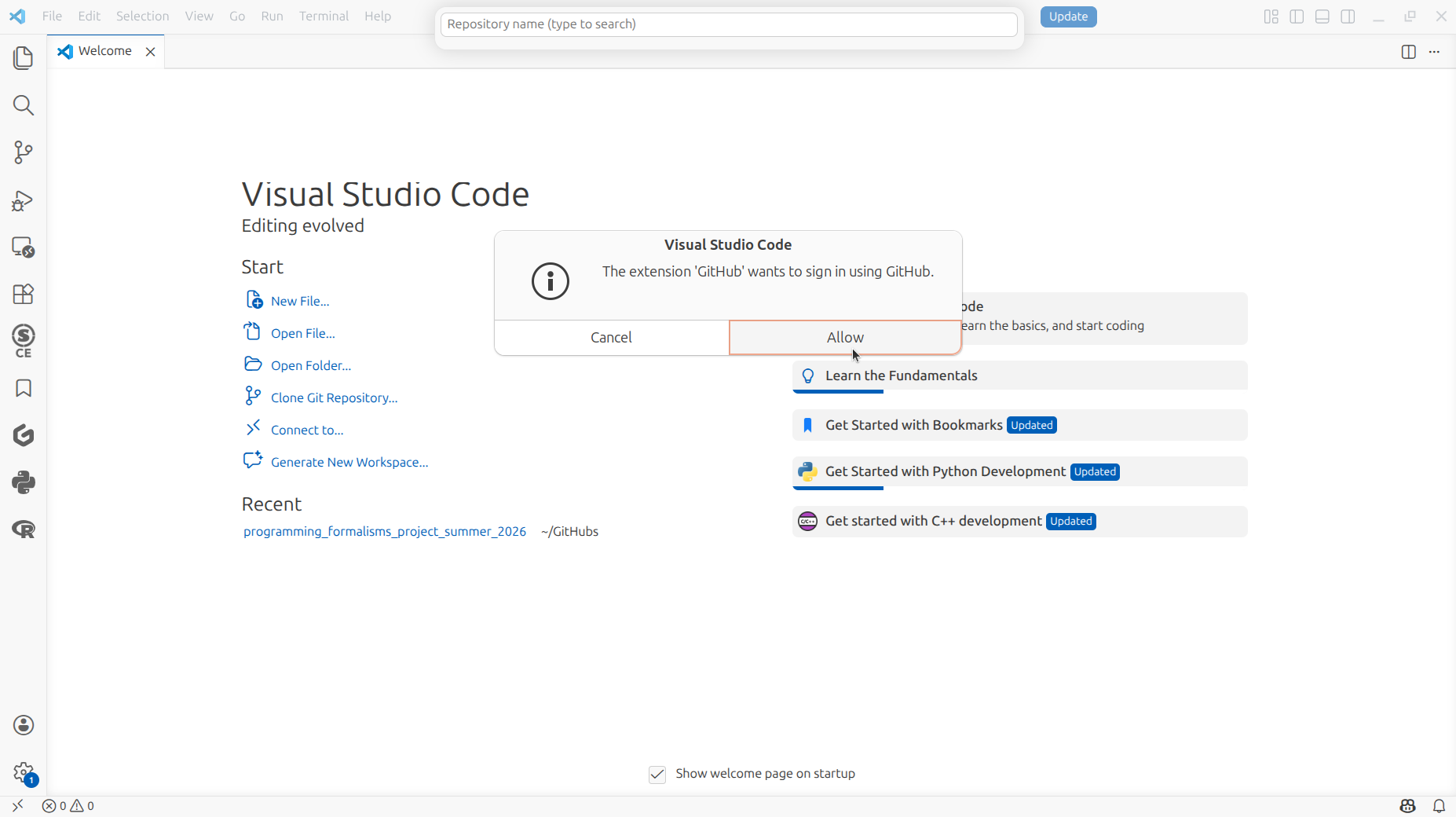
If you just allowed VS Code to access GitHub, VS Code will show it is signing in to GitHub.
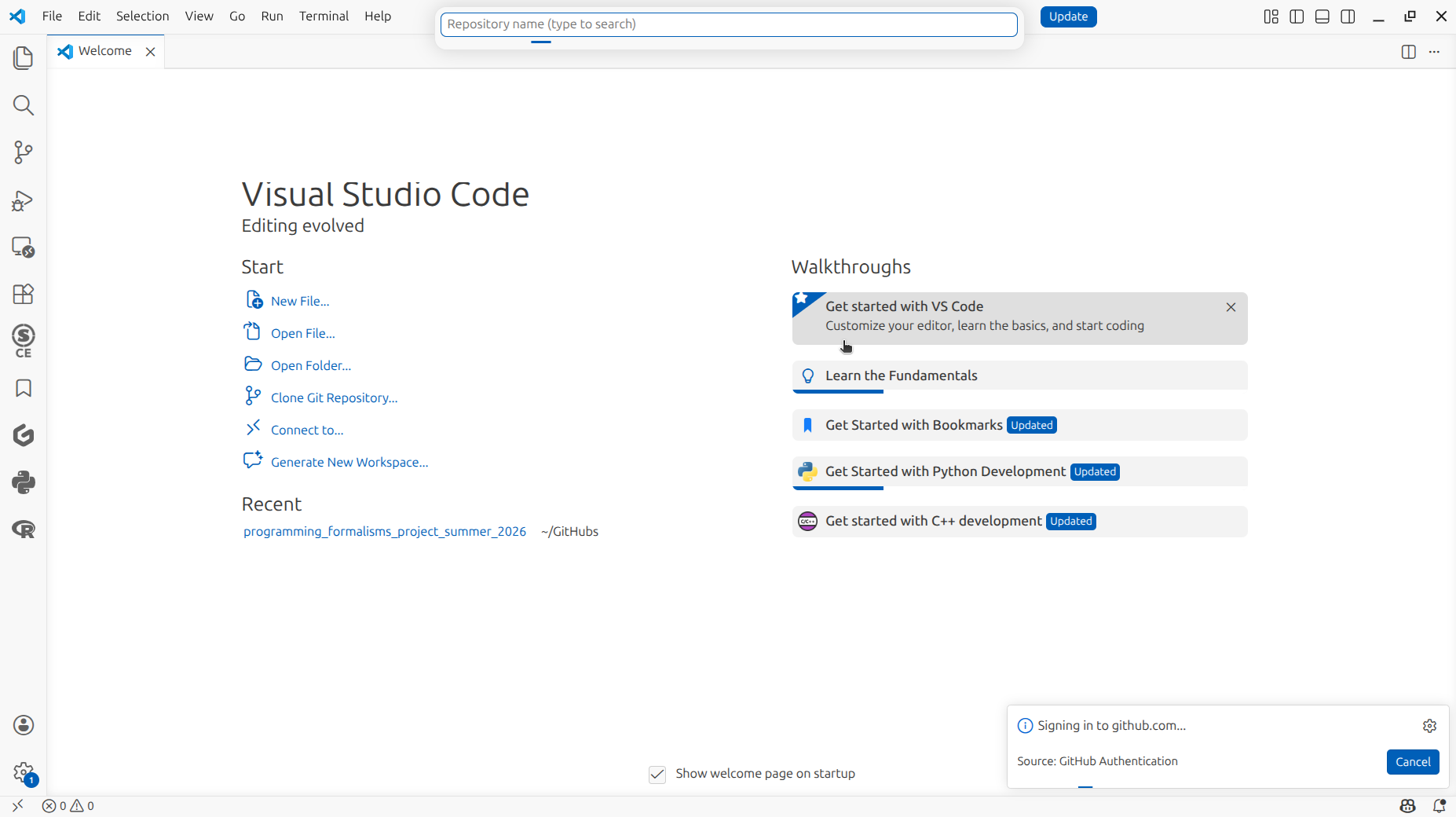
If you just allowed VS Code to access GitHub, go to your web browser. In your web browser, authorize VS Code to access GitHub by clicking 'Continue'.
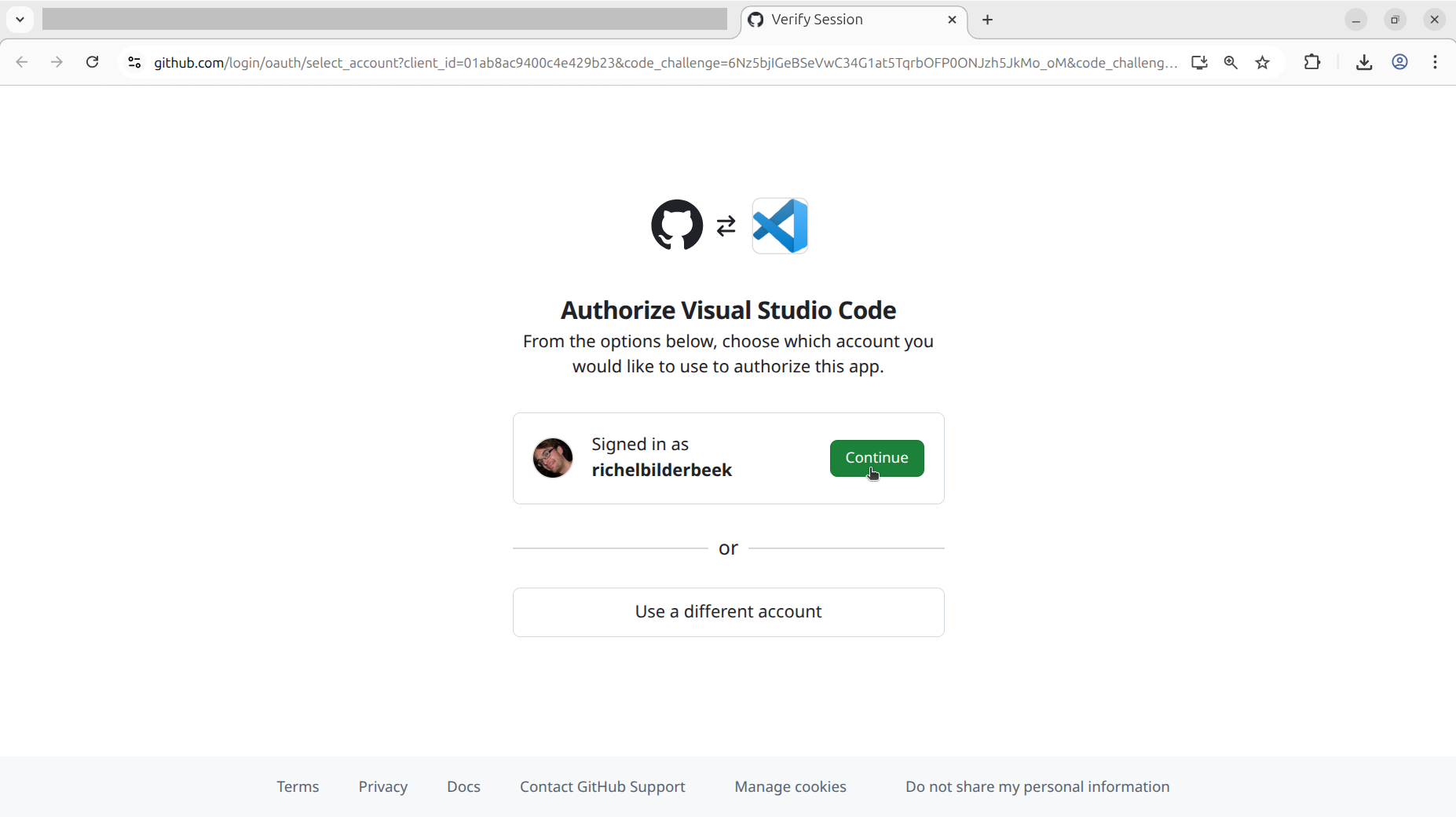
If your web browsers requests access to VS Code, allow it, for example, by clicking on 'Open xdg-open'.
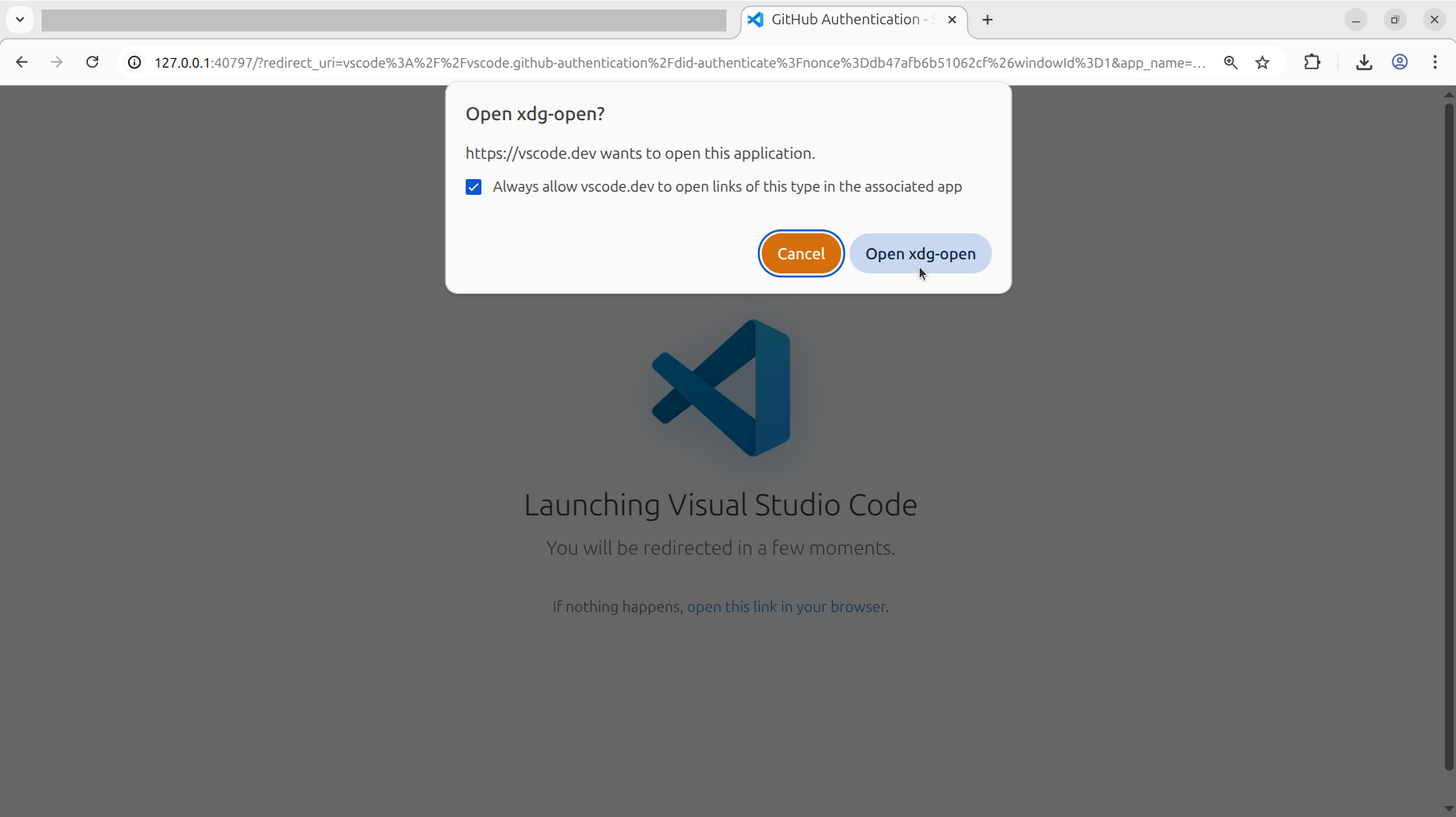
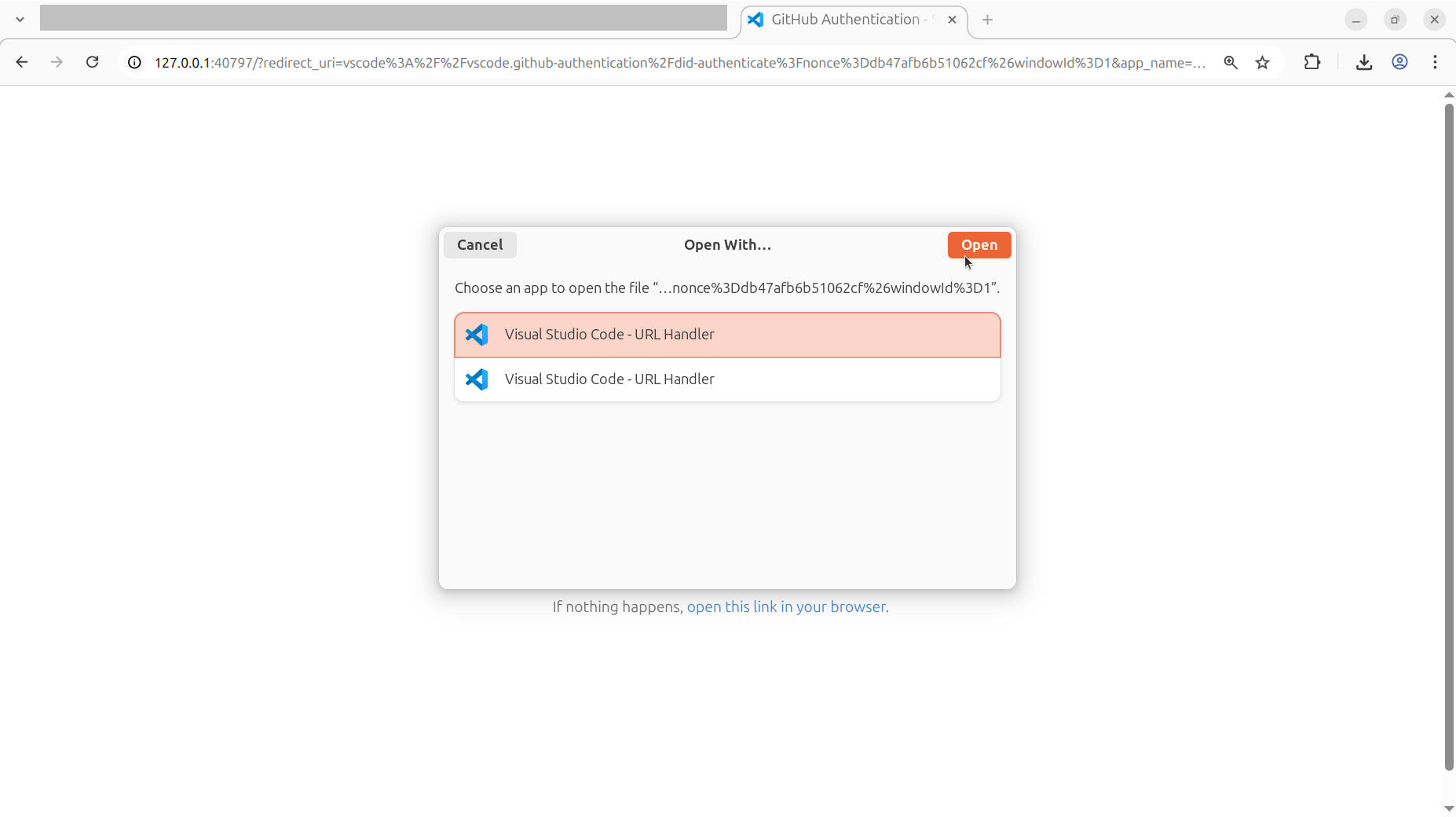
If your web browser does not know which (of multiple) VS Code programs to use, pick the first VS Code.
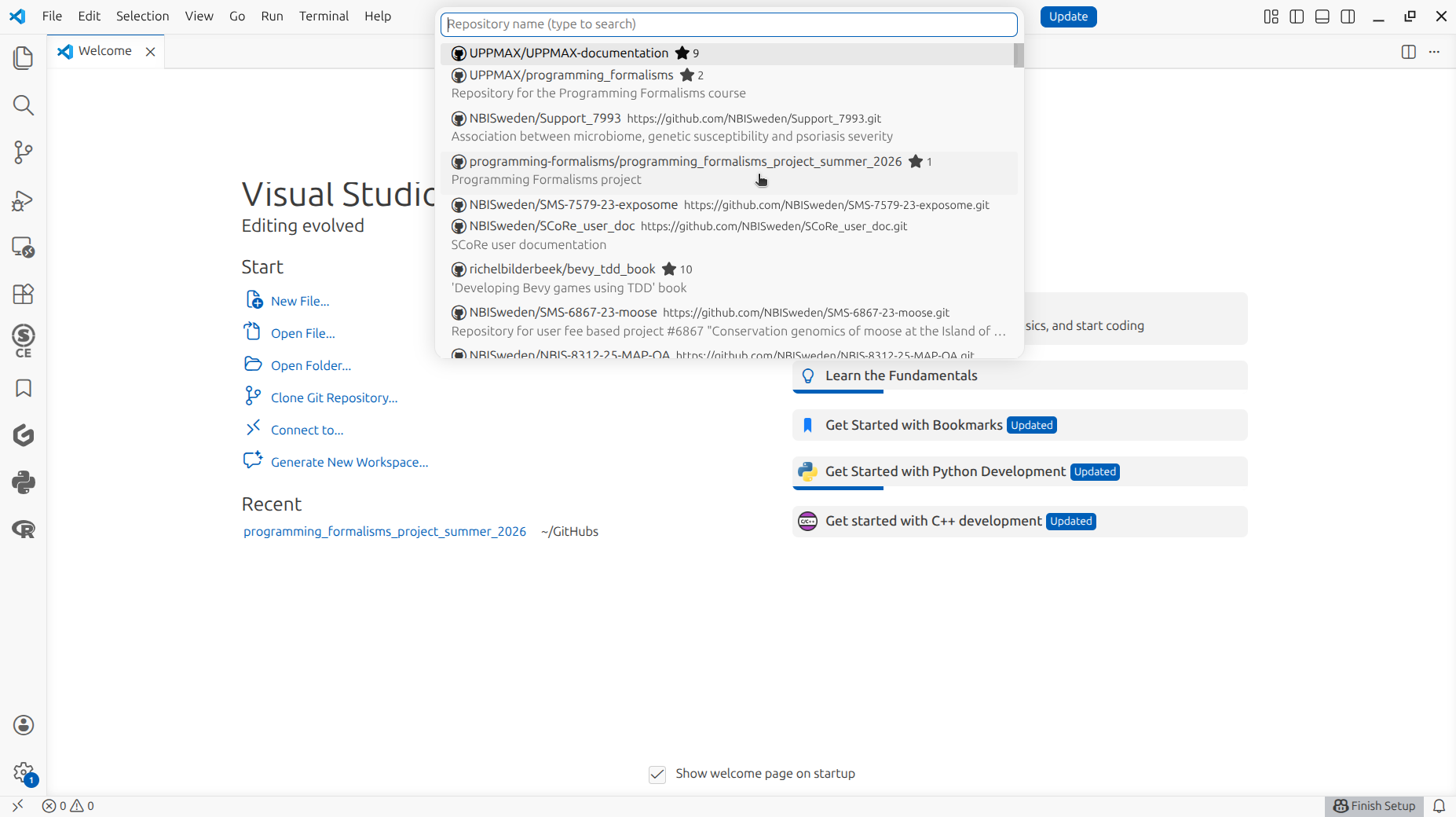
In the 'Command Palette', click on the GitHub repository with the learners project.
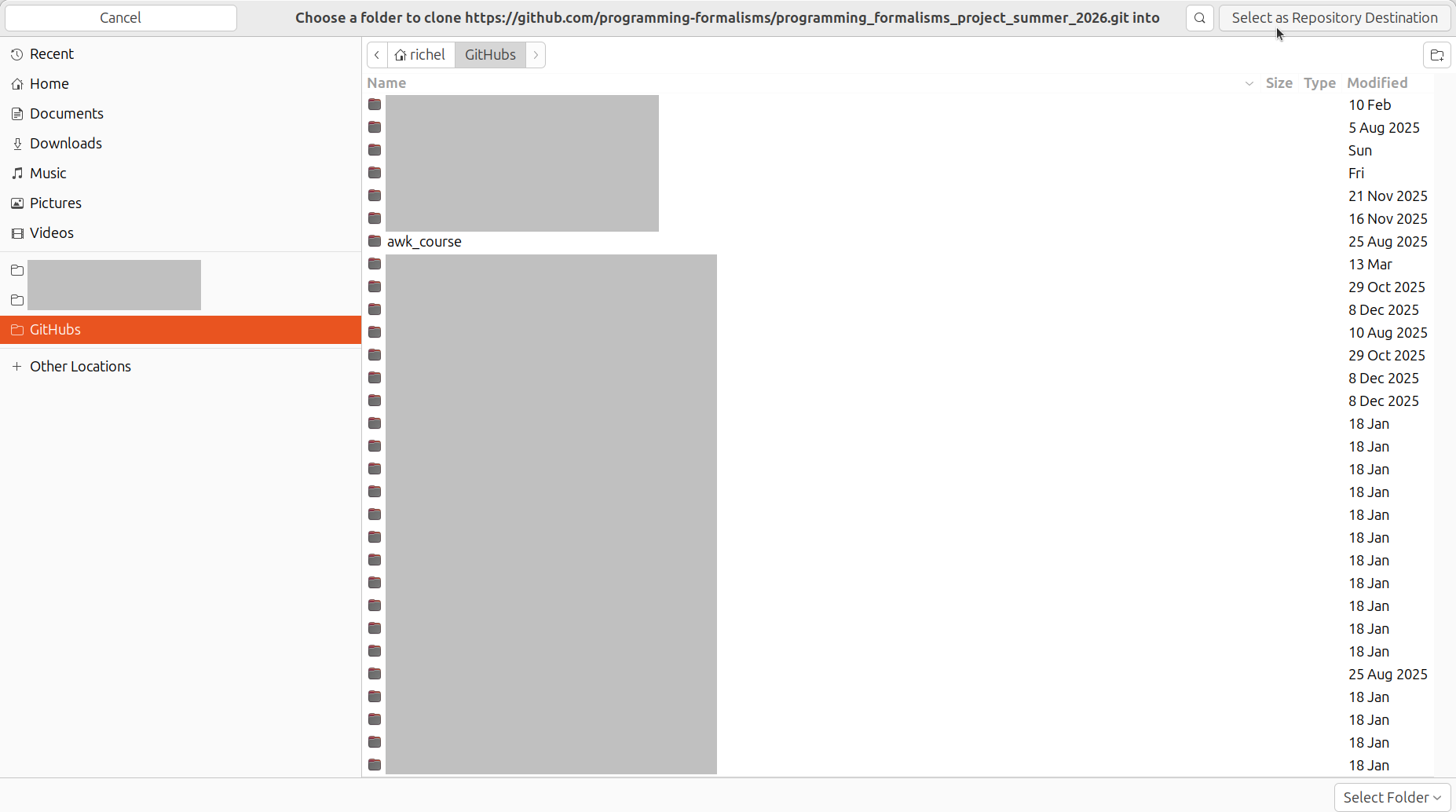
When VS Code asks where to clone the repository in, select your favorite folder
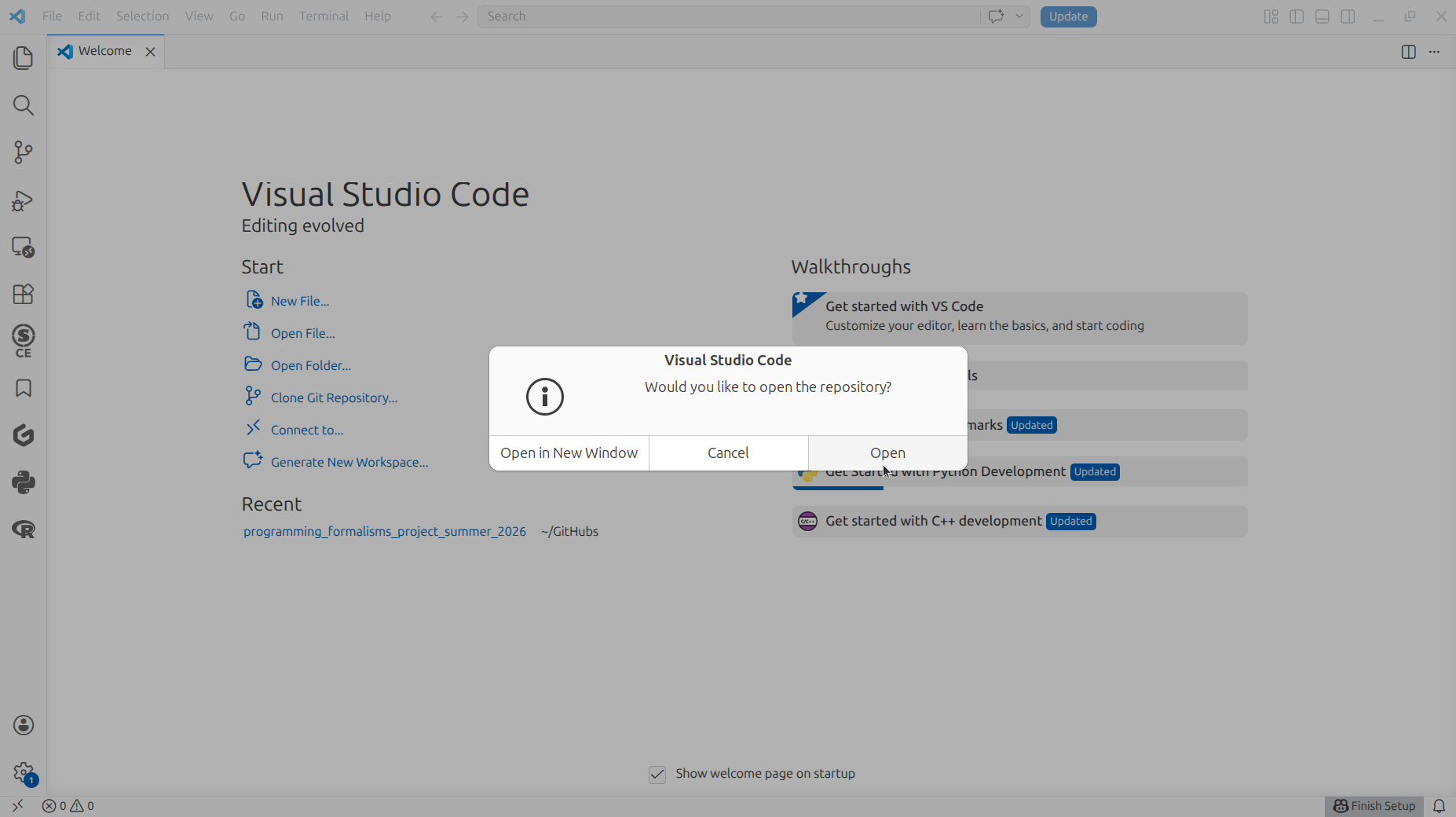
When VS Code asks what to do with this repository, click 'Open'.
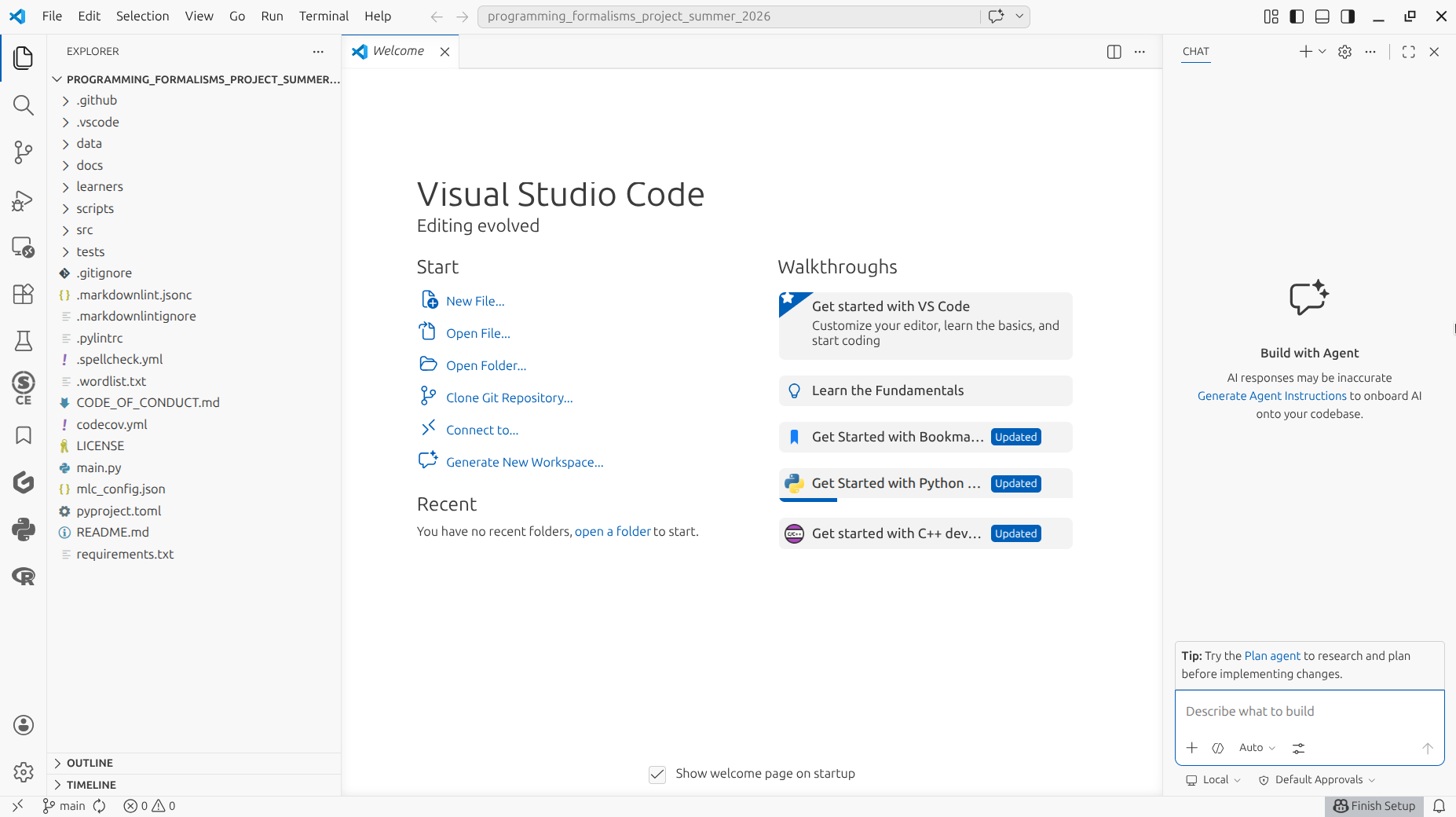
Congratulations! VS Code has now cloned and loaded your repository!
How does this look like?
Your screen will look similar to this:
Exercise 2: view the learners project history from VS Code
In VS Code (with the learners project loaded), try to see the project commit history, without looking at the answers.
How do I do this?
In VS Code, at the left, at the so-called 'Primary Side Bar', click on 'Source control'.
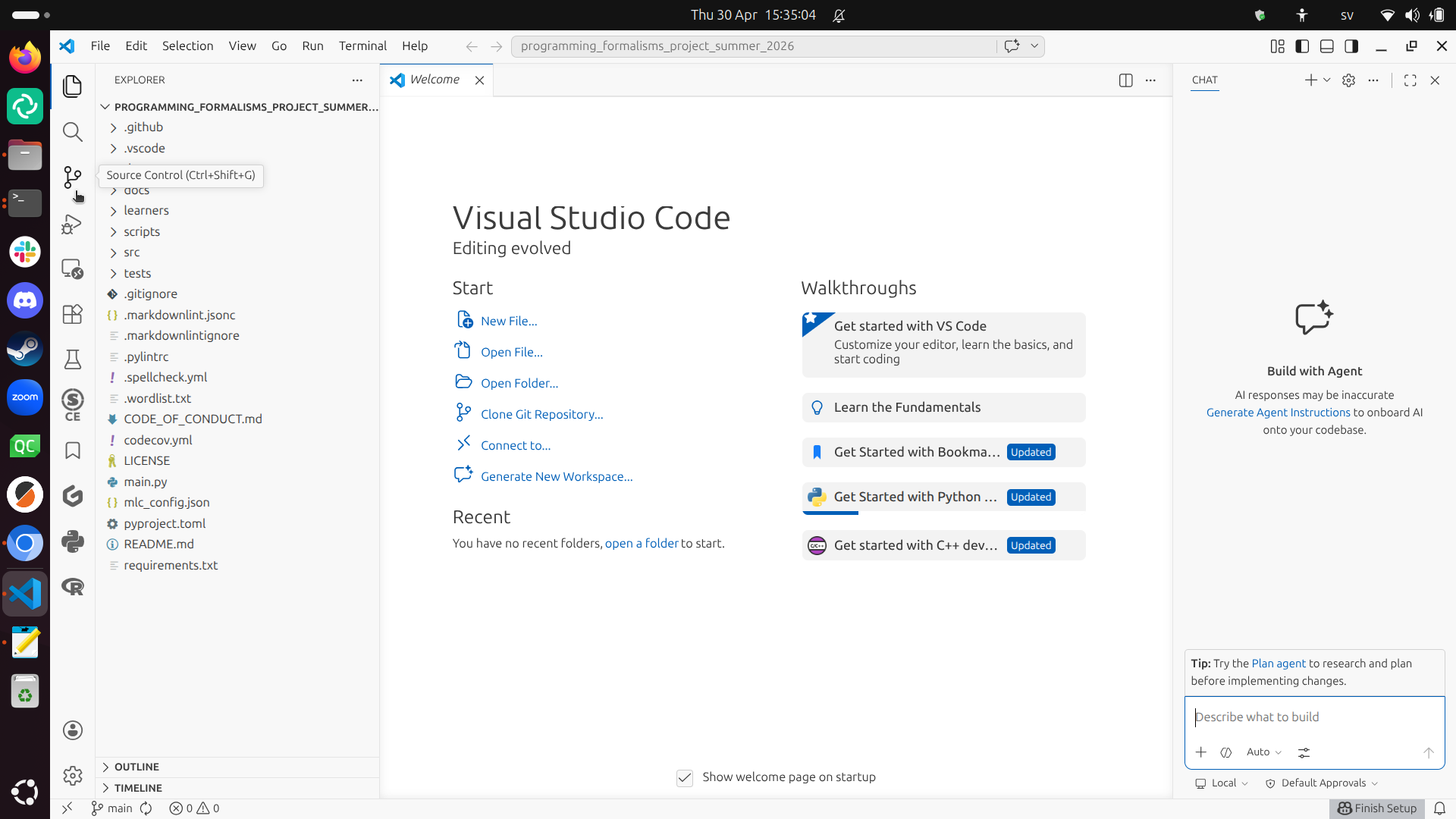
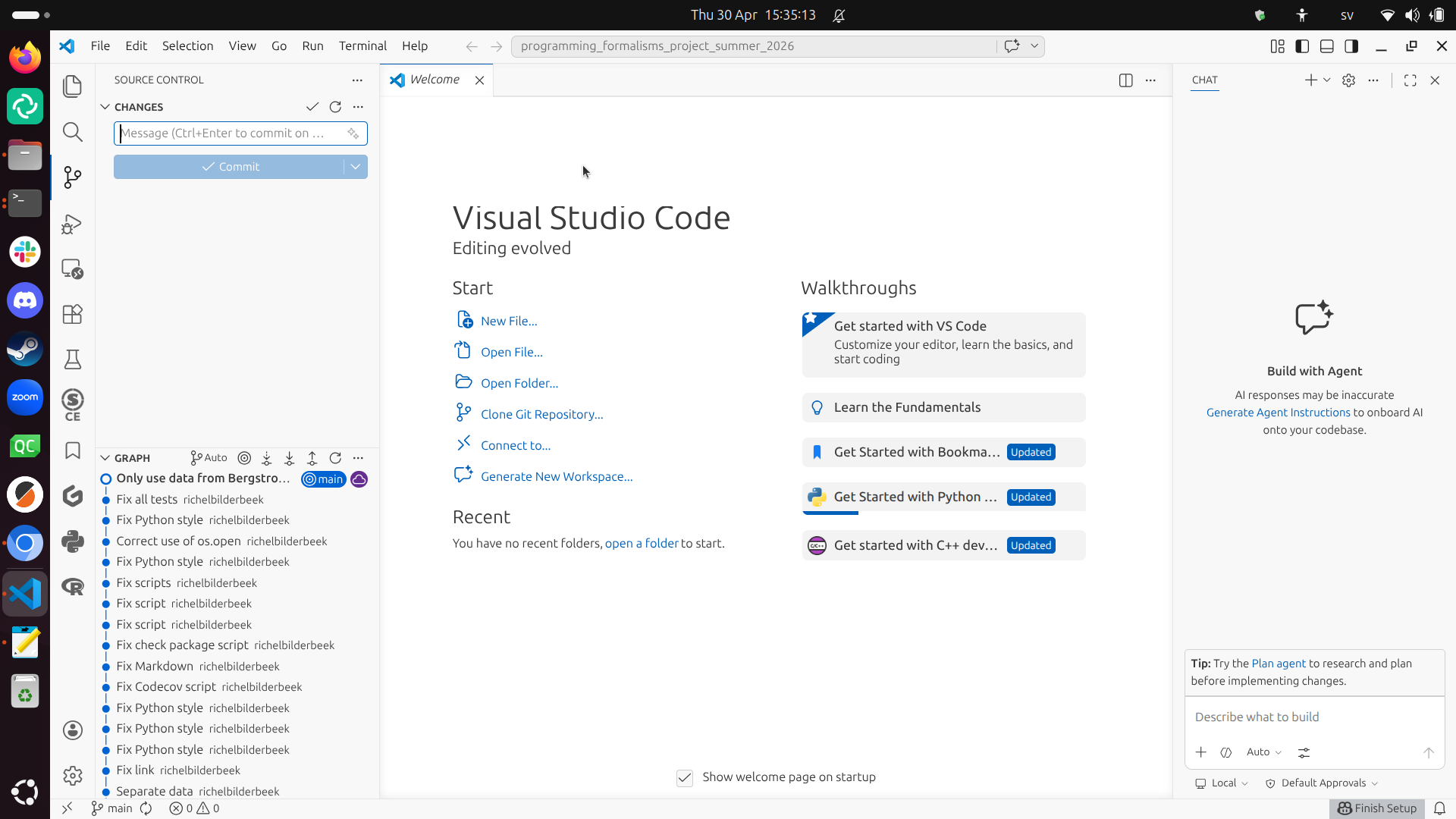
Now VS Code shows the project commit history.
How does that look like?
Your screen will look similar to this:
Exercise 3: change a file from VS Code
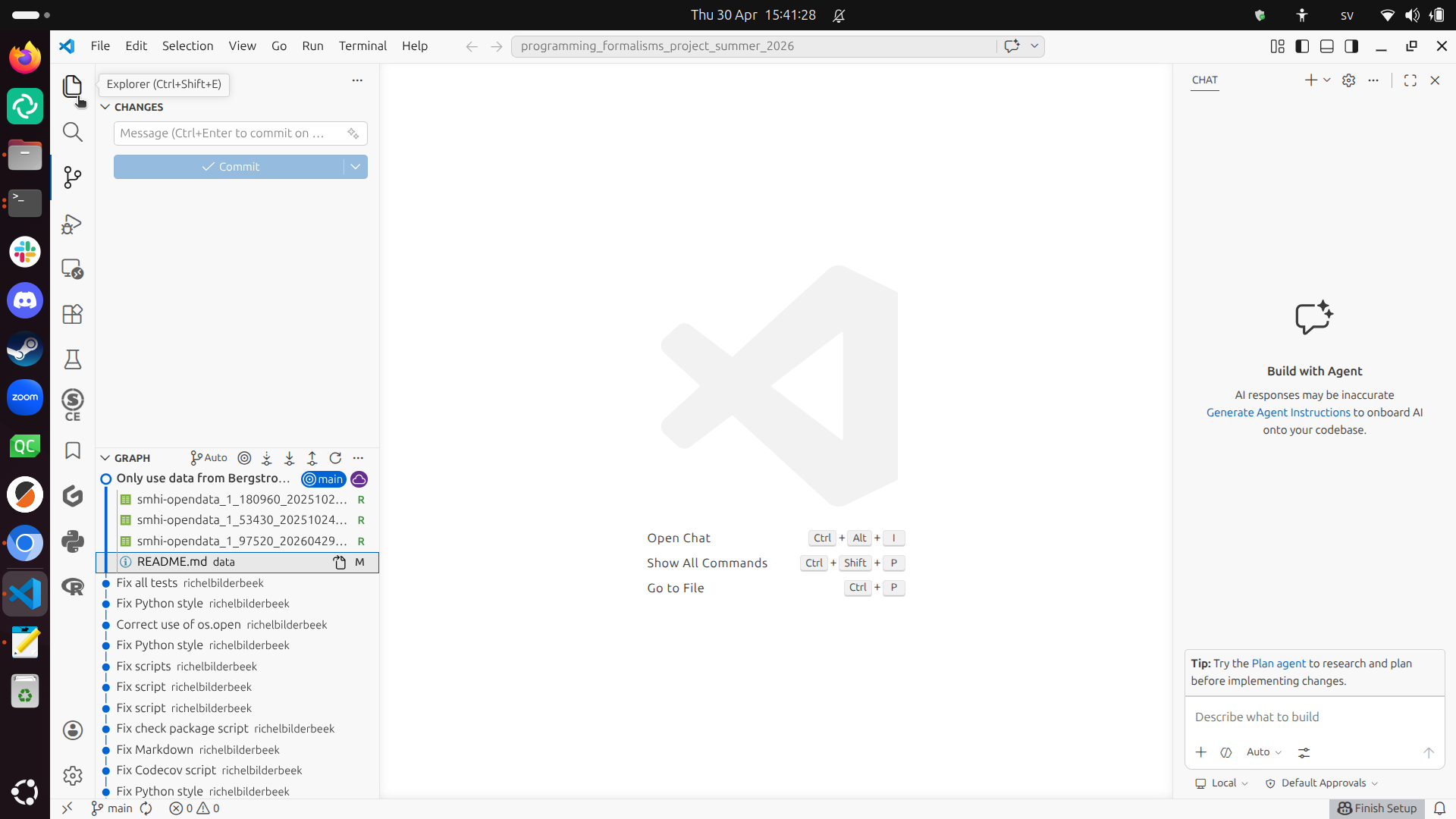
Go to the (file) explorer view, by clicking on 'Explorer' in the so-called 'Primary Side Bar' at the left.
Where do I click?
Click at the top icon in the so-called 'Primary Side Bar' at the left.
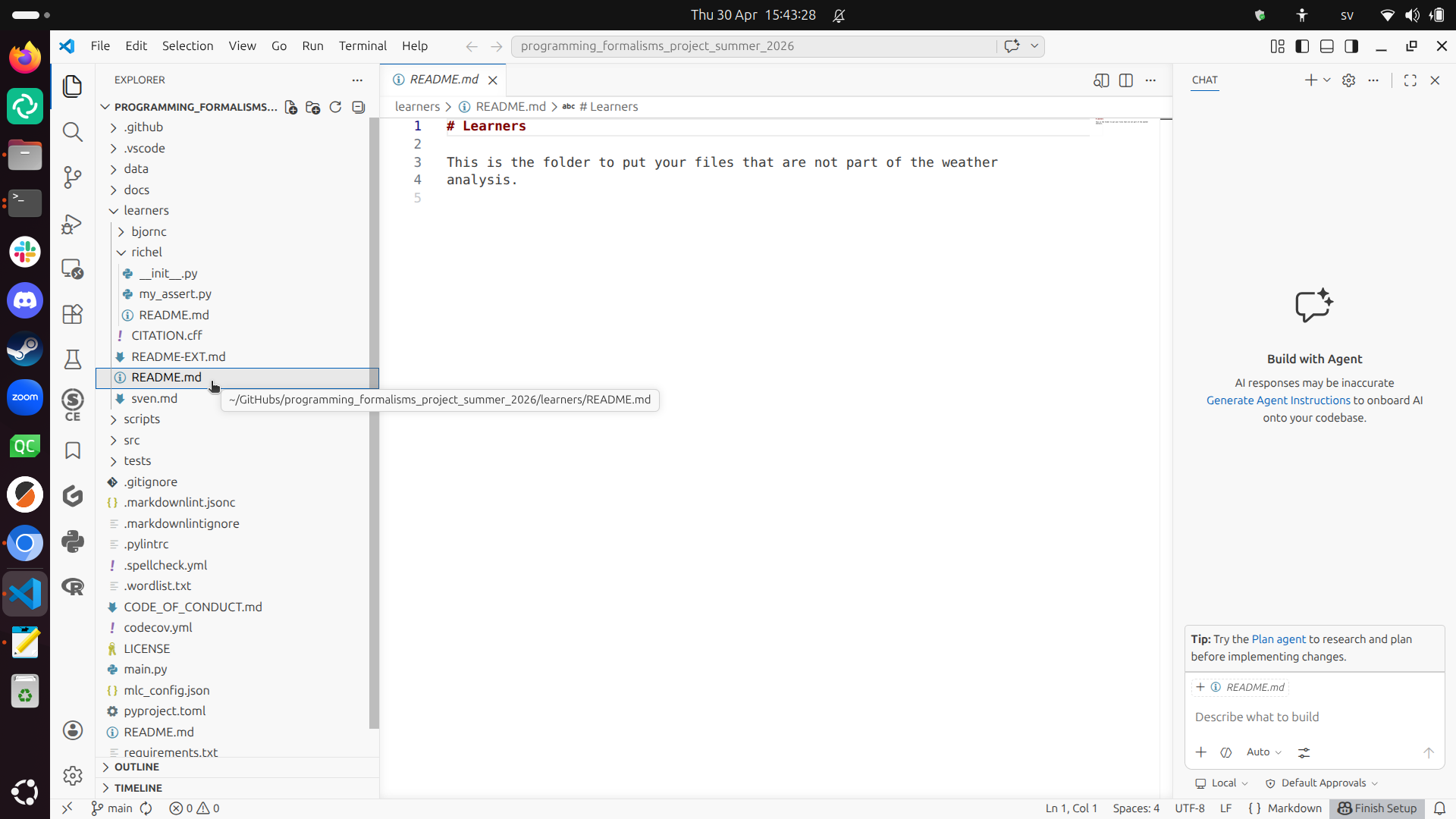
In the explorer, find a file in your learners folder and double-click
it to start editing it.
How does that look like?
Your screen will look similar to this:
Edit the file, in any way and save it.
Do save it, else nothing will happen yet :-)
How does that look like?
Your screen will look similar to this:
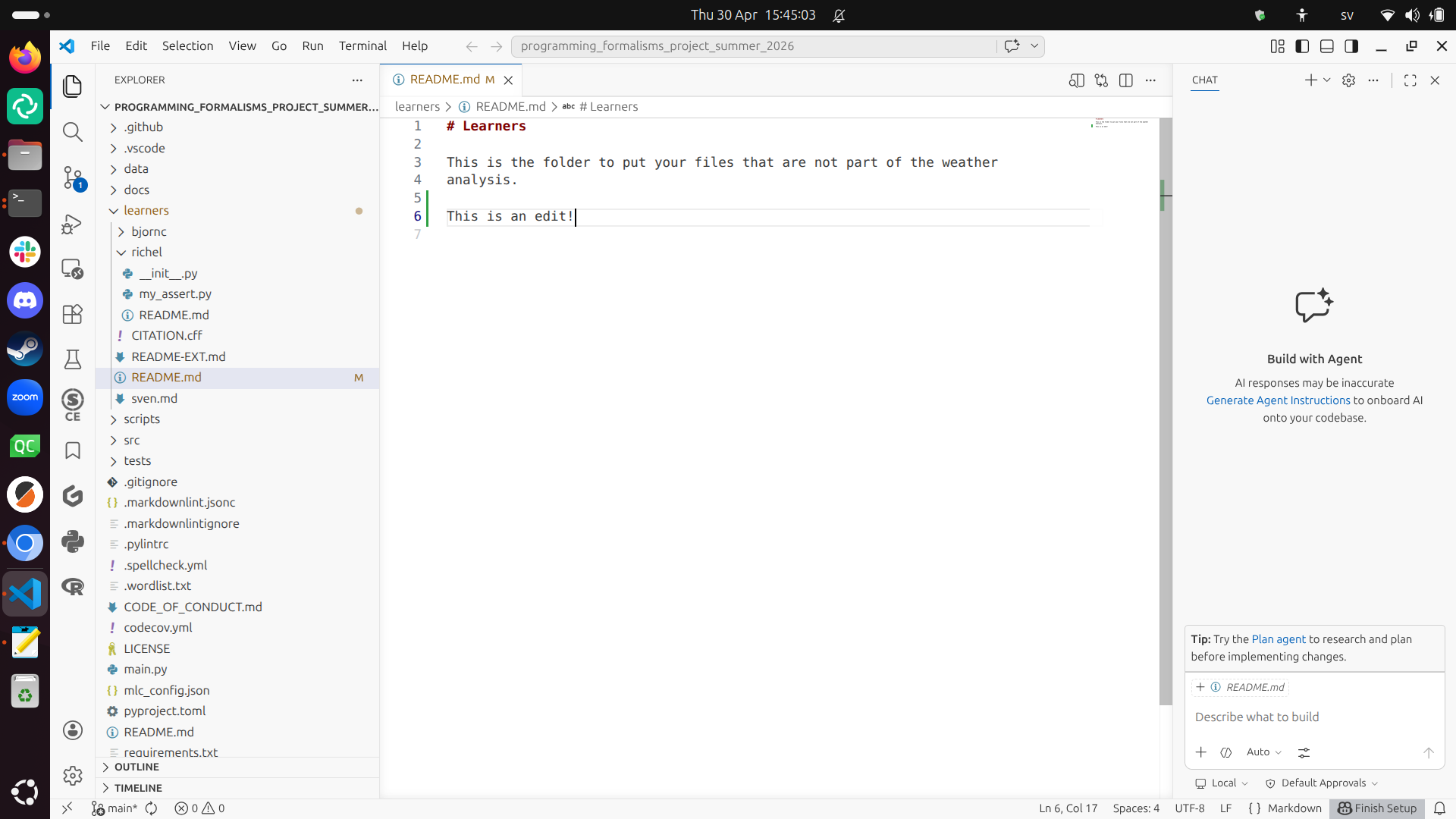
In the file explorer, there is an 'M' after the file name. What does that 'M' stand for?
Answer
It stands for 'Modified'. This is one of The Three Stages in version control. You can find this back in the session about version control.
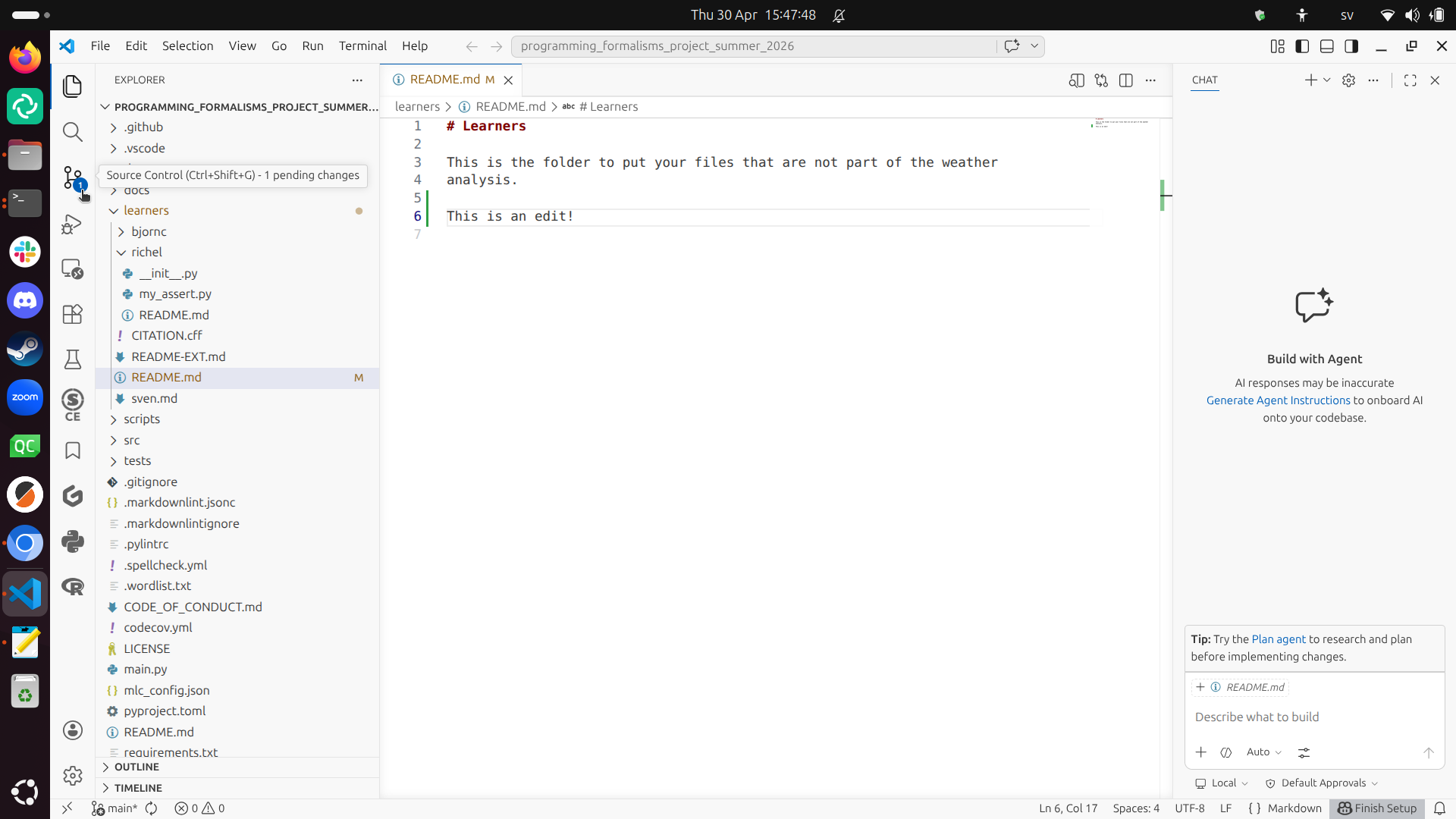
Is there a second indication that there is a file that has been modified?
Answer
Yes, the 'Source control' section shows that there is 1 pending change.
Click on 'Source control' in the 'Primary Side Bar'.
How does that look like?
Your screen will look similar to this:
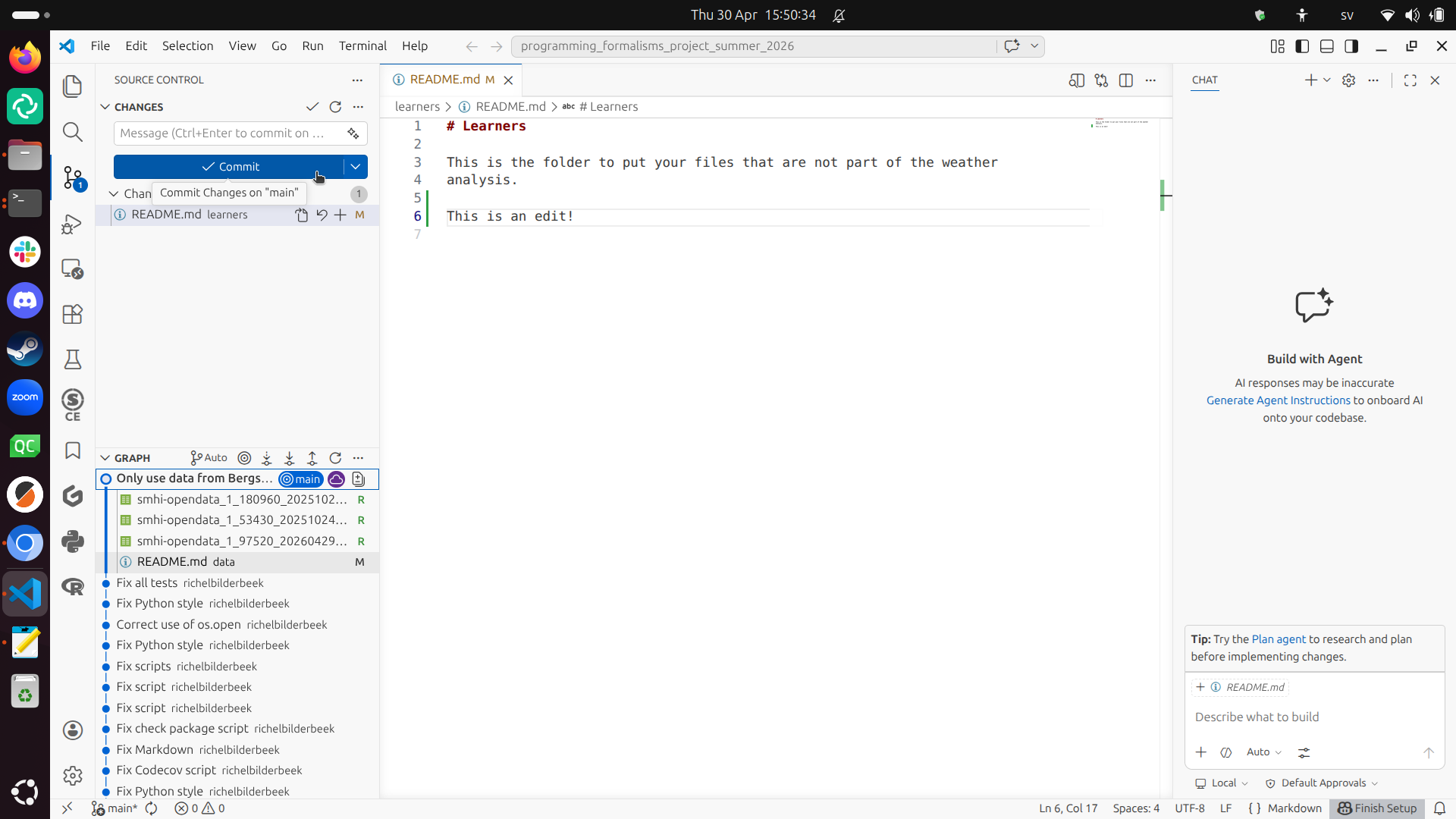
Add a commit message (e.g. 'Created a test edit') and click on 'Commit'. Do add a commit message, else you will see another editor with text show up.
Where do I type text and where do I click?
Type the text above the blue commit button.
The blue commit button is at the top-left.
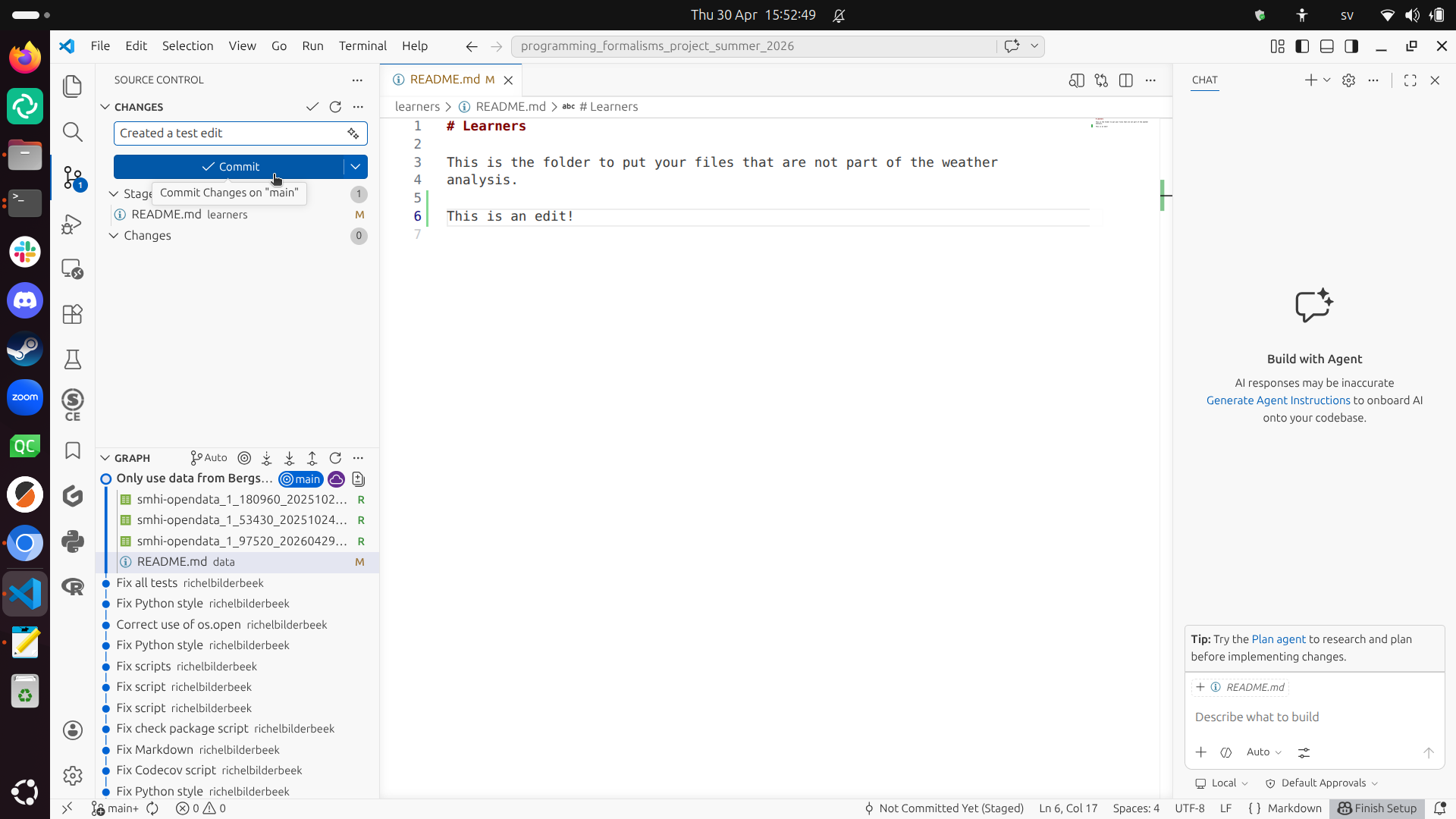
You have now committed your changes. Well done!
VS Code suggests, with a blue 'Sync' button, what to do next.
How does that look like?
Your screen will look similar to this:
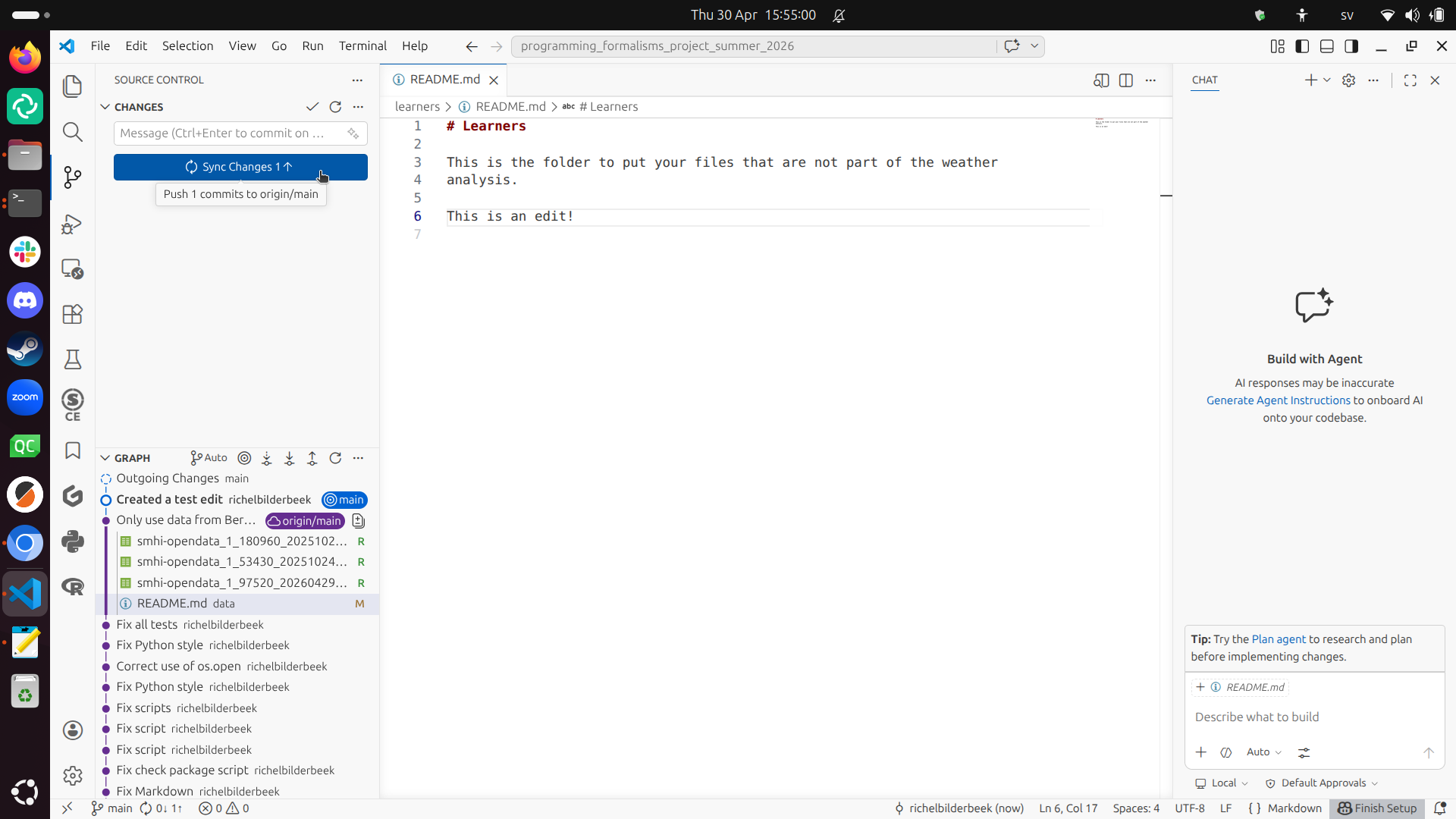
How would you describe what VS Code wants you to do now?
Answer
It wants you to syncronize the code between your local computer and the online repository.
VS Code wants you to upload/push your code, as well as download/pull newer changes made online (if any).
Click on the 'Sync changes' button.
How does that look like?
VS Code will take some time to synchonize changes.
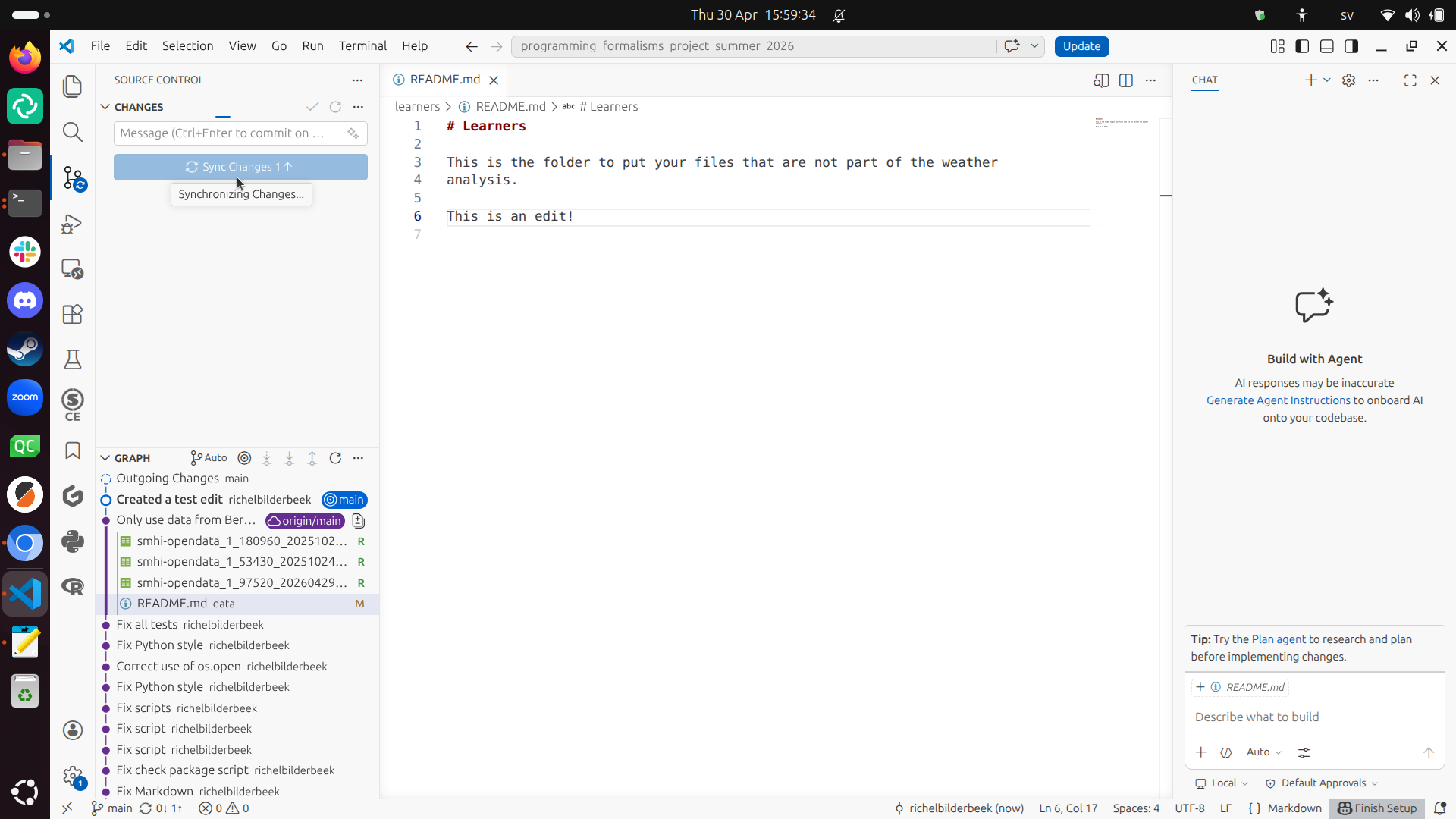
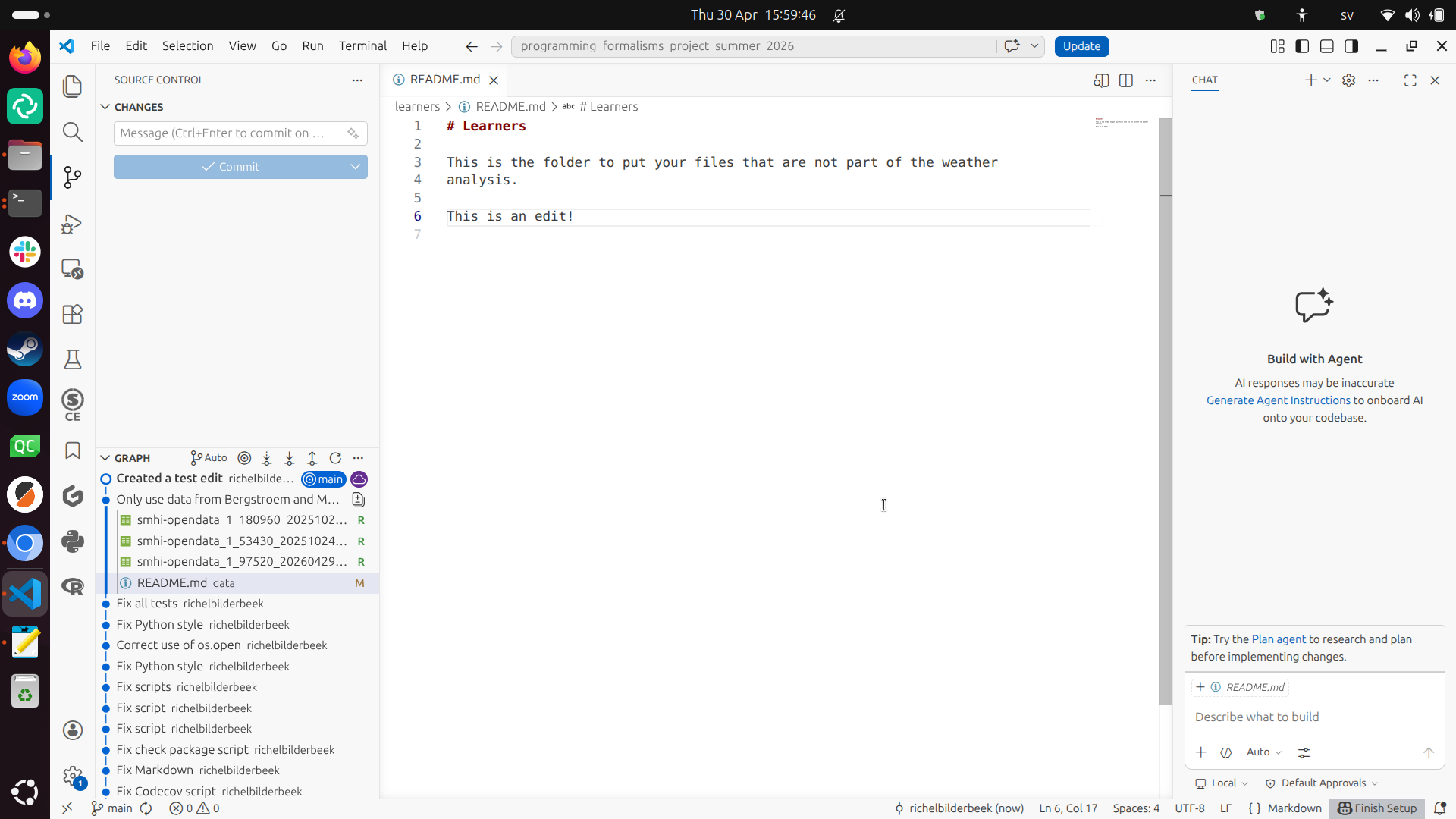
Now, VS Code has synchronized the changes. Well done, now your local code matches the code in the online repository!
How does that look like?
Your screen will look similar to this:
References
-
[Beelders and du Plessis, 2015]Beelders, Tanya R., and Jean-Pierre L. du Plessis. "Syntax highlighting as an influencing factor when reading and comprehending source code." Journal of Eye Movement Research 9.1 (2015): 1. Paper homepage -
[Henney, 2010], Kevlin. 97 things every programmer should know: collective wisdom from the experts. " O'Reilly Media, Inc.", 2010. -
[Khan, 2009]Khan, Iftikhar Ahmed. Towards a mood sensitive integrated development environment to enhance the performance of programmers. Diss. Brunel University, School of Information Systems, Computing and Mathematics, 2009. -
[Kline and Seffah, 2005]Kline, Rex Bryan, and Ahmed Seffah. "Evaluation of integrated software development environments: Challenges and results from three empirical studies." International journal of human-computer studies 63.6 (2005): 607-627. -
[Morales et al., 2019]Morales, Jenny, et al. "How “friendly” integrated development environments are?." International Conference on Human-Computer Interaction. Cham: Springer International Publishing, 2019. Paper homepage