Job scheduler
Learning outcomes
- Learners have scheduled a batch job
- Learners have scheduled an interactice job
- Learners have seen their job in the job queue
- Learners have cancelled their job in the job queue
Prefer a video?
This YouTube video walks you through this content, including the exercises.
Goal
In this session, you will schedule a short batch job, a long batch job and an interactive session. The long batch job will be cancelled.
Non-goals:
- How to schedule jobs that require GPUs
- How to schedule jobs that use Bianca efficiently
- How to schedule jobs that require more memory
Theory 1
What is a job scheduler?
You use the job scheduler to:
- ask it to do a hard calculation
- ask it for an interactive session
Here are some example job scripts:
When to use the job scheduler?
When you want to do more than work on the login node.
| What to do | How to do so |
|---|---|
| Light things | Work on login node |
| Interactive work | Schedule an interactive session |
| Heavy calculations | Schedule a batch job |
flowchart TD
    operation_type[What type of operation/calculation?]
    interaction_type[Need live tweaking or GUI?]
    login_node(Work on login node)
    interactive_node(Schedule an interactive session)
    calculation_node(Schedule a batch job)

    operation_type-->|light,short|login_node
    operation_type-->|heavy,long|interaction_type
    interaction_type-->|Yes|interactive_node
    interaction_type-->|No|calculation_node
Why use a job scheduler?
The job scheduler makes sure everyone gets their fair share of computational power.
You just need to ask it to schedule your calculation or interactive session.
Exercises 1
Exercise 1.1: schedule a batch job
On Bianca, create the following Bash script, called job_scheduler_exercise_1.sh:
On Bianca, from a terminal, run this script as such:
You will be notified directly that you have submitted a batch job. You can now go to the next exercise.
How does that look like?
It will look similar to this:
Exercise 1.2: schedule, monitor and cancel a job
On Bianca, create the following Bash script, called job_scheduler_exercise_2.sh:
On Bianca, from a terminal, run this script as such:
You will be notified directly that you have submitted a batch job. You can now go to the next exercise.
How does that look like?
It will look similar to this:
Exercise 1.3: schedule an interactive session
On Bianca, from a terminal, schedule an interactive session as such:
You will directly see that Bianca is doing something. You can now go to the next exercise.
How does that look like?
It will look similar to this:
Theory 2
Working with the job scheduler
There are multiple commands to work with the job scheduler:
| Command | Purpose |
|---|---|
sbatch |
Ask to schedule of a batch job |
interactive |
Ask to schedule an interactive session |
squeue |
View the job queue |
scancel |
Cancel a running job |
The s (in the commands that start with an s)
is named after the job scheduler, which is called Slurm.
Cluster architecture
We have been using the word 'node' quite a bit already, without specifying what it is exactly.
Here is a simplified picture of HPC cluster architecture:
flowchart TD
  subgraph hpc_cluster[HPC cluster]
    subgraph node[Node]
      subgraph cpu[CPU]
        subgraph core[Core]
          memory[Memory]
          processing_power[Processing power]
        end
      end
    end
end| Term | What it loosely is | Amount |
|---|---|---|
| Core | Something that does a calculation | One or more per CPU |
| CPU | A collection of cores that share the same memory | One or more per node |
| Node | A collection of CPUs that share the same memory | One or more per HPC cluster |
| HPC cluster | A collection of nodes | One or more per universe |
You can find the exact amount of cores, CPUs and nodes Bianca has in the UPPMAX documentation page 'Bianca hardware'. For this session, this is irrelevant.
How long will it take until a scheduled job starts
One cannot predict how long it will take until a scheduled job stats, but it will help to know how scheduling takes place.
Here is an image of how jobs are scheduled:
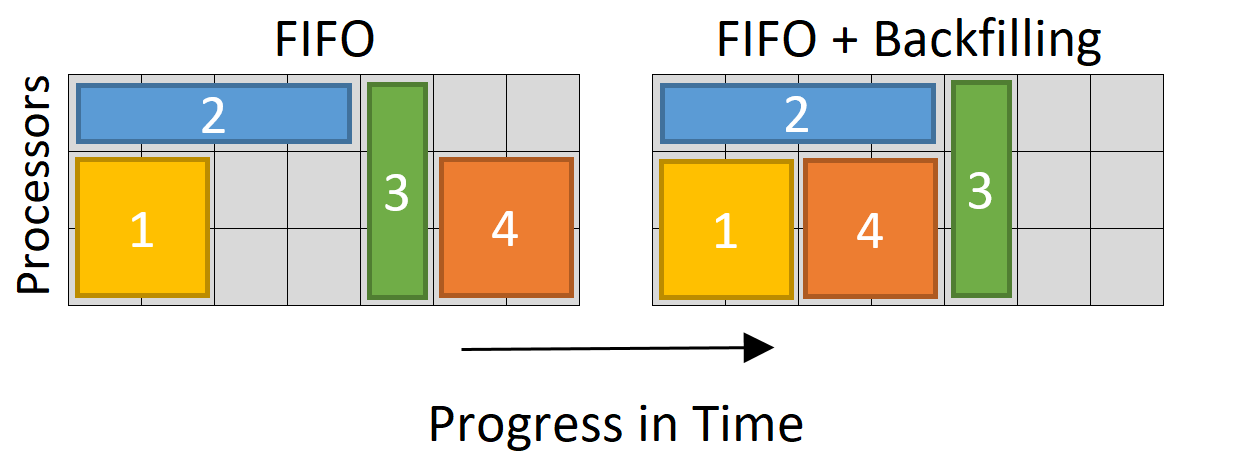
To maximize the usage of its computing power, the Bianca job scheduler works on the first-in-first-out-with-backfill principle. From understanding this principle, it follows that:
- Jobs that are submitted earlier get scheduled earlier
- If there are less jobs scheduled than resources available, jobs start directly. You can see this at the Bianca usage page
- Jobs that use less time may be scheduled earlier
- Jobs that use less cores may be scheduled earlier
Exercises 2
Exercises 2.1: an interactive session
Assumptions
This exercise assumes that your interactive job has started. If your interactive job has not started:
- skip this exercise
- connect to Bianca in an other terminal for the next exercises and do this exercise later
Taking a look at the screen, you can see that your interactive session has started.
How does that look like?
It will look similar to this:
 _   _ ____  ____  __  __    _    __  __
| | | |  _ \|  _ \|  \/  |  / \   \ \/ /   | System:    sens2025560-b9
| | | | |_) | |_) | |\/| | / _ \   \  /    | User:      richel
| |_| |  __/|  __/| |  | |/ ___ \  /  \    |
 \___/|_|   |_|   |_|  |_/_/   \_\/_/\_\   |

###############################################################################

        User Guides: http://www.uppmax.uu.se/support/user-guides
        FAQ: http://www.uppmax.uu.se/support/faq

        Write to support@uppmax.uu.se, if you have questions or comments.


[richel@sens2025560-b9 ~]$
How can we see that we are not on a login node anymore?
Answer
We can see that the prompt has changed and no longer shows bianca
but a b with a number instead:
| Example | Location/session |
|---|---|
[richel@sens2025560-bianca ~]$ |
Login node |
[richel@sens2025560-b9 ~]$ |
Interactive session |
In the terminal, type exit to leave the interactive session.
How can we see that we are a login node again?
Answer
We can see that the prompt has changed and now shows bianca,
and no longer a b with a number:
| Example | Location/session |
|---|---|
[richel@sens2025560-bianca ~]$ |
Login node |
[richel@sens2025560-b9 ~]$ |
Interactive session |
Exercise 2.2: view the results of a successful script
The first job you submitted was short and has now finished. It has created a file with its output.
List all the files in your folder.
Answer
Use the ls command to list all files in your current folder.
Your output will look similar to this:
By default the Bianca job scheduler, called Slurm, will create output files named after itself and the job number.
Display the file of the first job you submitted.
Answer
Use the cat command to display a file.
Your output will look similar to this:
Exercise 2.3: view the job queue and cancel a job
The second job you submitted will take quite long. In this exercise, we may see it waiting in the queue.
The script has booked the maximum time a Bianca job can run. What is this maximum time?
Answer
The line to look for is time, which has nearly 240 hours scheduled.
Indeed, 10 days is the maximum on Bianca.
The script has booked the maximum amount of cores on a Bianca node. What is this maximum amount of cores?
Answer
The line to look for is n, which has 16 cores scheduled.
Indeed, 16 cores is the maximum (for a single-node job).
View the job queue.
Answer
Use the squeue command to display the Slurm queue.
Your output will look similar to this:
Is your job running or pending?
Answer
If the job is running, you will see how long it is running, for example, the job below has been running for 3 seconds:
 JOBID PARTITION     NAME     USER ST       TIME  NODES NODELIST(REASON)
   625      core job_sche   richel  R       0:03      1 sens2025560-b9
If your job is pending, it will look similar to this:
Whatever your job is doing, we are going to cancel it.
Cancel the job.
Answer
Use the scancel command to cancel a job.
You will need to supply the number of the job.
Your output will look similar to this:
Check the queue if the cancellation worked.
Answer
If the job is busy cancelling, your output will be similar to this:
[richel@sens2025560-bianca ~]$ squeue
             JOBID PARTITION     NAME     USER ST       TIME  NODES NODELIST(REASON)
               625      core job_sche   richel CG       0:13      1 sens2025560-b9
If you wait a couple of seconds longer, the job has cancelled and your output will be similar to this:
Of the cancelled job, view the Slurm log file. How does it look like?